

Command Prompt is a handy Windows 10 tool you can use to run various commands or troubleshoot your computer. If CMD appears and then immediately disappears, we’ll show you how you can fix this issue.
Fix Command Prompt Appears and Disappears
Check If You’re Really Running the Command in CMD
Oftentimes, Command Prompt suddenly disappears if you’re running a CMD-specific command in a Run window. For example, you’re running ipconfig.exe.
When the command stops running, the Command Prompt window it ran in automatically closes. Don’t worry about that, there’s nothing wrong with your CMD tool.
Run your commands in a stand-alone Command Prompt window. The window won’t close when the command completes.
Close Any Suspicious Programs and Processes
If CMD disappears after a few seconds, this indicates another program might be conflicting with it.
Open the Task Manager and click on the Processes tab. Check if you notice any unusual programs or processes. Right-click on them and select End Task.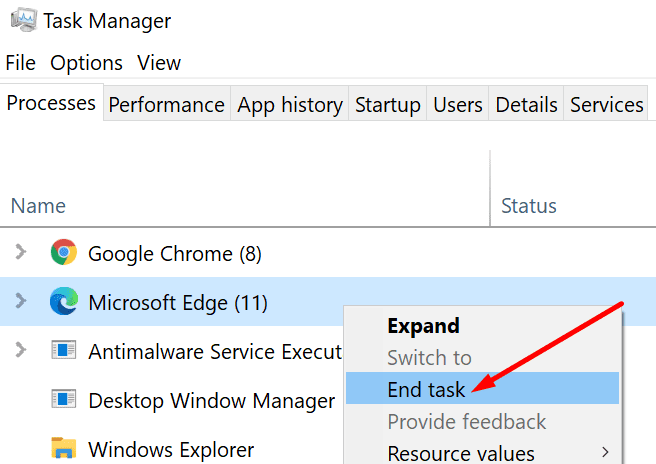
Also, if this issue occurred shortly after you installed a new program on your machine, disable that program. If it’s not an essential program, go ahead and uninstall it.
Tell CMD to Stay Open
There’s a specific command you can run to tell Command Prompt to stay open.
Press the Windows + R key to open a Run window. Then enter the cmd /k ipconfig /all command and hit Enter.
Create a CMD Shortcut
Some users were able to fix this issue by creating a dedicated CMD shortcut.
- Right-click on your desktop and select New → Shortcut.
- Then browse your computer and go to Command Prompt’s location. It should be under C:\windows\system32\cmd.

- Hit Next and type a name for the shortcut.
- Hit the Finish button to create the shortcut on your desktop.

Disable OfficeBackgroundTaskHandler
If the OfficeBackgroundTaskHandler task is available on your computer, turn it off. Check if the CMD issue is gone.
- Type ‘task scheduler‘ in the Windows Search bar.
- Double-click on the Task Scheduler.
- Then navigate to Microsoft → Office.
- Right-click on OfficeBackgroundTaskHandlerRegistration and disable the task.

Update Your Drivers
Open the Device Manager and check if there’s any yellow exclamation mark next to your drivers. Pay attention to the Network adapter drivers. Ensure they’re up-to-date.

If you still can’t use Command Prompt because the tool keeps disappearing, switch to PowerShell. You can use the framework to run any CMD commands.


It appears then extremely fast disappears. That only happened in the past week or so. It makes me suspicious I try not to think about it. At least I am not the only one. It happens when it is not in use for just a split second not using it as if something else used it as fast as possible not to be detected only as something no human could do. I try not to get paranoid. I have seen some strange things glitches or something