

Saving your passwords on your browser is not the safest thing to do. But, some may do it anyway since the passwords they save are for junk accounts or other accounts that aren’t considered important.
If you ever want to manage those saved passwords or want to make sure that you didn’t accidentally save any passwords for an important account, it’s a good idea to take a look from time to time.
How to View Saved Passwords in Google Chrome
To view any passwords you saved on Chrome, open the browser, and click on the dots at the top right. Once you’re in Settings click on the Passwords option that’s in the Autofill section.

Under the Saved Passwords section, you’ll see precisely that, all the saved passwords you have ever saved on the browser. As long as you’re there if you ever need to export your Chrome passwords, click on the dots to the top right of the Saved Passwords section.
If you only want to view the password click on the eye symbol, but if you want to copy or remove the passwords, click on the dots to the side of the password.

How to View Saved Passwords in Opera Browser
Opera also offers you to save your passwords to speed things up when accessing sites. To see what passwords you’ve saved over time open the browser and click on the red O at the top left of the browser.
Go to Setting and scroll all the way down to the Advanced option to access more options. Under the autofill section, click on the Passwords option.

Saved Opera passwords will also have the option to view them and to see details/remove. To access these last two options, just click on the dots to the right of the password. Opera also offers the option to export your passwords at the top right of the Passwords section.
How to View Saved Passwords in Microsoft Edge
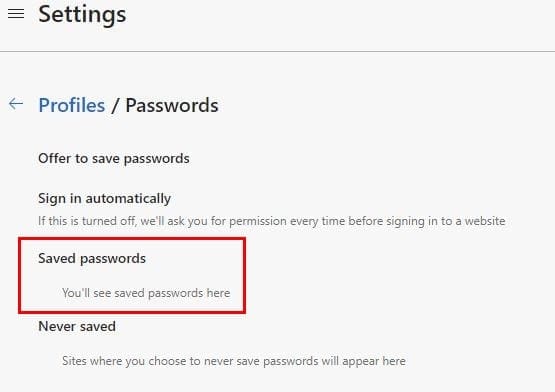
To view saved password sin Microsoft Edge open your browser and click on the dots at the top right to go to Settings. Click on the Passwords option and three small sections down, you’ll see the Saved Passwords option.
How to View Saved Passwords in Firefox
For Firefox users, to view your saved passwords, open the browser and click on the cogwheel at the top right. On the left side of the browser, click on the Privacy and Security option.

Scroll down to Logins and Passwords > click on Saved Logins to view any saved passwords. To view your passwords click on the eye symbol and you’ll also see the eliminate and edit options at the top as well.
Conclusion
Viewing any saved passwords on your favorite browser from time to time is a good habit. You never know, you might save login information for a site you would rather keep private. When you’re in a hurry you can easily click on the save button instead of the don’t save. How do you feel about saving login information on a browser?



i dont see advanced