Skip to content
LogoTechnipages
technipages logo
  • Topics
        • Android
        • Browsers
        • Gaming
        • Hardware
        • Internet
        • iPhone
        • Linux
        • macOS
        • Office
        • Reviews
        • Software
        • Windows
        • Definitions
  • Product Reviews
  • Downloads
  • About

Twitter: Save Animated GIF From Tweet

Mitch BartlettJune 4, 2020 Comments (1)

Twitter is full of great content and that includes GIFs. Sooner or later, you’re going to come across a GIF you just have to have.

Depending on what device you’re on is going to depend on the method you use to save a GIF from Twitter. The good news is that saving a GIF from Twitter doesn’t take long and is easy to do.

How to Save a GIF from Twitter – Desktop

Once you have the GIF you want to save ready go to Ezgif. You’ll see various options at the top but click on Video to GIF.

When the page loads, paste the GIF URL in the box made especially for that; where it says OR paste video URL.
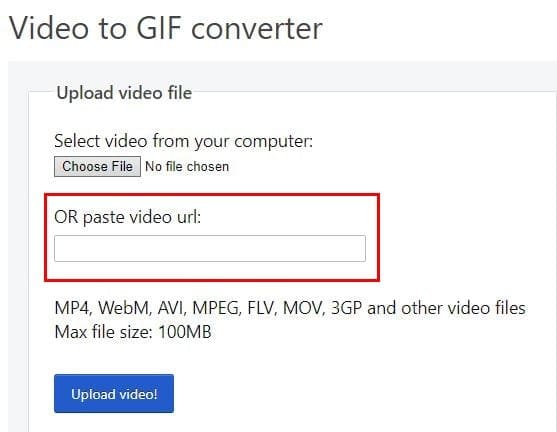
Click on the blue Upload video button and on the next page you should see your GIF uploaded. To continue, click on the Convert GIF to MP4, followed by the Convert to GIF button at the bottom.

Scroll down to Output MP4 video and right-click on your GIF and save the file.

How to Save a Twitter GIF on Android

The app you’re going to need to save Twitter GIF’s is called Tweet2GIF. Once you’ve installed the app, find the GIF that you want to download from Twitter.

Long-press on the GIF so it’s in Full-screen and tap on the share option. Tap on the Copy option that should at the top after tapping on the share option.

Once copied, open Tweet2GIF and paste it. Tap on the Download GIF button to save the GIF. If you tap on the play icon, the app will ask you which app you want to open it with. You’ll also see an option to share the GIF as well.

How to Save a GIF on iPadOS

To save GIFs on your iPad you’re going to need an app called GIFwrapped. Once you’ve installed the app copy the URL from the GIF you want to save.

You can do this by tapping on the icon below the GIF that looks like an outbox, with the arrow pointing up. Choose the option that says Share via, followed by the Copy link option.

You can also look for the GIF wrapped icon right above the option to copy the link as well. If you decide to paste the link manually in the app, you can paste the link by choosing the Use the Clipboard option. After that, you can save the GIF to your library.

Conclusion

Regardless of what platform you’re using, you’ll be able to save that favorite GIF of yours. Unfortunately, the apps can’t batch download, but you never know, maybe they’ll add that option in the near future.


Categories: Internet

Author Mitch Bartlett

My name is Mitch Bartlett. I've been working in technology for over 20 years in a wide range of tech jobs from Tech Support to Software Testing. I started this site as a technical guide for myself and it has grown into what I hope is a useful reference for all. Mitch's Favorite Gear ATX Graphics Card CanaKit Raspberry Pi 3

You Might Also Like

  • Avast VPN

    How to Cancel Avast VPN: What You Need to Know

    Mel HawthorneInternet
  • Starting a Google Meet Session From Gmail

    MonaInternet
  • How to Recover Facebook Account Without a Phone Number

    How to Recover Facebook Account Without a Phone Number

    Susan SheffieldInternet

Comments

  1. Junko Yancey says:
    April 22, 2018 at 5:10 am

    Dear Mitch Bartlett –
    Great !! Worked like a magic! Thank you so much for your kind “help” I was using Syncer but it does not work for all cases. Happy Sunday to you !! Thanks again.

Leave a Reply

Your email address will not be published. Required fields are marked *

This site uses Akismet to reduce spam. Learn how your comment data is processed.

300x600
Turning on Triple Touch Zoom on Android

Turning on Triple Touch Zoom on Android

How to Connect Outlook 2023 to Gmail

How to Connect Outlook 2023 to Gmail

Netflix: Change Password

Netflix: Change Password

Everything You Need to Know About WhatsApp Delete for Me

Step-by-Step Guide: How to Use WhatsApp on Your Computer

Android: Enable or Disable Background Data

Android: Enable or Disable Background Data

300x250
profile pic

The Experts Behind Technipages

My name is Mitch Bartlett. I've been working in technology for over 20 years in a wide range of tech jobs from Tech Support to Software Testing. I started this site as a technical guide for myself and it has grown into what I hope is a useful reference for all.

Learn More

300x250 2
technipages logo white
linkedin icon

Technipages is part of Guiding Tech Media, a leading digital media publisher focused on helping people figure out technology. Visit guidingtechmedia.com to learn more about our mission and team.

© 2026 Guiding Tech Media All Rights Reserved

  • About Us
  • Contact
  • Legal & Privacy

© 2026 Guiding Tech Media All Rights Reserved

Information from your device can be used to personalize your ad experience.
Do not sell my personal information.