If you’re wanting to grow your Twitch stream following, it’s important to be aware of what parts of your stream are successful. Working out what your viewers like lets you plan to continue to play to your successes. While you could base this information solely on viewer counts for each stream you run, and what’s popular on other channels at the moment, there is a better way.
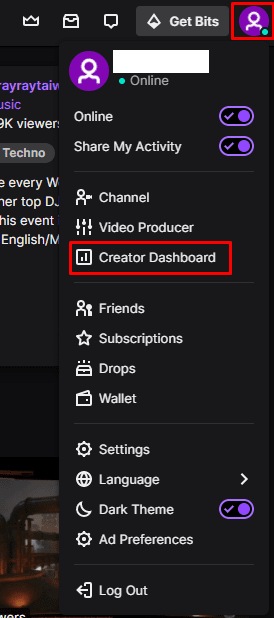
Twitch includes a full suite of channel analytics and allows you to view a broad set of viewership data. To access Twitch’s channel analytics, you need to go into the creator dashboard. To open the creator dashboard, click on your profile picture in the top-right corner, then click on “Creator Dashboard”.
Once in the creator dashboard, expand the “Insights” category in the left column, then click on “Channel Analytics”. The main entry at the top of the page is a graph allowing you to see a number of stats over the configured period. By default, the graph shows the last thirty days, but you can change the time period to cover multiple years by clicking on the date bar just above the graph.
You can also change which stat is shown on the graph by clicking on one of the other headings. You can even change the headings by clicking the dropdown arrow on the right of each heading.

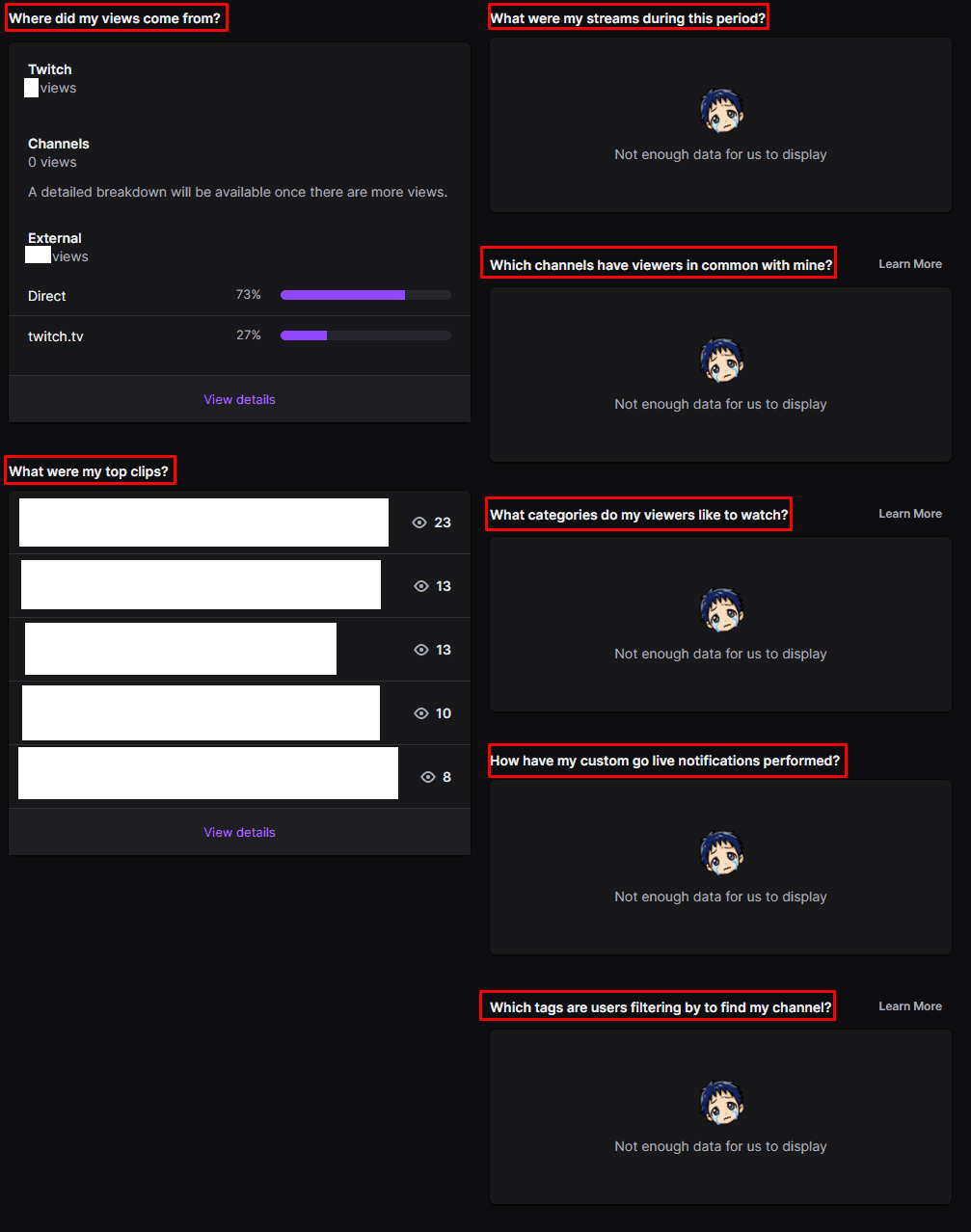
The “Where did my views come from” on the left allows you to see how your viewers came to find your stream. If you click on the “View details” link at the bottom of this box you can see a more detailed view which includes country and platform statistics too.
The “What were my top clips” section can be found on the bottom left and shows your most viewed clips over the configured time period, as well as who created them and how many views they have. On the right, you have a breakdown of what you streamed, in the “What were my streams during this period” box. “Which channels have viewers in common with mine” shows some channels that have had common viewers and orders them by the highest percentage in common. By looking at channels with common viewers you may gain some insights into how to improve your stream.
“What categories do my viewers like to watch” shows you a breakdown of what categories your viewers watch when not watching your stream. “How have my custom go live notifications performed” gives you insight into the performance of the notifications you send to your followers and subscribers when you start streaming. “Which tags are users filtering by to find my channel” shows you which tags users found your channel by.