Skip to content
LogoTechnipages
technipages logo
  • Topics
        • Android
        • Browsers
        • Gaming
        • Hardware
        • Internet
        • iPhone
        • Linux
        • macOS
        • Office
        • Reviews
        • Software
        • Windows
        • Definitions
  • Product Reviews
  • Downloads
  • About

Twitch.tv: How to Enable Disconnect Protection

Mel HawthorneDecember 23, 2020 Comments (0)

One of the things that can ruin a stream is getting disconnected. It’s already bad enough if you get disconnected from a multiplayer match, but if your internet drops out, your stream also ends. Having your stream just end like this can be jarring for viewers, as you’re just suddenly gone and generally can’t immediately explain the situation.

For those streamers that export their streams to YouTube for archival purposes or to share with viewers that can’t watch live, disconnects make the process a lot harder. When you reconnect and restart your stream, Twitch registers it as a second stream. This means you can’t just export your whole stream directly to YouTube as one video. You can either choose to export multiple videos or you can download them all, combine them manually, then upload them to YouTube, which takes extra time.

To help you out in this sort of scenario, Twitch offers a disconnect protection feature. Disconnect protection gives you a ninety-second grace period to attempt to resolve your internet issues and resume streaming. During those ninety seconds, your viewers will be shown a generic Twitch disconnection image. If you do manage to reconnect within the ninety-second timeframe your stream will continue, without a break, meaning you can still export a single video and it won’t have a ninety-second gap in it. Unfortunately, if you exceed the time limit your stream will end, and you’ll have to start the stream fully again when you’re back online.

To enable disconnect protection you need to go into the channel preferences in the creator dashboard. To open the dashboard, click on your profile picture in the top-right corner, then click on “Creator Dashboard”.
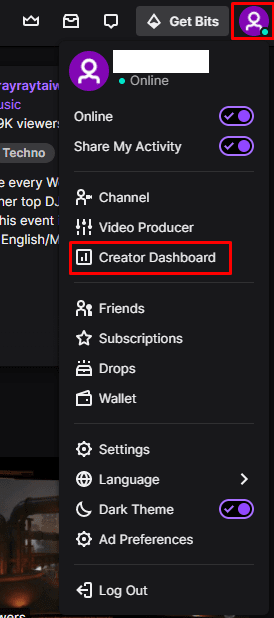
Click on your profile picture, then “Creator Dashboard”.

Once in the creator dashboard, expand the “Preferences” category in the left column, then click on “Channel”. In the channel preferences, click the “Disconnect Protection” slider, which can be found as the second option from the top, to the “On” position.
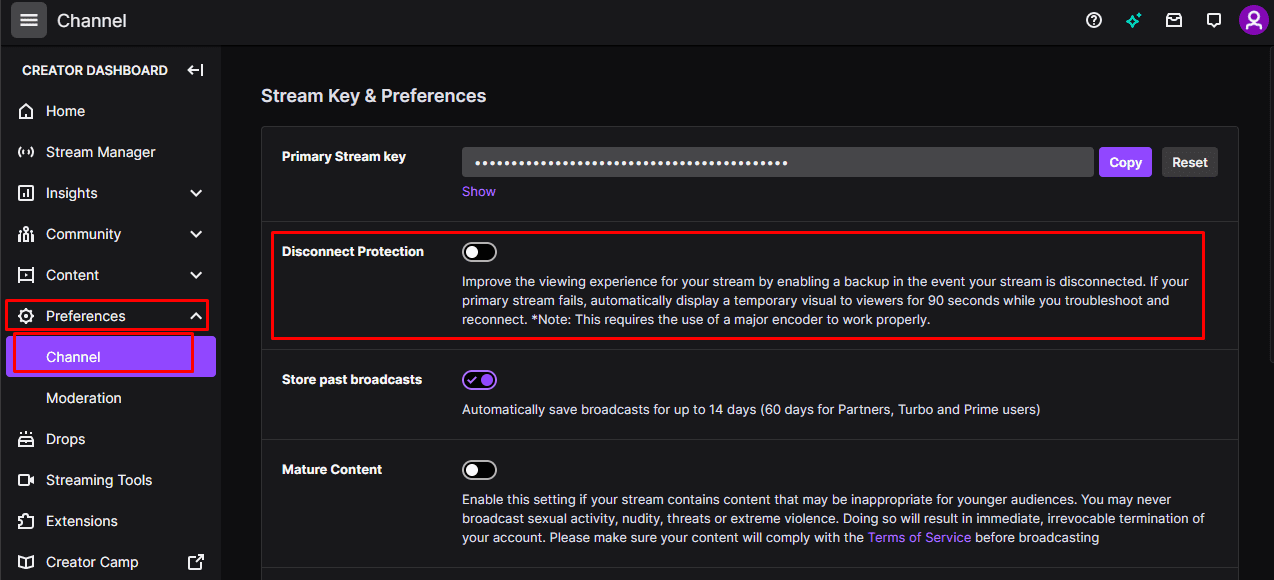
Enable the “Disconnect Protection” slider in the channel preferences in the creator dashboard.

Categories: Internet

Author Mel Hawthorne

You Might Also Like

  • Google Photos: How to Manage Comments

    Judy SanhzInternet
  • facebook-hide-event-responses

    How to Stay Safe When Using Facebook Marketplace

    Judy SanhzInternet
  • Slack: How To Change the Workspace Icon

    Mel HawthorneInternet
  • Dropbox: How To Transfer a Large File To Friends

    Mel HawthorneInternet

Leave a Reply

Your email address will not be published. Required fields are marked *

This site uses Akismet to reduce spam. Learn how your comment data is processed.

300x600
Turning on Triple Touch Zoom on Android

Turning on Triple Touch Zoom on Android

How to Connect Outlook 2023 to Gmail

How to Connect Outlook 2023 to Gmail

Netflix: Change Password

Netflix: Change Password

Everything You Need to Know About WhatsApp Delete for Me

Step-by-Step Guide: How to Use WhatsApp on Your Computer

Android: Enable or Disable Background Data

Android: Enable or Disable Background Data

300x250
profile pic

The Experts Behind Technipages

My name is Mitch Bartlett. I've been working in technology for over 20 years in a wide range of tech jobs from Tech Support to Software Testing. I started this site as a technical guide for myself and it has grown into what I hope is a useful reference for all.

Learn More

300x250 2
technipages logo white
linkedin icon

Technipages is part of Guiding Tech Media, a leading digital media publisher focused on helping people figure out technology. Visit guidingtechmedia.com to learn more about our mission and team.

© 2026 Guiding Tech Media All Rights Reserved

  • About Us
  • Contact
  • Legal & Privacy

© 2026 Guiding Tech Media All Rights Reserved

Information from your device can be used to personalize your ad experience.
Do not sell my personal information.