

Sublime Text is a very versatile text editor that you can use to edit code, add markups and highlight parts of your code, and much more.
But just as any other program out there, Sublime Text may sometimes become unresponsive. No matter what you do, nothing happens and the program does not take your commands or freezes completely.
When disaster strikes and you can no longer edit your code, this troubleshooting guide will come to your rescue.
How to Fix Sublime Text Not Responding
1. Remove your plugins
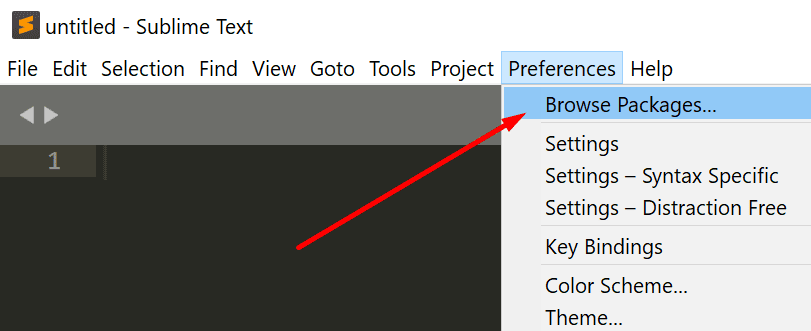
If Sublime Text is not responding, try removing your plugins. There could be a dodgy plugin installed that’s messing up the program. After you do that, test if this method solved the problem.
Steps to remove your Sublime Text plugins:
- Go to Preferences and select Browser Packages

- Open your User folder and locate the plugin you want to remove

- Select the plugin and simply delete it.

2. Revert Sublime Text to a freshly installed state
You can bring Sublime Text to a freshly installed state by deleting your data folder.
To do this, close Sublime Text, and move the data folder to a different location (say, your desktop). Then launch Sublime Text again to create a fresh data folder.
Depending on your operating system, the data folder can be located under the following paths:
- Windows: %APPDATA%\Sublime Text 3
- OS X: ~/Library/Application Support/Sublime Text 3
- Linux: ~/.config/sublime-text-3
If you’re on Mac, keep in mind that the ~/Library folder is hidden by default. To open the folder, click Go ▶ Go to Folder in Finder, and type ~/Library.
If you’re on Windows 10, the Sublime text cache files are stored under %LOCALAPPDATA%\Sublime Text 3.
It is worth mentioning that reverting Sublime Text to a freshly installed state does not delete your plugins.
3. Whitelist Sublime Text
If your antivirus or firewall is blocking the Sublime Text executable file or certain processes, this may explain why the program is not responding.
You need to add an exception for Sublime Text in your antivirus and firewall settings.
Steps to whitelist Sublime Text:
- Open the Windows Defender Security Center
- Click Firewall and Network Protection
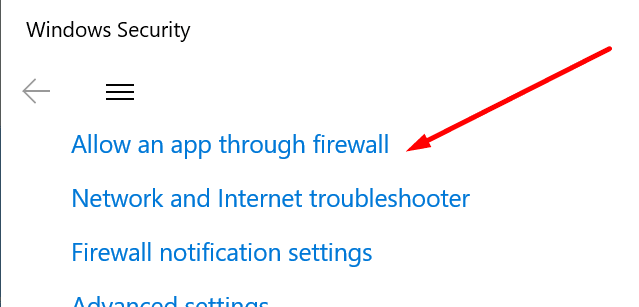
- Go to Allow an app through firewall

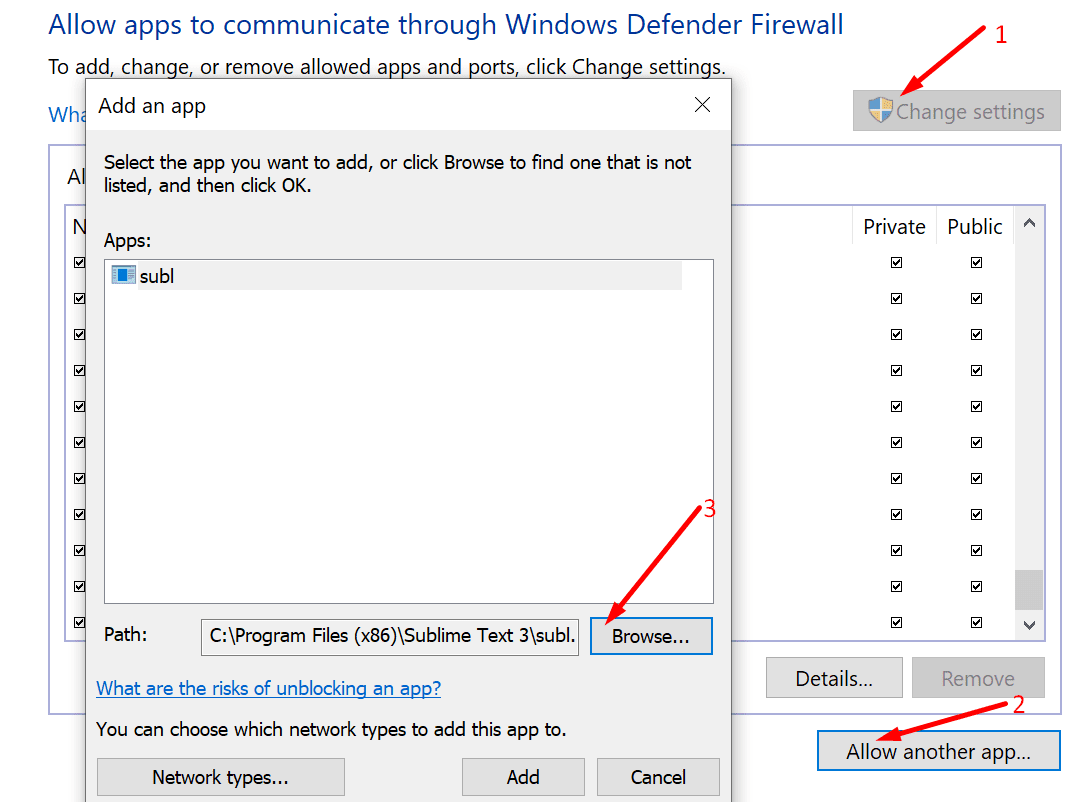
- Hit the Change Settings button
- If Sublime Text is not visible on the list, click on Allow another app
- Hit the Browse button to add the correct path to Sublime Text’s installation folder

- Save the changes.
If you’re using a different firewall, go to the official support page of your firewall for step-by-step instructions.
4. Reinstall Sublime Text
Another potential solution is to simply uninstall Sublime Text, restart your computer and then reinstall the program.
With this occasion, you’re also going to install the latest Sublime Text version if you’re running an outdated version.
How to reinstall Sublime Text:
- Go to Control Panel → select Uninstall a program

- Select Sublime Text and then click on Uninstall

- Delete your Sublime Text cache from AppData/Local/SublimeText
- Restart your computer
- Install a fresh copy of Sublime Text on your machine.


Conclusion
There are two main reasons why Sublime Text may become unresponsive: certain plugins are interfering with the program or the cache files are clogging up the program’s processes.
Removing your programs and reverting Sublime Text to freshly installed state should fix this problem for most users.


Sublime lets me type in the main screen and add plugins and whatever but it will not simply run the code no matter how complex or simple I make it. Here is what pops up when I click build on any code in any file:
[WinError 2] The system cannot find the file specified
[cmd: [‘py’, ‘-u’, ”]]
[dir: C:\Program Files\Sublime Text]
[path: C:\Program Files\Common Files\Oracle\Java\javapath;C:\Program Files (x86)\Common Files\Oracle\Java\javapath;C:\WINDOWS\system32;C:\WINDOWS;C:\WINDOWS\System32\Wbem;C:\WINDOWS\System32\WindowsPowerShell\v1.0\;C:\WINDOWS\System32\OpenSSH\;C:\Program Files\Microsoft SQL Server\120\Tools\Binn\;C:\Program Files\Common Files\Autodesk Shared\;C:\Users\loren\AppData\Local\Microsoft\WindowsApps;]
[Finished]
I don’t know what any of it means or how to fix it at all. I’ve always heard good things about Sublime, but so far it’s just been some paper weight on my ssd.