Skip to content
LogoTechnipages
technipages logo
  • Topics
        • Android
        • Browsers
        • Gaming
        • Hardware
        • Internet
        • iPhone
        • Linux
        • macOS
        • Office
        • Reviews
        • Software
        • Windows
        • Definitions
  • Product Reviews
  • Downloads
  • About

Troubleshooting iTunes Error 9039

Madalina DinitaDecember 10, 2020 Comments (0)
itunes error 9039

Getting error code 9039 on iTunes? Irrespective of the action that triggered this error, you can use the solutions below to fix it.

Error 9030 usually pops up when you’re trying to login to iTunes on your Mac or Windows computer. It can also occur when you’re trying to sync your Apple Music library or add new tracks to it.

How to Fix Error 9039 on iTunes

Sign Out of iTunes

You can fix this error much quicker and easier than you initially thought it was possible.

All you need to do is sign out of iTunes, and restart your computer. Then, sign back in and launch iTunes.

sign in itunes

The problem should clear up. But if it persists, check for updates and get the latest iTunes version.

Reset the Cache

By resetting the cache, you’ll clear any temporary files that may prevent iTunes from working properly.

  1. Click on the Edit menu and select Preferences.
  2. Then click on the Advanced button.
  3. Select Reset iTunes Store cache. Hit OK.
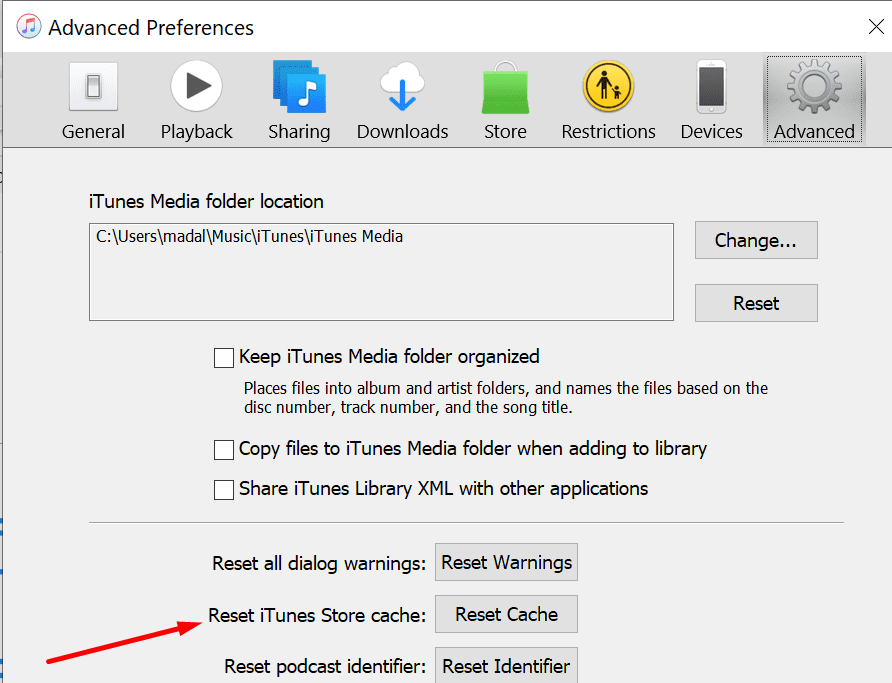
reset itunes store cache

Delete Some Songs

If you have thousands of music files stored on your iTunes account, consider deleting some. Remove the songs you no longer like or you haven’t played in ages. Use this method especially if error 9039 occurs when you’re trying to add music to the Apple Music library.

You can store up to 100,000 songs in your library. We doubt that you’re anywhere near that limit. So, most likely, this error is not triggered by you exceeding the song limit in the library. However, deleting some songs may help.

Repair Security Permissions for iTunes

If you’re not using the correct security permission settings, you may get various iTunes errors.

Ensure your user profile has full read and write permissions on iTunes.

  1. Launch Finder, locate the iTunes folder, and select Get Info. You can also go directly to ~Music/Music.
  2. Click the lock.
  3. Check if your account has Read & Write access. Edit the settings if necessary.itunes permissions
  4. Save the changes.

Authorize Your Computer

Some users managed to fix this error by authorizing their computers.

Navigate to Account → Authorizations→  Authorize this computer.
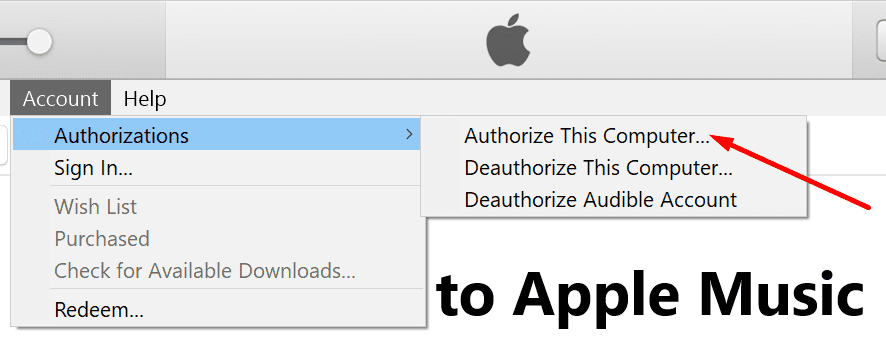
itunes authorize computer

Let us know if you managed to get rid of error 9039 with the help of this guide.

Categories: macOS

Author Madalina Dinita

You Might Also Like

  • Magnifying Glass

    What is File Extension XPS and How to Open It

    Kat ArmstrongmacOS
  • Using Emojis in Mac Folder Names

    MonamacOS
  • Apple Numbers Tutorial How to Use Numbers as a Beginner (Photo Courtesy Apple)

    Apple Numbers Tutorial: How to Use Numbers as a Beginner

    Martin ClarkiPad

Leave a Reply

Your email address will not be published. Required fields are marked *

This site uses Akismet to reduce spam. Learn how your comment data is processed.

300x600
Turning on Triple Touch Zoom on Android

Turning on Triple Touch Zoom on Android

How to Connect Outlook 2023 to Gmail

How to Connect Outlook 2023 to Gmail

Netflix: Change Password

Netflix: Change Password

Everything You Need to Know About WhatsApp Delete for Me

Step-by-Step Guide: How to Use WhatsApp on Your Computer

Android: Enable or Disable Background Data

Android: Enable or Disable Background Data

300x250
profile pic

The Experts Behind Technipages

My name is Mitch Bartlett. I've been working in technology for over 20 years in a wide range of tech jobs from Tech Support to Software Testing. I started this site as a technical guide for myself and it has grown into what I hope is a useful reference for all.

Learn More

300x250 2
technipages logo white
linkedin icon

Technipages is part of Guiding Tech Media, a leading digital media publisher focused on helping people figure out technology. Visit guidingtechmedia.com to learn more about our mission and team.

© 2026 Guiding Tech Media All Rights Reserved

  • About Us
  • Contact
  • Legal & Privacy

© 2026 Guiding Tech Media All Rights Reserved

Information from your device can be used to personalize your ad experience.
Do not sell my personal information.