Skip to content
LogoTechnipages
technipages logo
  • Topics
        • Android
        • Browsers
        • Gaming
        • Hardware
        • Internet
        • iPhone
        • Linux
        • macOS
        • Office
        • Reviews
        • Software
        • Windows
        • Definitions
  • Product Reviews
  • Downloads
  • About

Trello: How to Link to Cards and Boards

Madalina DinitaNovember 10, 2020 Comments (0)
how to link to cards boards trello

In order to optimize your workflow and improve your productivity, Trello lets you link to cards, boards, comments, and other relevant elements.

Linking to public and private items

You can link to both private and public boards. If you’re linking to private boards, only the users who are already members of the respective boards can access the link.

If you’re linking to a public board, anyone who has the link can access that board.

In order to collaborate on linked cards, boards, and other items, users need to be active members of the respective boards.

Steps to Link to Boards and Cards

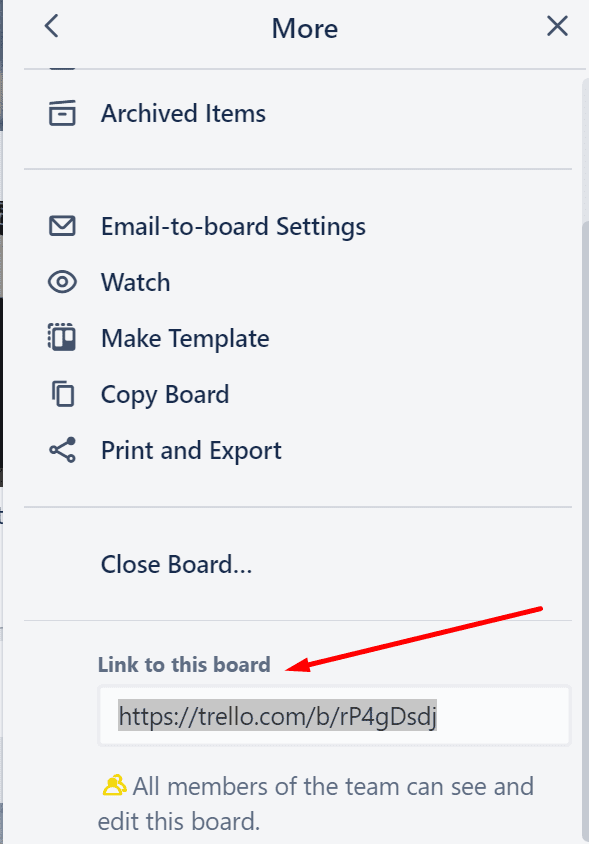
  1. Open your board’s menu, and click on More
  2. Locate the Link to this board optiontrello link to this board
  3. Copy the link to your board
  4. To get the link to your card, open that card
  5. Scroll down to Actions
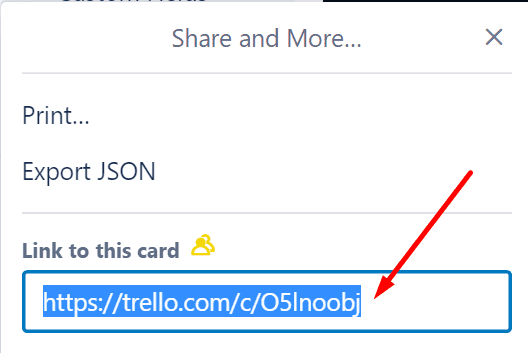
  6. Hit the Share button located in the right-hand cornergenerate card link trello
  7. Copy the link to your card.

trello link to this card

Speaking of cards, you can also link to card actions. To generate the link to the respective action, simply right-click the timestamp link you’ll find on the card back. Click on the Copy Link option.

The majority of Trello users utilize multiple boards and cards on a daily basis. Linking to relevant cards and boards helps you to improve your team’s productivity and gives them useful background information on the tasks at hand.
Categories: Software

Author Madalina Dinita

You Might Also Like

  • Windows 10: How to Mirror/Sync Folders Automatically

    Mel HawthorneSoftware
  • What is Mouse Acceleration?

    Mel HawthorneSoftware
  • fix zoom error 1132

    How to Fix Zoom Error 1132 And Join Your Meeting

    Madalina DinitaSoftware
  • guide best zoom settings

    Best Zoom Settings for Teachers, Musicians and Video Recording

    Madalina DinitaSoftware

Leave a Reply

Your email address will not be published. Required fields are marked *

This site uses Akismet to reduce spam. Learn how your comment data is processed.

300x600
Turning on Triple Touch Zoom on Android

Turning on Triple Touch Zoom on Android

How to Connect Outlook 2023 to Gmail

How to Connect Outlook 2023 to Gmail

Netflix: Change Password

Netflix: Change Password

Everything You Need to Know About WhatsApp Delete for Me

Step-by-Step Guide: How to Use WhatsApp on Your Computer

Android: Enable or Disable Background Data

Android: Enable or Disable Background Data

300x250
profile pic

The Experts Behind Technipages

My name is Mitch Bartlett. I've been working in technology for over 20 years in a wide range of tech jobs from Tech Support to Software Testing. I started this site as a technical guide for myself and it has grown into what I hope is a useful reference for all.

Learn More

300x250 2
technipages logo white
linkedin icon

Technipages is part of Guiding Tech Media, a leading digital media publisher focused on helping people figure out technology. Visit guidingtechmedia.com to learn more about our mission and team.

© 2026 Guiding Tech Media All Rights Reserved

  • About Us
  • Contact
  • Legal & Privacy

© 2026 Guiding Tech Media All Rights Reserved

Information from your device can be used to personalize your ad experience.
Do not sell my personal information.