Skip to content
LogoTechnipages
technipages logo
  • Topics
        • Android
        • Browsers
        • Gaming
        • Hardware
        • Internet
        • iPhone
        • Linux
        • macOS
        • Office
        • Reviews
        • Software
        • Windows
        • Definitions
  • Product Reviews
  • Downloads
  • About

Stop Chrome from Asking to save a Password

Judy SanhzDecember 26, 2022 Comments (0)
fix dashlane not working in chrome

The asking to save password message is meant to be helpful. You might not have a password manager, and Google just wants to make sure that you don’t forget your password. But, if you’re already using your favorite password manager, always having to see that message can get a little annoying. The good news is that there’s a way to make it go away.

Having a password manager such as LastPass or Bitwarden is much better than saving your passwords on your browser. For starters, having a designated password manager is much safer than saving it on any browser. Or, maybe you have your own password system and just want Google to stop asking you to save your login information.

How to Prevent Pop-up Chrome Message to save Login Information

Good thing that Google makes making this message go away easy. All you have to do is go to:

  • Click on the dots at the top right
  • Go to Settings
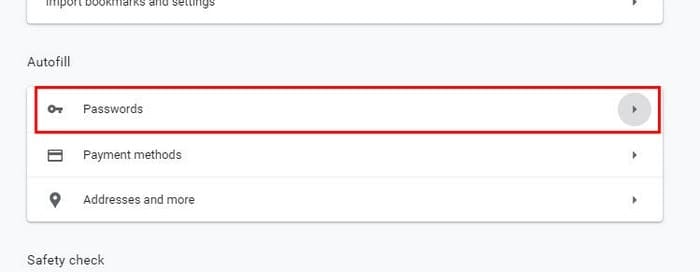
  • Scroll down to Password
  • Click on the drop-down menu

The option to have Chrome stop saving passwords is going to be at the top. All you have to do is toggle it off, and you’re good to go. As long as you’re there if you want Chrome to stop signing you in automatically, the option is right below the password one.

How to Stop Chrome from Asking to save Password on Android

For those times when you’re not on your computer, here’s how you can make that message go away on your Android device.

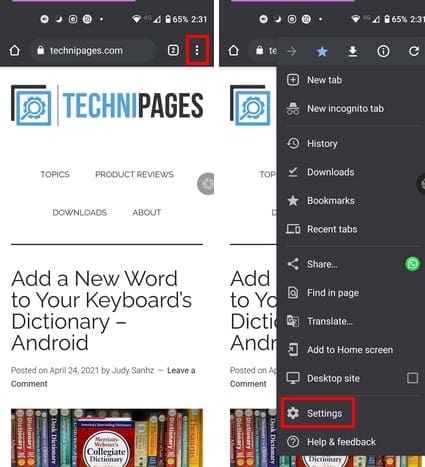
  • Open Chrome
  • Tap on the dots at the top right
  • Go to Settings

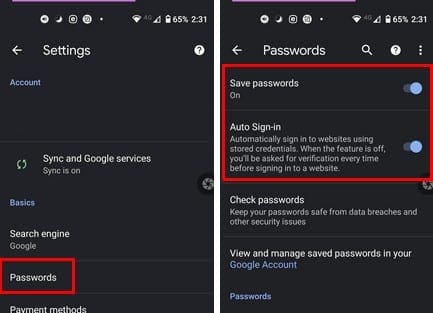
  • Tap on the Passwords option
  • Toggle off Save passwords, and if you prefer, you can also disable the auto sign-in option.
How to Stop Chrome from Saving Passwords on iPad

Here are the steps to follow for iPad users.

  • Open Chrome
  • Tap on the dots at the top right
  • Go to Settings

  • Passwords
  • Toggle off Save passwords

Conclusion

I think it’s happened to all of us that you have to change your password because you forgot the current one. The best thing to do is find a good password manager and store your passwords there instead of on Chrome. Now that you know how to stop that message from appearing, you won’t have to deal with it ever again. Or at least until you change your mind and enable it again. Do you think you’ll ever turn it on again? Let me know in the comments below.

Categories: Internet

Author Judy Sanhz

You Might Also Like

  • Facebook Header

    How to Delete Facebook Status

    Mitch BartlettInternet
  • error-occurred-while-playing-video-plex

    Plex: An Error Occurred While Attempting to Play Video

    Madalina DinitaInternet
  • chrome-opening-multiple-tabs-task-manager

    Google Chrome: What Does Privacy Sandbox Do?

    Judy SanhzInternet
  • fix-youtube-login-issues

    Can’t Log in to YouTube? Use These Tips to Fix the Issue

    Madalina DinitaInternet

Leave a Reply

Your email address will not be published. Required fields are marked *

This site uses Akismet to reduce spam. Learn how your comment data is processed.

300x600
Turning on Triple Touch Zoom on Android

Turning on Triple Touch Zoom on Android

How to Connect Outlook 2023 to Gmail

How to Connect Outlook 2023 to Gmail

Netflix: Change Password

Netflix: Change Password

Everything You Need to Know About WhatsApp Delete for Me

Step-by-Step Guide: How to Use WhatsApp on Your Computer

Android: Enable or Disable Background Data

Android: Enable or Disable Background Data

300x250
profile pic

The Experts Behind Technipages

My name is Mitch Bartlett. I've been working in technology for over 20 years in a wide range of tech jobs from Tech Support to Software Testing. I started this site as a technical guide for myself and it has grown into what I hope is a useful reference for all.

Learn More

300x250 2
technipages logo white
linkedin icon

Technipages is part of Guiding Tech Media, a leading digital media publisher focused on helping people figure out technology. Visit guidingtechmedia.com to learn more about our mission and team.

© 2026 Guiding Tech Media All Rights Reserved

  • About Us
  • Contact
  • Legal & Privacy

© 2026 Guiding Tech Media All Rights Reserved

Information from your device can be used to personalize your ad experience.
Do not sell my personal information.