

Sharing is caring, but when it comes to your WiFi, you want to be in control of who you share it with. If you share your password with too many friends, you will notice how slow your Internet speed will get, and that’s if you count the people you allow to connect.
If someone manages to hack your WiFi signal and connect to your network, your Internet speed will suffer even more. The following tips will help you to know who has access to your WiFi network and how to kick them out if needed.
How to Tell If Your WiFi Network Has Been Hacked

Your Internet connection usually works at its best and is rarely slow, but it just hasn’t been the same the past couple of days. It’s slower than usual, but you haven’t added any other devices to justify the slowness. A slow Internet connection is usually the first sign that someone is stealing your WiFi, but is that what has happened in this case?
It’s not unusual for you to lose your WiFi signal, but this isn’t something that should happen regularly. If it’s happening frequently, someone is definitely using your WiFi without your permission. Another sign that someone is stealing your WiFi would be flashing lights on your router when you are not using any of your devices.
But, if you want to make sure if this is the case, the best thing you can do is install an Android app called Fing. The app is easy to use, and it will give you a list of all the devices that are connected to your WiFi network. You will also see which devices are currently online.

Select the arrow to the right of the suspicious device, and you can add information such as a name, additional notes, or where this device is located (if you have that kind of information).
How to Prevent Unauthorized WiFi Access to Your Network
It’s not uncommon for your guests to ask you for permission to access your WiFi network. Since you want to be a good host, you may give them your password, but in time, forget you ever gave it to them. It just takes them being within a certain distance from your WiFi signal to be able to connect.

Remember whatever illegal activity they may be doing will be traced back to you. By simply changing your password, you will prevent any unauthorized devices from connecting to your network.
Another way you can block someone from access your network would be to prevent them by using the devices MAC address, the number that identifies the device. The device’s MAC address can be found in the Fing app you installed earlier. Select the device you want to block and swipe down to locate the MAC address.

You can do this by using the computer that is connected to your router and type the router’s IP address to your browser’s address bar. There are router’s that use the default IP addresses such as 192.168.1.100, 192.168.0.1, 192.168.2.1, or 192.168.1.1
If none of these default IP addresses worked, it only takes a few steps to find it in your computer’s settings. Go to your computer’s search bar and type Control Center. Click on Network and Internet, followed by Network and Sharing Center.
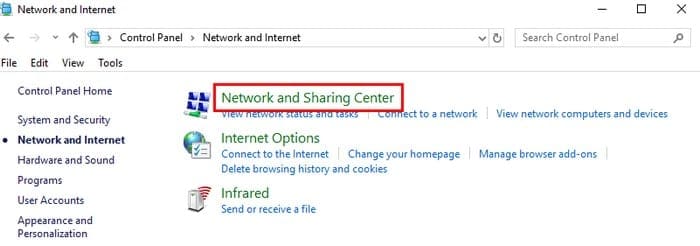
On the left side of the window, click on Change adapter settings and click on the WiFi network the intruder is using. When the WiFi Status box appears, click on the Details box.
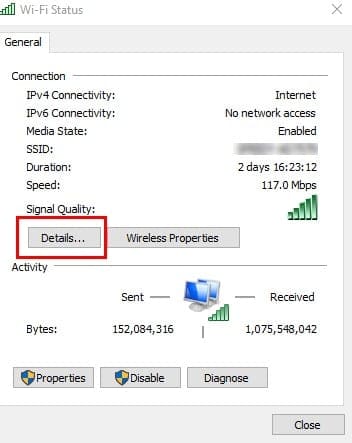
In the next window, your router’s IP address will be listed to the side of IPv4 Address. Type that IP in your browsers address bar to access your router’s settings. You will see an option such as Next that will require that you enter your router’s login data.
Once you’re in, locate the security options. If you can’t find it, try looking for it in Advanced Settings. The location of the setting will vary depending on the router you have.
Once you’ve found the Security setting, locate and click on MAC filtering, followed by Add Device. Add the MAC address of the unauthorized device. To save your changes, click Save or a similar option. You’ll finally get some good shut-eye tonight knowing that no unauthorized devices are connected to your WiFi network.
Conclusion
Always be careful who you allow accessing your WiFi network since you can’t always keep an eye on what they are doing. How many intruders did you find? Share your experience with me in the comments section.



Currently i think im being hacked and spyed on through my mobile network..possible some scamming and possible house wifi..how i wasnt aware of the danger out there I need help