Skip to content
LogoTechnipages
technipages logo
  • Topics
        • Android
        • Browsers
        • Gaming
        • Hardware
        • Internet
        • iPhone
        • Linux
        • macOS
        • Office
        • Reviews
        • Software
        • Windows
        • Definitions
  • Product Reviews
  • Downloads
  • About

Slack: Prevent Files Being Uploaded To a Conversation With People From Another Company

Mel HawthorneFebruary 12, 2021 Comments (0)

Within any company, there is information or data which is considered company proprietary or sensitive. This proprietary and sensitive data should never be shared outside of the company as it is a component of the success of the business or to a product of the business. Businesses often prefer communication platforms such as Slack, which have strong privacy protections in place to ensure that the messages, files, and data posted in their workspace remain private and can’t be accessed by anyone else.

Occasionally in corporate Slack workspaces, you may need to coordinate and communicate with people from other companies. To enable this communication, as part of “Slack Connect” people from other companies can be invited to your workspace, and channels can be shared with other workspaces. This link between companies, however, presents a risk that company proprietary data could be leaked to the employees of the other company, either deliberately or unintentionally.

To reduce the risk of this happening Slack offers a permission setting that you can toggle on or off that allows you to control if any files can be uploaded or shared in conversations with users from other companies present. By default, to ensure communication won’t be accidentally restricted, it is possible to share files in conversations with users from another company.

To disable this setting and ensure that files can’t be uploaded or shared with users from other companies via Slack, you need to go into the workspace permissions settings. To get there, you first need to click on the workspace name in the top-right corner. Next, in the dropdown menu, select “Settings & administration”, then “Workspace settings” to open the workspace settings in a new tab.
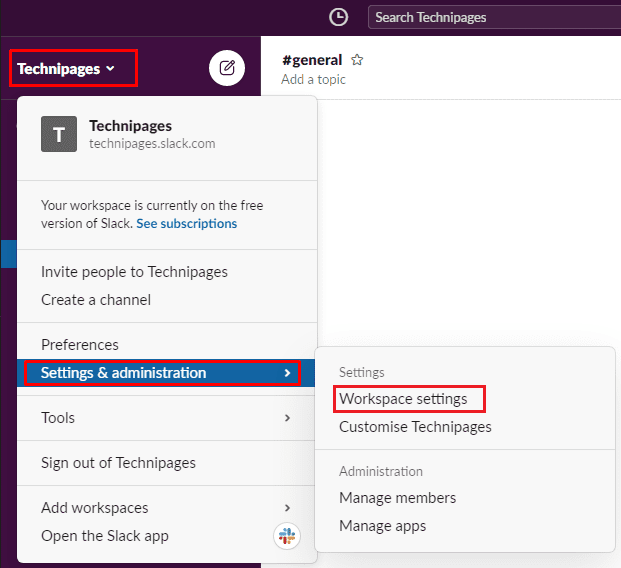
To get to the workspace settings, click on the workspace name in the sidebar, then select “Settings & administration” and “Workspace settings”.

Switch to the “Permissions” tab at the top of the page, then click on the “Expand” button for the “File uploads for Slack Connect” permissions.
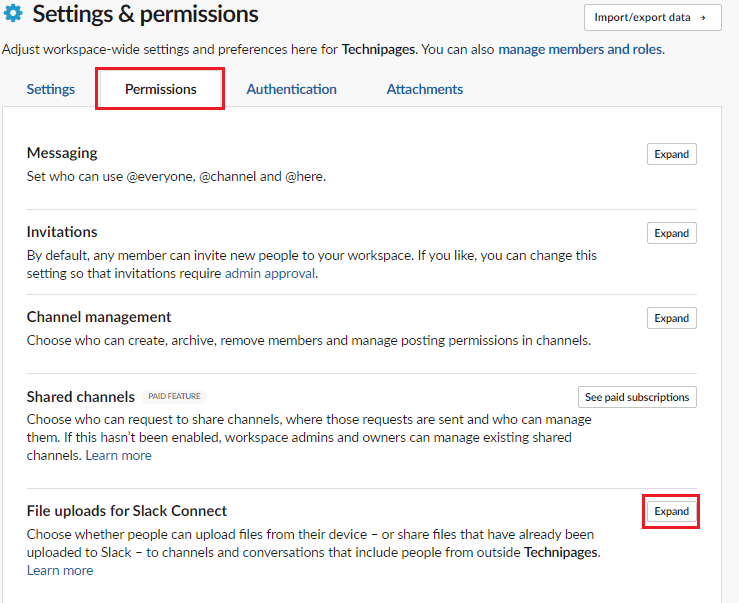
Click “Expand” next to “File uploads for Slack Connect” in the “Permissions” tab.

To disable filesharing in channels with members of other companies, untick the checkbox labelled “Enable uploading and sharing files in conversations with people from other companies”, then click “Save” to apply the change.

Untick the checkbox labelled “Enable uploading and sharing files in conversations with people from other companies”, then click “Save”.

Companies want to be sure that sensitive company data isn’t accidentally or deliberately, transferred outside of the company. By following the steps in this guide, you can disable the ability to upload or share previously uploaded documents in Slack conversations in which there are members of another company.


Categories: Internet | Software

Author Mel Hawthorne

You Might Also Like

  • 7 Chrome Extensions to Make Gmail More Productive

    Judy SanhzInternet
  • Zoom: How to Mirror Your Webcam

    Mel HawthorneInternet
  • Bitwarden: How to Manually Synchronize Your Vault

    Mel HawthorneInternet
  • Bitwarden: How to Unlock the Browser Extension with a PIN or Biometrics

    Mel HawthorneInternet

Leave a Reply

Your email address will not be published. Required fields are marked *

This site uses Akismet to reduce spam. Learn how your comment data is processed.

300x600
Turning on Triple Touch Zoom on Android

Turning on Triple Touch Zoom on Android

How to Connect Outlook 2023 to Gmail

How to Connect Outlook 2023 to Gmail

Netflix: Change Password

Netflix: Change Password

Everything You Need to Know About WhatsApp Delete for Me

Step-by-Step Guide: How to Use WhatsApp on Your Computer

Android: Enable or Disable Background Data

Android: Enable or Disable Background Data

300x250
profile pic

The Experts Behind Technipages

My name is Mitch Bartlett. I've been working in technology for over 20 years in a wide range of tech jobs from Tech Support to Software Testing. I started this site as a technical guide for myself and it has grown into what I hope is a useful reference for all.

Learn More

300x250 2
technipages logo white
linkedin icon

Technipages is part of Guiding Tech Media, a leading digital media publisher focused on helping people figure out technology. Visit guidingtechmedia.com to learn more about our mission and team.

© 2026 Guiding Tech Media All Rights Reserved

  • About Us
  • Contact
  • Legal & Privacy

© 2026 Guiding Tech Media All Rights Reserved

Information from your device can be used to personalize your ad experience.
Do not sell my personal information.