Skip to content
LogoTechnipages
technipages logo
  • Topics
        • Android
        • Browsers
        • Gaming
        • Hardware
        • Internet
        • iPhone
        • Linux
        • macOS
        • Office
        • Reviews
        • Software
        • Windows
        • Definitions
  • Product Reviews
  • Downloads
  • About

Slack: How To Hide Inline Media

Mel HawthorneJanuary 21, 2021 Comments (0)

In chat room type apps, such as Slack, the primary method of communication is text. This comes from the history of chat room apps being based on protocols like IRC. The modern internet though involves multimedia, as well as text, so modern communication apps, allow for content to be linked and embedded.

Slack allows you to upload images and files directly, link to them from other sites and when you link to other websites, attempts to import a text preview. By default, all of these features are enabled and visible to all users. If you want to, however, you can disable all forms of inline media. Disabling images and files can help to reduce the amount of data you use downloading the content and can reduce clutter in your Slack client.

If you want to change your inline media settings, you need to go into your preferences. To do so, click on your profile picture in the top-right corner, then click on “Preferences”.
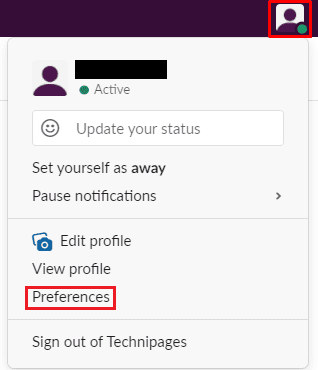
Click on your profile picture in the top-right corner, then click on “Preferences”.

Once in your preferences, switch to the “Messages & media” tab, then scroll down to the bottom of the page. In the “Inline media & links” section, the first option is “Show images and files uploaded to Slack”, unticking this checkbox will prevent any images or files, directly uploaded to the Slack workspace from being displayed in your Slack client. “Show images and files from linked websites” is used to control the importing of linked external files.

By default, external images and files that are linked do not display if the file is over 2MB in size. If you want to see external files and images larger than 2MB, tick the checkbox labelled “Even if they’re larger than 2MB”. “Show text previews of linked websites” controls if external webpages, such as news articles, display a short preview of the text.
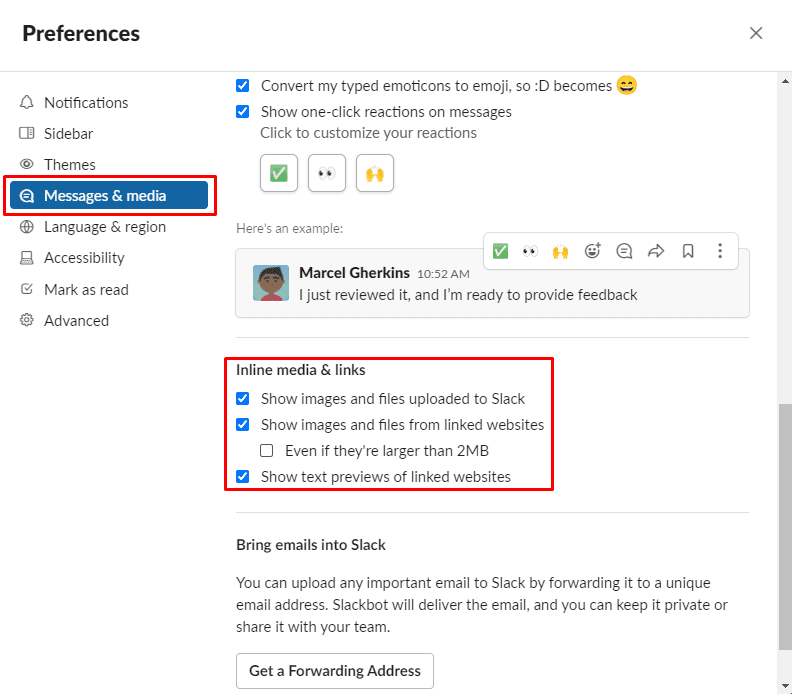
You can control if first- or third-party media display image and text previews in your Slack client.

If you’re on a particularly slow internet connection, disabling images may help to reduce your network load, it can also help to keep your channels less cluttered. By following this guide, you can configure your Slack client to display inline media the way you want.


Categories: Internet

Author Mel Hawthorne

You Might Also Like

  • Slack: How To Configure Who Can See the Email Addresses of Workspace Members

    Mel HawthorneInternet
  • How to Stop Getting Shopping Coupons in Microsoft Edge

    Judy SanhzAndroid
  • Fix-Microsoft-Edge-YouTube-Audio-Cuts-Out

    Fix: YouTube Audio Cuts Out on Microsoft Edge

    Madalina DinitaInternet
  • fix-microsoft-edge-not-opening-in-full-screen

    How to Turn off Microsoft Edge Math Solver

    Judy SanhzInternet

Leave a Reply

Your email address will not be published. Required fields are marked *

This site uses Akismet to reduce spam. Learn how your comment data is processed.

300x600
Turning on Triple Touch Zoom on Android

Turning on Triple Touch Zoom on Android

How to Connect Outlook 2023 to Gmail

How to Connect Outlook 2023 to Gmail

Netflix: Change Password

Netflix: Change Password

Everything You Need to Know About WhatsApp Delete for Me

Step-by-Step Guide: How to Use WhatsApp on Your Computer

Android: Enable or Disable Background Data

Android: Enable or Disable Background Data

300x250
profile pic

The Experts Behind Technipages

My name is Mitch Bartlett. I've been working in technology for over 20 years in a wide range of tech jobs from Tech Support to Software Testing. I started this site as a technical guide for myself and it has grown into what I hope is a useful reference for all.

Learn More

300x250 2
technipages logo white
linkedin icon

Technipages is part of Guiding Tech Media, a leading digital media publisher focused on helping people figure out technology. Visit guidingtechmedia.com to learn more about our mission and team.

© 2026 Guiding Tech Media All Rights Reserved

  • About Us
  • Contact
  • Legal & Privacy

© 2026 Guiding Tech Media All Rights Reserved

Information from your device can be used to personalize your ad experience.
Do not sell my personal information.