Skip to content
LogoTechnipages
technipages logo
  • Topics
        • Android
        • Browsers
        • Gaming
        • Hardware
        • Internet
        • iPhone
        • Linux
        • macOS
        • Office
        • Reviews
        • Software
        • Windows
        • Definitions
  • Product Reviews
  • Downloads
  • About

Slack: How To Configure Who Can Manage Slackbot Automatic Responses

Mel HawthorneFebruary 7, 2021 Comments (0)

Slack’s nifty little helper Slackbot can be adapted to fit your organisation in quite a lot of cool ways. One of them is the ability to configure exactly what it says in specific situations, such as if you tell it to flip a coin, you can tell it to always respond with “heads” thus cheekily, letting you win any coin toss you can trick your co-workers into; at least until they catch onto you.

Now, by default, any full member of the workspace can configure Slackbot’s automatic responses. This means that if you want the little coin trick to work, you’ll have to restrict the ability to edit the automatic responses to yourself and the other workspace admins. Here’s how to make sure that you can win every coin toss in your whole workspace.

Tip: For better odds of winning and to reduce the chance that people work out what you’re doing, try configuring a response for both heads and tails depending on how many spaces you put at the end of the coin toss message. Slackbot responses are character sensitive so if you’re clever, you can keep this charade up for quite a while.

To restrict the ability to see and edit the list of Slackbot responses, you need to go into the workspace permissions settings. To get there, you first need to click on the workspace name in the top-right corner. Next, in the dropdown menu, select “Settings & administration”, then “Workspace settings” to open the workspace settings in a new tab.

To get to the workspace settings, click on the workspace name in the sidebar, then select “Settings & administration” and “Workspace settings”.

Switch to the “Permissions” tab at the top of the page, then click on the “Expand” button for the “Slackbot responses” permissions.

Click “Expand” next to “Slackbot responses” in the “Permissions” tab.

To restrict the ability to view and edit Slackbot’s automatic responses, click on the dropdown box labelled “People who can manage Slackbot responses for your workspace”. You can also choose to disable automatic Slackbot responses entirely by unticking the checkbox labelled “Enable Slackbot responses”.
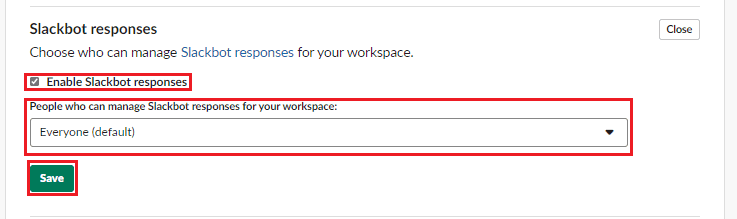
Click on the dropdown box labelled “People who can manage Slackbot responses for your workspace”.

Automatic Slackbot responses can be fun and/or useful, depending on how you choose to configure them. You may not want all users to be able to view and edit the list of automatic responses however. If you follow the steps in this guide, you can restrict the ability to see and edit the automatic Slackbot responses to admin users.
Categories: Internet

Author Mel Hawthorne

You Might Also Like

  • What is a Loopback Address?

    Mel HawthorneInternet
  • How to Recover Facebook Account Without a Phone Number

    How to Recover Facebook Account Without a Phone Number

    Susan SheffieldInternet
  • What Is Fog Computing

    What Is Fog Computing?

    Martin ClarkInternet
  • How to Find Watched Videos on Facebook in 2023

    Susan SheffieldInternet

Leave a Reply

Your email address will not be published. Required fields are marked *

This site uses Akismet to reduce spam. Learn how your comment data is processed.

300x600
Turning on Triple Touch Zoom on Android

Turning on Triple Touch Zoom on Android

How to Connect Outlook 2023 to Gmail

How to Connect Outlook 2023 to Gmail

Netflix: Change Password

Netflix: Change Password

Everything You Need to Know About WhatsApp Delete for Me

Step-by-Step Guide: How to Use WhatsApp on Your Computer

Android: Enable or Disable Background Data

Android: Enable or Disable Background Data

300x250
profile pic

The Experts Behind Technipages

My name is Mitch Bartlett. I've been working in technology for over 20 years in a wide range of tech jobs from Tech Support to Software Testing. I started this site as a technical guide for myself and it has grown into what I hope is a useful reference for all.

Learn More

300x250 2
technipages logo white
linkedin icon

Technipages is part of Guiding Tech Media, a leading digital media publisher focused on helping people figure out technology. Visit guidingtechmedia.com to learn more about our mission and team.

© 2026 Guiding Tech Media All Rights Reserved

  • About Us
  • Contact
  • Legal & Privacy

© 2026 Guiding Tech Media All Rights Reserved

Information from your device can be used to personalize your ad experience.
Do not sell my personal information.