Did you know that, on average, adults have an attention span of 15 to 20 minutes? After 20 minutes, our memory’s efficiency drops, and it’s becoming more and more difficult to hold up new pieces of information. With that in mind, it’s not surprising we can’t remember all the details of our recent Skype chat conversations.
If you need to go back to your Skype for Business conversation to double-check some information, this guide will come in handy. We’ll tell you everything you need to know about your chat history.
Where Can I Find the Conversation History in Skype for Business?
The Outlook Conversation Folder
Your Skype for Business conversation history is stored in the Outlook Conversation folder. If you open that folder, you’ll find information such as the date and time the chat messages were sent, the names of the participants, as well as the conversation text itself.
The Conversations Tab
On Windows 10, you can also find the chat history in the Conversations tab of the Skype for Business client.
Click on the Conversations tabs, and you’ll see all your conversation history in chronological order, phone calls, and chat messages included. You can further filter the results by clicking on the two other tabs.
- Click on Missed to list your 100 most recent missed messages.
- Click on Calls to display the 100 most recent calls.
Find Previous Conversations
If you want to check the chat history with a specific user, go to your Contacts list and right-click on that person’s name. Then click on Find previous conversations.
If There’s No Chat History
If the chat history is not available under the Conversations tab or the Outlook Conversation folder, check your Skype for Business settings.
- Navigate to Settings → Tools → Options → Personal.
- Locate Save IM conversations in my email Conversation History folder.

- Tick the checkbox if it’s empty. If this option is not active, you won’t be able to save your Skype conversation history.
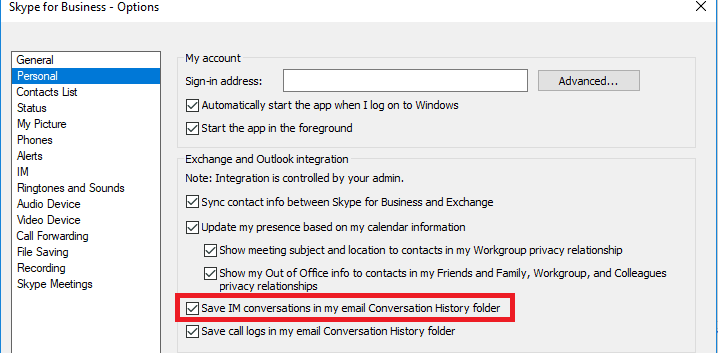
We recommend that you enable this option. In this manner, you can always go back to your Skype conversation history to double-check any information you’re unsure of.
Export Your Skype Chat History
If you want to export your chat history, sign in to your Skype account using this link: https://go.skype.com/export.
To download your messages, click on Conversations. Then hit the Submit request button.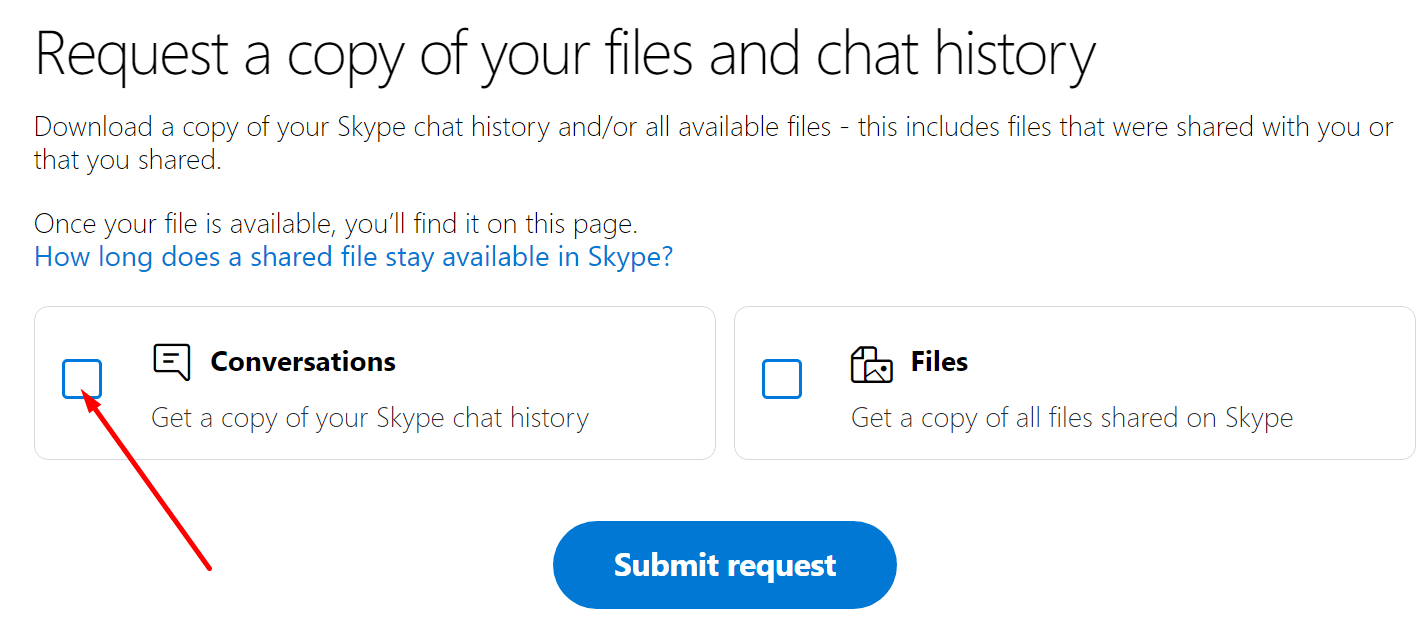
When the download file is ready, you’ll get a notification with the download link. Hit the Download button to download the chat history.
Conclusion
Storing your Skype for Business conversation history is always good practice. You never know when you need to double-check something. Keep in mind that Skype automatically removes old messages from your chat window after a certain period of time. But you can always use the chat history to view your old messages.
We hope you found this guide helpful. Feel free to drop a comment below and let us know what you think about these tips.