

It’s happened to all of us at some point in time. You have so much work to do that you have no choice but to stay up late to try to get as much done as possible. But, you can’t help but doze off after a while.
When this happens, you wake up a few hours later to see that your computer has been on all that time. By setting up a sleep timer on your Windows 10 computer to a time when you know, you should be in bed will help you keep your laptop healthy.
How to Make a Shutdown Timer – Windows 10
Setting up a sleep timer on your Windows 10 computer will require that you use the Command Prompt. If you want the computer to shut down in an hour, you’ll need to type the following command: shutdown -s -t 3600.
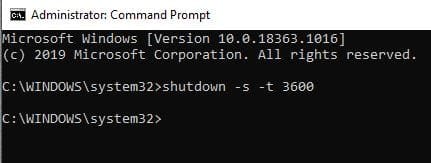
The S stands for shutdown and the T for time. You’ll need to use seconds when dealing with the sleep timer. 3600 means that the timer will shut down your computer in an hour. To add one more hour, add another 3600, so in total, it’ll be 7200. It’s your choice of how many hours you want to shut down your computer.
How to Set up a Shutdown Timer Shortcut
By setting up a sleep timer shortcut, you can have the countdown start without having to open the Command Prompt every time. To create this shortcut, right-click on any empty space on your home screen and choose the New option, followed by the Shortcut option.

Once you’ve given your shortcut a name, click on the Finish option. At this point, you’re done, but you can go one step further and give the shortcut your personal touch by changing the style of the icon. To do this, right-click on the shortcut and choose Properties, followed by Change Icon.

For those times when you start the timer but need to cancel it, it’s a good idea to have a cancellation option. Following the same steps you took to create it, right-click on your home screen and choose New >Shortcut. The command to enter is shutdown -a.
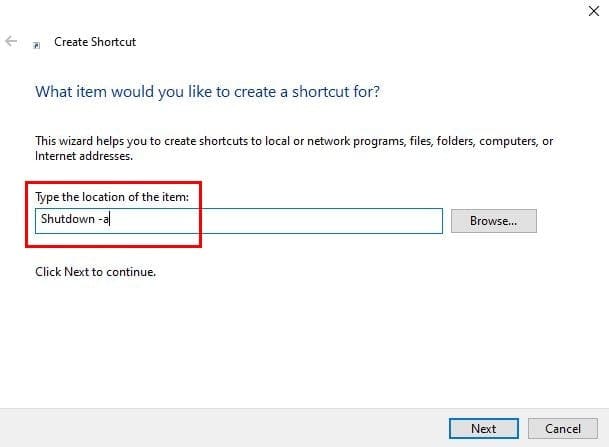
After naming your shortcut, select the Finish option. You can also change the icon for this shortcut, and keeping them close to each other will help you cancel faster and not waste time looking for it.
Conclusion
Your computer also needs to rest, and creating a sleep timer will help with the maintenance of it. The sleep timer option is also useful when you only want the kids to use the computer for a specific amount of time. Sure they can turn it back on, but they’ll lose anything they were doing for not stopping when you told them to.



From what I can find, the command to sleep is :
%windir%\System32\rundll32.exe powrprof.dll,SetSuspendState 0,1,0
If hibernation turned on then it will hibernate instead of sleep. To shut hibernation off:
Open elevated command prompt
powercfg -hibernate off
THIS IS SHUTDOWN TIMER NOT SLEEP!
hi,
this is Shutdown timer so how to set Sleep timer instead of Shutdown timer.
thanks.