Skip to content
LogoTechnipages
technipages logo
  • Topics
        • Android
        • Browsers
        • Gaming
        • Hardware
        • Internet
        • iPhone
        • Linux
        • macOS
        • Office
        • Reviews
        • Software
        • Windows
        • Definitions
  • Product Reviews
  • Downloads
  • About

How to Personalize Start Pages in Microsoft Edge

Judy SanhzJune 25, 2019 Comments (2)

Just like any browser, you-re also able to add your own personal touch to the Edge browser. There are various things you can do to personalize Edge. For example, you can choose between a light and dark theme, show favorites bar, and decide where you want to keep your downloaded files.

These are just a few of many other ways you can personalize Edge, but what about the start pages? It’s also possible to customize them too. You can finally see the information you’re interested in and not a start page you couldn’t care less about.

How to Customize the Start Pages in Edge Browser

To customize your Edge start page, launch the browser and click on the cog wheel. The cogwheel will be near the top right of your display. Under the information cards section, toggle on the type of news you would like to see.

You can choose from topics such as weather, sports, and money. If this section is greyed out, make sure that you don’t have the hide my news feed option checked.
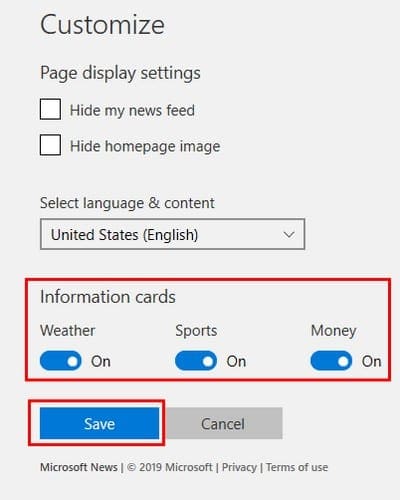
How to Personalize the Start Page

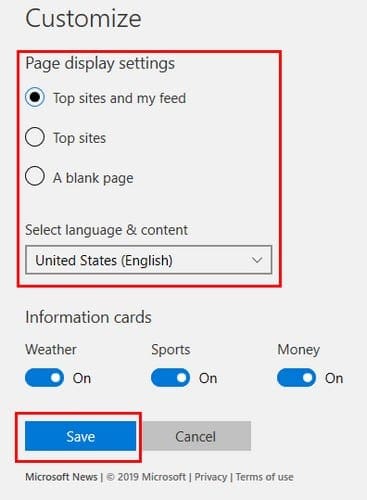
Adding your own personal touch to a start page is also an easy task. Click on the plus sign to the side of the tab and click on the cog wheel. There is not much to choose from, but at least you can change things up at least a little.

You can choose Top sites and my feed, Topsites, and A blank page. Right below this option is the drop-down, menu where you can even change the language. Once you’ve made the necessary changes click on the blue save button, Edge will refresh and show you the content you checked.
Hopefully, in the future, Microsoft will add more options when it comes to customizing the start and new tab page. Until now, some options are better than no choices.

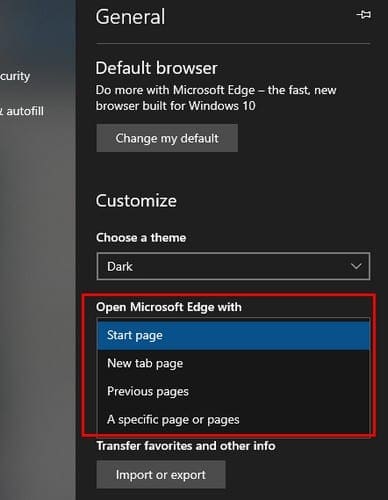
Also, if you click on the three dots at the top right and go to Settings, you can choose to open Edge with a start/new/previous page, or a specific page or pages.
Conclusion

Edge may not be the world’s number one browser, but it still has quite a few great features to offer. How are you going to personalize your Edge browser? Share your tips with me in the comments below.

Categories: Software

Author Judy Sanhz

You Might Also Like

  • How to Change Spotify Username

    Judy SanhzSoftware
  • zoom not eligible to sign up error

    Zoom Says “You are not eligible to sign up for Zoom at this time” – Fix

    Madalina DinitaSoftware
  • Google Docs Header

    How to Remove Comments in a Google Docs File

    Judy SanhzSoftware
  • 15 Best ChatGPT Alternatives for 2023 for Relevant Answers

    15 Best ChatGPT Alternatives for 2023 for Relevant Answers

    Martin ClarkSoftware

Comments

  1. John Clarkson Burt says:
    January 5, 2023 at 4:08 am

    Edge is so annoying, I am going to go back to firefox

  2. GREG. S. says:
    July 30, 2020 at 6:57 am

    I have been using my photos on the personalise option in Bing for years.
    Now it’s gone with Edge.
    Typical of the stick insect IQ of the morons in Microsoft: “If something works ; HEY let’s change/delete it!!!
    Aren’t we CLEVER!

Leave a Reply

Your email address will not be published. Required fields are marked *

This site uses Akismet to reduce spam. Learn how your comment data is processed.

300x600
Turning on Triple Touch Zoom on Android

Turning on Triple Touch Zoom on Android

How to Connect Outlook 2023 to Gmail

How to Connect Outlook 2023 to Gmail

Netflix: Change Password

Netflix: Change Password

Everything You Need to Know About WhatsApp Delete for Me

Step-by-Step Guide: How to Use WhatsApp on Your Computer

Android: Enable or Disable Background Data

Android: Enable or Disable Background Data

300x250
profile pic

The Experts Behind Technipages

My name is Mitch Bartlett. I've been working in technology for over 20 years in a wide range of tech jobs from Tech Support to Software Testing. I started this site as a technical guide for myself and it has grown into what I hope is a useful reference for all.

Learn More

300x250 2
technipages logo white
linkedin icon

Technipages is part of Guiding Tech Media, a leading digital media publisher focused on helping people figure out technology. Visit guidingtechmedia.com to learn more about our mission and team.

© 2026 Guiding Tech Media All Rights Reserved

  • About Us
  • Contact
  • Legal & Privacy

© 2026 Guiding Tech Media All Rights Reserved

Information from your device can be used to personalize your ad experience.
Do not sell my personal information.