Skip to content
LogoTechnipages
technipages logo
  • Topics
        • Android
        • Browsers
        • Gaming
        • Hardware
        • Internet
        • iPhone
        • Linux
        • macOS
        • Office
        • Reviews
        • Software
        • Windows
        • Definitions
  • Product Reviews
  • Downloads
  • About

Turn Macros On/Off in Outlook 2019/365

Mitch BartlettJanuary 6, 2019 Comments (5)
Outlook Logo Header

You may want to know how to enable macros in Microsoft Outlook 2019 or 365 so that you can automate tasks. Doing so may cause a security risk, so there may also be times when you want to disable macros. Here’s how to access the setting.

These steps are for the Windows version of Outlook 2016. You cannot enable or disable macros in the MacOS version.

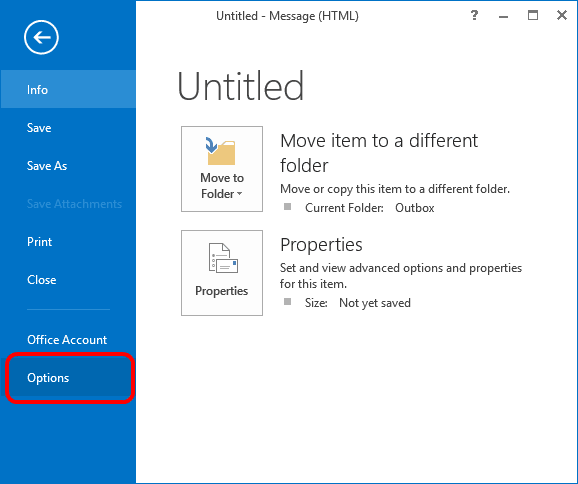
  1. Select “File” > “Options“.
  2. Select “Trust Center” on the left pane, then select the “Trust Center Settings…” button.
    Outlook 2010 Trust Center Settings button
  3. Select “Macro Settings” on the left pane, then the desired setting.
    • Disable all macros without notification.
    • Notifications for digitally signed macros, all other macros disabled.
    • Notifications for all macros.
    • Enable all macros

      You may have to check the “Apply macro security settings to installed add-ins” to allow macros to work with add-ins.
      Outlook 2010 Macro settings
  4. Click “OK“, then close and re-open Outlook for the setting to take effect.
FAQ

How do I actually use macro features with Outlook?

You can access options from the “Developer” tab. If you don’t have Developer tab in the outlook, enable it by going to “Customize Ribbon” option in left pane of Outlook options. From Popular commands to Main Tabs, check “Developer” tab and click “OK“. Once there, on the Developer tab, choose “Macros” and select the ones to delete. For more info on writing a macro, visit Microsoft’s page on the subject.

Categories: Office

Author Mitch Bartlett

My name is Mitch Bartlett. I've been working in technology for over 20 years in a wide range of tech jobs from Tech Support to Software Testing. I started this site as a technical guide for myself and it has grown into what I hope is a useful reference for all. Mitch's Favorite Gear ATX Graphics Card CanaKit Raspberry Pi 3

You Might Also Like

  • How to Change the Number of Recent Documents Shown in Word

    Mel HawthorneOffice
  • How to Add Holidays to Outlook Calendar on Windows and Web App

    How to Add Holidays to Outlook Calendar on Windows and Web App

    Susan SheffieldOffice
  • How to Print Labels From Excel Using MS Word Mail Merge

    How to Print Labels from Excel Using MS Word Mail Merge

    Susan SheffieldmacOS
  • Microsoft Apps on a Phone Screen

    How to Move a Word Document Into OneNote: 3 Options

    Danny MaiorcaOffice

Comments

  1. Alex says:
    December 14, 2020 at 7:35 am

    My macros would not work either after moving to Outlook 365, and it was not until I tried to run some of my subs from the VBA development window (Alt + F11) that I realized what the problem was – in my instance it turned out I had tried to use a constant inside another constant without defining it first (literally just had to change the sequence of the Const definitions). Worked like a charm after that – but trying to run from the development window is what helped me troubleshoot the problem (the debug functionality).

    I hope this approach helps you too!

  2. Herman Van Noten says:
    October 28, 2020 at 2:29 am

    Did not help.
    My simple problem is that I can’t get my code enabled in Outlook 365.. I’m familiar enough with the trustcenter procedure as I wrote hundreds of Excel-subs. But now , in Outlook 365 I tried every way, including restart but I keep getting the message Macros disabled.

    Besides of this macro problem I have a syncronizing one. My mails are IMAP and since more than 6 months i regularly get this error [800CCC0F-0-0-560]. My provider says it’s something to do with outlook or hardware.
    Thank you for helping me

  3. Juan Carlos says:
    September 15, 2020 at 6:33 pm

    Excellent code.

    The rules was not running automatically but with the macro everything was ok.

    Thanks a lot

  4. Volker says:
    June 10, 2019 at 11:11 pm

    When running the macro:

    =======================================
    Microsoft Visual Basic For Applications
    Compile Error:
    User-defined type not defined.
    =======================================

    Highlighted code:
    objWordApp As Word.Application

    How to fix this?

  5. Norbert says:
    March 25, 2019 at 7:37 am

    It is true in the installed version, but is not working in online edition.
    Or I am very poor user. :(

Leave a Reply

Your email address will not be published. Required fields are marked *

This site uses Akismet to reduce spam. Learn how your comment data is processed.

300x600
Turning on Triple Touch Zoom on Android

Turning on Triple Touch Zoom on Android

How to Connect Outlook 2023 to Gmail

How to Connect Outlook 2023 to Gmail

Netflix: Change Password

Netflix: Change Password

Everything You Need to Know About WhatsApp Delete for Me

Step-by-Step Guide: How to Use WhatsApp on Your Computer

Android: Enable or Disable Background Data

Android: Enable or Disable Background Data

300x250
profile pic

The Experts Behind Technipages

My name is Mitch Bartlett. I've been working in technology for over 20 years in a wide range of tech jobs from Tech Support to Software Testing. I started this site as a technical guide for myself and it has grown into what I hope is a useful reference for all.

Learn More

300x250 2
technipages logo white
linkedin icon

Technipages is part of Guiding Tech Media, a leading digital media publisher focused on helping people figure out technology. Visit guidingtechmedia.com to learn more about our mission and team.

© 2026 Guiding Tech Media All Rights Reserved

  • About Us
  • Contact
  • Legal & Privacy

© 2026 Guiding Tech Media All Rights Reserved

Information from your device can be used to personalize your ad experience.
Do not sell my personal information.