Skip to content
LogoTechnipages
technipages logo
  • Topics
        • Android
        • Browsers
        • Gaming
        • Hardware
        • Internet
        • iPhone
        • Linux
        • macOS
        • Office
        • Reviews
        • Software
        • Windows
        • Definitions
  • Product Reviews
  • Downloads
  • About

Outlook 2019/2016: Enable/Disable Autocorrect

Mitch BartlettJune 30, 2020 Comments (2)
Outlook Logo Header

Does the Autocorrect feature in Microsoft Outlook 2019 or 2016 bother you? Or maybe you need it because you are a bad speller. You can turn Autocorrect on or off using these steps.

  1. From Outlook, select “File” > “Options“.
    Outlook 2019 Options
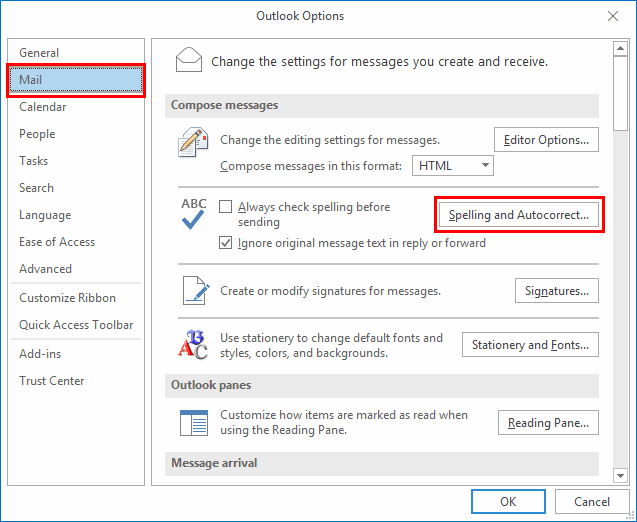
  2. Select “Mail” on the left pane, then choose “Spelling and Autocorrect…” button.
  3. Outlook breaks up the screen into different tabs and so many check-boxes. Select the one that corresponds to the Autocorrect or Autoformat setting you would like to change:
    • AutoFormat
      • Apply Built-in Heading styles, automatic bulleted lists, list styles, other paragraph styles.
      • Replace – Straight quotes with smart quotes, ordinals, fractions, hyphens, bold, italic, internet, and network paths.
    • AutoCorrect
      • Initial capitals.
      • Capitalize first letter of sentences.
      • Capitalize first letter of table cells.
      • Capitalize names of days.
      • Correct accidental usage of Caps Lock key.
    • AutoFormat As You Type
      • Replace as you type – Straight quotes, fractions, bold and italic, internet and network paths, ordinals, hyphens.
      • Apply as you type – Bulleted lists, border lines, heading styles, numbered lists, tables.
    • Automatically as you type
      • Format list item like one before, left and first indent.
Categories: Office

Author Mitch Bartlett

My name is Mitch Bartlett. I've been working in technology for over 20 years in a wide range of tech jobs from Tech Support to Software Testing. I started this site as a technical guide for myself and it has grown into what I hope is a useful reference for all. Mitch's Favorite Gear ATX Graphics Card CanaKit Raspberry Pi 3

You Might Also Like

  • Track Changes Mode in Word 2016 featured image

    How to Enable Track Changes Mode in Word: 4 Best Methods

    Mitch BartlettOffice
  • Outlook Logo Header

    Outlook: “Can’t Create File” Error When Opening Attachment

    Mitch BartlettOffice
  • Outlook Logo Header

    How to Remove McAfee Anti-Spam From Outlook

    Mitch BartlettOffice
  • How to Fix the Excel Status Bar Missing Issue 7 Best Methods

    How to Fix the Excel Status Bar Missing Issue: 7 Best Methods

    Susan SheffieldOffice

Comments

  1. Steve Mills says:
    October 8, 2020 at 11:33 am

    Hi Guys, thanks for trying but NO it didn’t fix my issue. Currently outlook will underline a misspelled word but doesn’t correct it. I want Outlook to just auto correct it.

    But thanks for trying.

  2. Richard Pugh says:
    September 17, 2020 at 1:45 pm

    i dont have these options on my outlook for mac

Leave a Reply

Your email address will not be published. Required fields are marked *

This site uses Akismet to reduce spam. Learn how your comment data is processed.

300x600
Turning on Triple Touch Zoom on Android

Turning on Triple Touch Zoom on Android

How to Connect Outlook 2023 to Gmail

How to Connect Outlook 2023 to Gmail

Netflix: Change Password

Netflix: Change Password

Everything You Need to Know About WhatsApp Delete for Me

Step-by-Step Guide: How to Use WhatsApp on Your Computer

Android: Enable or Disable Background Data

Android: Enable or Disable Background Data

300x250
profile pic

The Experts Behind Technipages

My name is Mitch Bartlett. I've been working in technology for over 20 years in a wide range of tech jobs from Tech Support to Software Testing. I started this site as a technical guide for myself and it has grown into what I hope is a useful reference for all.

Learn More

300x250 2
technipages logo white
linkedin icon

Technipages is part of Guiding Tech Media, a leading digital media publisher focused on helping people figure out technology. Visit guidingtechmedia.com to learn more about our mission and team.

© 2026 Guiding Tech Media All Rights Reserved

  • About Us
  • Contact
  • Legal & Privacy

© 2026 Guiding Tech Media All Rights Reserved

Information from your device can be used to personalize your ad experience.
Do not sell my personal information.