Skip to content
LogoTechnipages
technipages logo
  • Topics
        • Android
        • Browsers
        • Gaming
        • Hardware
        • Internet
        • iPhone
        • Linux
        • macOS
        • Office
        • Reviews
        • Software
        • Windows
        • Definitions
  • Product Reviews
  • Downloads
  • About

OneNote Can’t Sync Because the Server is Busy

Madalina DinitaJanuary 12, 2021 Comments (1)
onenote server is busy

Synching your OneNote notebooks may sometimes fail. One of the most common issues is when the server is busy. But OneNote may keep showing the ‘Server is busy‘ error even if the sync process was successful.

This is because this error usually pops up when notebooks are stored in SharePoint, SharePoint Online, or OneDrive for Business. So, the error may show up even if the sync was successfully completed. In this case, it actually indicates an authentication issue rather than a sync problem.

Fix OneNote Sync Failed Because the Server is Busy

Log Out and Log In Again

By simply logging out of your account, you refresh your computer’s connection to OneNote’s servers. Wait one or two minutes and then sign back in. Open your notebook and check if the server error is gone.

Use OneNote Web Version

Alternatively, check if the error persists on the web version of OneNote. If you manage to sync your notebook using the web version, the issue is half-way solved.

Open a New Notebook

Copy the content of the notebook that failed to sync and paste it into a new notebook. Check if you’re still getting the ‘Server is busy’ error. Hopefully, the sync process should be successful now.

Close Other Programs and Repair Office

If other programs and processes are running in the background, close them, and check if the problem persists. Some of your background programs might be interfering with OneNote.

Then repair the Office package to make sure your installation files are not corrupted. Launch the Control Panel, go to Programs and Features, select Office 365, and then hit the Change button. In the new window, check the Quick repair option. microsoft office repair tool

Restart your computer and check if the server is still busy.

Delete the Cache

Authentication issues masked as sync errors due to busy servers may also be triggered by your local OneNote cache.

  1. Back up your files and then clear the cache.
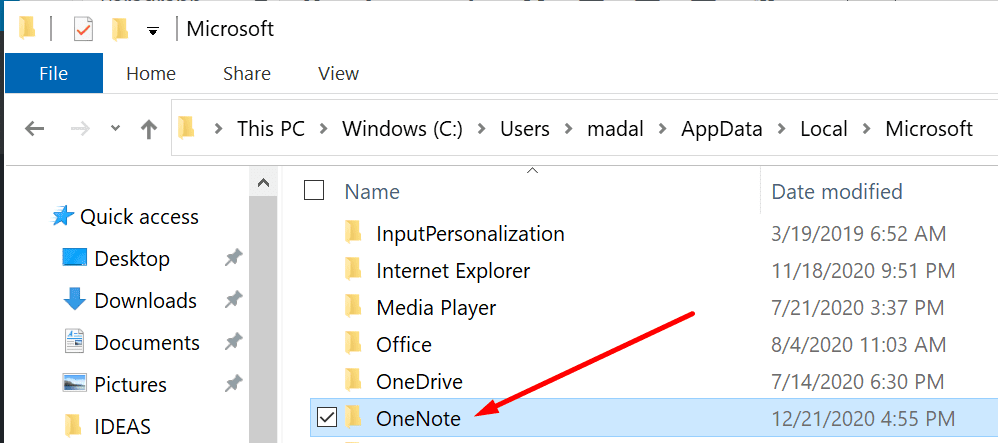
  2. Type %appdata% in the Windows search bar and hit Enter.
  3. Then go to C:\Users\UserName\AppData\Local\Microsoft\OneNote\16.0.app data local onenote
  4. Open the folder, and delete all the files from cache folder.
  5. Restart OneNote.

Reinstall OneNote

If there’s something wrong with the OneNote installation files, downloading a fresh copy should fix the problem.

  1. Go to Settings → Apps → Apps and Features.
  2. Scroll down to OneNote and hit the Uninstall button.uninstall onenote app windows 10
  3. Restart your computer and download the app from Microsoft Store.

Let us know which method helped you to fix the annoying ‘Server is busy’ OneNote error.

Categories: Windows

Author Madalina Dinita

You Might Also Like

  • How to Add Holidays to Outlook Calendar on Windows and Web App

    How to Add Holidays to Outlook Calendar on Windows and Web App

    Susan SheffieldOffice
  • How to Print Labels From Excel Using MS Word Mail Merge

    How to Print Labels from Excel Using MS Word Mail Merge

    Susan SheffieldmacOS
  • Win 11 Two Finger Scroll Header

    How to Fix Two-Finger Scroll Not Working Issue on Windows 11

    Susan SheffieldWindows
  • How to Keep Task Manager Always on Top on Windows 11

    Judy SanhzWindows

Comments

  1. Ogechi Akalazu says:
    April 7, 2021 at 1:25 pm

    Please my name is lynda
    I have a problem with opening my notes on my galaxy tab s6
    Please help me
    It keeps showing, we couldn’t open these notes .

Leave a Reply

Your email address will not be published. Required fields are marked *

This site uses Akismet to reduce spam. Learn how your comment data is processed.

300x600
Turning on Triple Touch Zoom on Android

Turning on Triple Touch Zoom on Android

How to Connect Outlook 2023 to Gmail

How to Connect Outlook 2023 to Gmail

Netflix: Change Password

Netflix: Change Password

Everything You Need to Know About WhatsApp Delete for Me

Step-by-Step Guide: How to Use WhatsApp on Your Computer

Android: Enable or Disable Background Data

Android: Enable or Disable Background Data

300x250
profile pic

The Experts Behind Technipages

My name is Mitch Bartlett. I've been working in technology for over 20 years in a wide range of tech jobs from Tech Support to Software Testing. I started this site as a technical guide for myself and it has grown into what I hope is a useful reference for all.

Learn More

300x250 2
technipages logo white
linkedin icon

Technipages is part of Guiding Tech Media, a leading digital media publisher focused on helping people figure out technology. Visit guidingtechmedia.com to learn more about our mission and team.

© 2026 Guiding Tech Media All Rights Reserved

  • About Us
  • Contact
  • Legal & Privacy

© 2026 Guiding Tech Media All Rights Reserved

Information from your device can be used to personalize your ad experience.
Do not sell my personal information.