
You see a beautiful flower in a picture you took of a friend and want to know what it’s called. You want to add it to your garden, but unless you know what it’s called, you’ll only see it in the picture. One option is to use Google Lens since it can give you more information on all sorts of things.
But, you’re tired of most of your apps being from Google. If you want to see what other apps have to offer, you’ve come to the right place. The following apps are free and can also give you more information on landmarks, flowers, and other things.
PictureThis – Identify Plants, Weed, and More
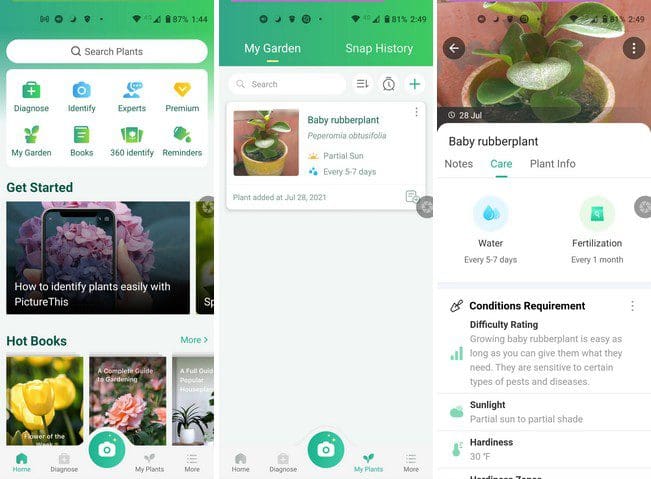
If you’re a plant lover and you regularly used Google Lend to identify plants, trees, etc., you’ll like PictureThis. The app is free with the option of enjoying the premium feature on the 7-free trial it offers. The app will remind you two days before you’ll be charged for premium just in case the app didn’t convince you.

It’ll instantly identify plants, flowers, trees, etc. When the plants are identified, you’ll get information on how to take care of the plants. The app offers useful features such as reminders, expert advice, books, and diagnosis. For example, if you see that your plant has a brown spot and you are not sure if it’s something to worry about or not, take a few pictures of y our plant. The app will tell what it is and if any action is needed.

There’s also a useful feature that’ll identify toxic plants for your pets, and there’s also a bird identification option. If the app were to fail to identify plants, you could use the 360 identify option, where you take pictures from a different angle for better identification. You learn a lot from this app since it offers all sorts of information on gardening.
Search by Image
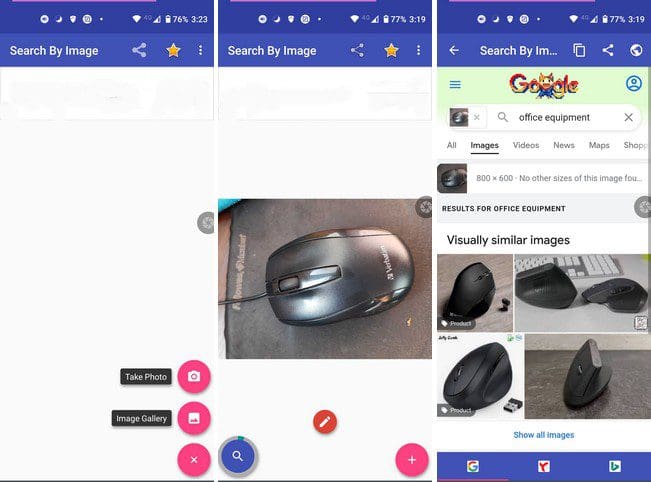
Search by image is straightforward to use. As soon as you launch the app, you’re welcomed with a guided tour of using the app. You can take a new picture or upload one from your device’s gallery. There’s also a built photo editor, where you can do things such as crop, flip the image.
When the item is identified, you’ll see results in three different search engines. You can easily switch between the three by tapping on the icon at the bottom of your display. It’s also possible to share an image you may have on Telegram, such as the app. You have access to options such as multi-search, preferred search engine, and safe search in settings.
Search by Image on the Web – Reverse Image Search

Search by Image is another app you can try to identify objects. You can choose to add an image from your device’s gallery, or you can take a new picture. Below those options, you’ll button to scan QR codes or scan documents, just like the previous app allows you to edit your image before the app searches to identify it.
Reverse Image Search and Finder Search by Image
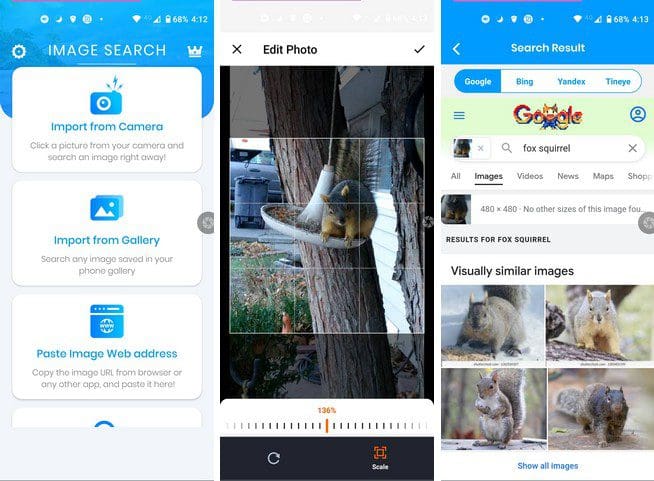
Reverse Image Search offers options the other apps don’t have. For example, you can paste the image web address or search the image by keyword. The app will suggest you upgrade to premium for more features. The app shows you can see what the premium version of the app has to offer.
The editing process is different on this app. Instead of using the crop tool, you zoom in on the picture, so only the part you’re interested in is in the square. There’s also an option to rotate the picture if it’s necessary.
PictPicks

If you’re looking for an app that’s more specific in its searches, then you just might like PictPicks. It offers a filter when you can filter images by size, aspect ratio, colors, types, file format, time, and then there’s also a safe search. The app shows you image sources for its searches, and it also offers options to save or share the search results.
Conclusion
As you can see, various apps can replace Google Lens. Depending on what you need the app to have will determine which one you choose. Each app has a different style of presenting the features, but what’s important is that it gets the job done. Which app do you think you’re going to try first? Let me know in the comments below, and don’t forget to share the article with others on social media.

You haven’t mentioned Image Analysis Toolset (IAT) that is more complete and powerful than all the Apps mentioned.
very helpful!!!