

Did you know that Microsoft Teams supports NDI integration? This means that you can easily broadcast your Teams video meetings to your intranet (local network).
However, this feature is not a broadcast solution per se. You can use it only on your local network, and it’s not compatible with social media streaming. But first, let’s see how you can turn on NDI streaming in Teams. We’ll talk about the details later on.
How to Enable NDI in Teams
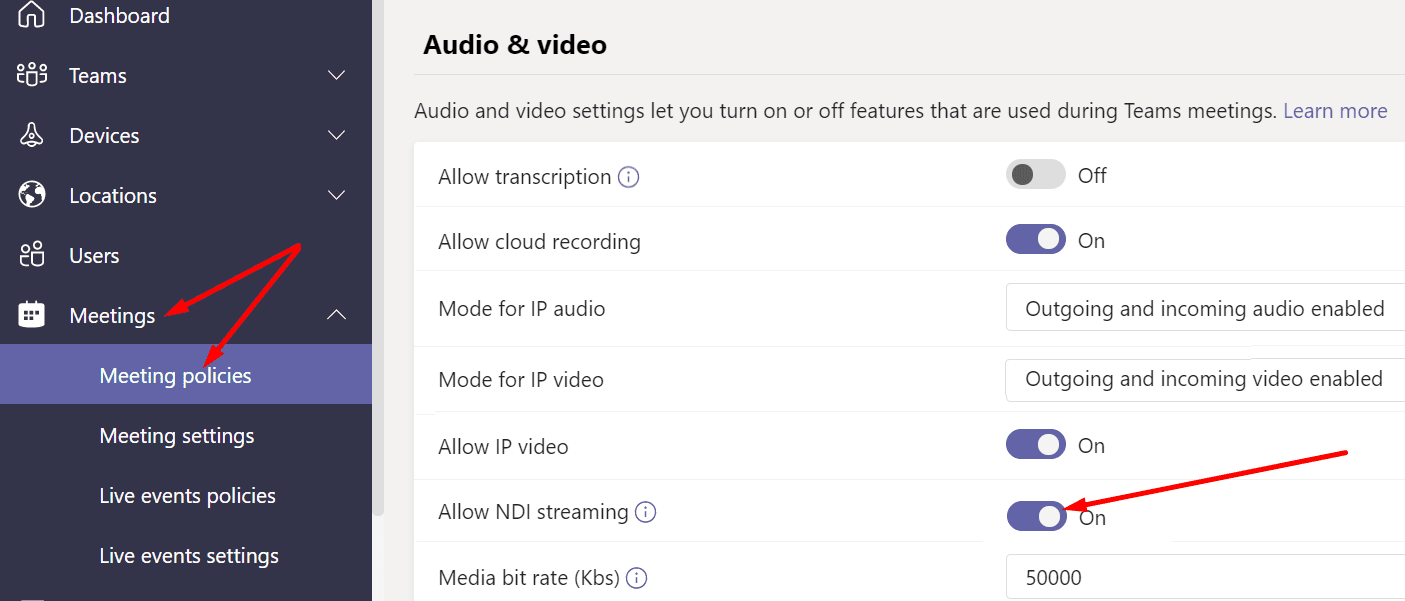
- Your admin needs to first enable the Allow NDI Streaming option by running the Set-CsTeamsMeetingPolicy -Identity MEETING_POLICY -AllowNDIStreaming $true command in PowerShell. Another method to do that is to open the Teams Admin Center, select Meetings, and then Meeting policies. Your admin can then switch the Allow NDI streaming option to on.

- Then, you need to click on your profile picture and select Settings.
- Click Permissions and switch Network Device Interface (NDI) to on. Save the changes.

- Launch your meeting and click on More options (the three dots).
- Then select Broadcast over NDI.

- A banner will then appear on the screen confirming the meeting broadcast is on.


5 Types of NDI Streams
There are five types of streams you can choose from when broadcasting over NDI.
- Primary speaker: The system streams only the speaker’s window. It automatically switches to the next speaker when they take the floor. All audio or video content coming from your machine will be left out.
- Local: The stream captures the audio and video content shared from your computer.
- Individual users: If you select this mode, Teams will stream the window of individual users with the audio meeting mixed together.
- Screen sharing: The stream will automatically capture incoming screen-sharing images from all the meeting attendees.
- Large gallery and Together mode: The NDI stream will focus on the large gallery view and together mode. This means you get to see all the meeting attendees on the same screen.
Conclusion
Microsoft Teams has a very handy NDI feature that allows you to broadcast your meeting to your local network. In this manner, people from your organization can watch the meeting without actually attending it as guests or registered users.
How often do you use NDI streams within your organization? How has your experience been so far? Share your thoughts in the comments below.




It boggles my mind that I have to do all this to enable NDI in Microsoft Teams. It’s absolutely crazy. In Skype it was easy for any user to do it in 30 seconds. Now you want me to be an Power Shell code writer or Teams Administrator. And I can’t be a Team’s Administrator on a personal account. It sucks trying to figure this out.
You get an F for making this easy for the user. You had it already done it Skype. Can someone please tell me why you made it impossible?