Skip to content
LogoTechnipages
technipages logo
  • Topics
        • Android
        • Browsers
        • Gaming
        • Hardware
        • Internet
        • iPhone
        • Linux
        • macOS
        • Office
        • Reviews
        • Software
        • Windows
        • Definitions
  • Product Reviews
  • Downloads
  • About

Linux Mint: How to Override Default System Sounds

Mel HawthorneDecember 18, 2020 Comments (0)

One of the many ways you can interact with your computer is through sound. Sound cues can help to make you aware that something needs your attention or that something is happening. Like most desktop operating systems, Linux Mint comes with a range of system sounds that play at certain events.

If you don’t like these system sounds, you can choose to replace the audio file that plays for the event, or you can disable the sound cue entirely. To manage your system sounds, press the Super key, then type “Sound” and hit enter.

Tip: The “Super” key is the name that many Linux distributions use to refer to the Windows key or the Apple “Command” key, while avoiding any risk of trademark issues.

Press the Super key, then type “Sound” and hit enter.

Once you’re in the sound settings, switch to the “Sounds” tab to manage the system sounds. The volume slider at the top allows you to configure the overall volume for any enabled system sounds. If you set this slider to “0%” then no system sounds will play.

In the “Sounds” section, you have a list of system sounds with names that explain when they are played on the left. On the right is a slider for each sound, this can be used to enable or disable the system sound if you want some but not others to play.

In the centre of the “Sounds” section are links to the actual sound files being used for each system sound. To hear the currently configured sound file, press the play button. If you want to change the sound file played for a specific system sound, click on the sound file name, then select a new audio file from your computer to replace it.

Tip: While the default sounds are all in the “ogg” or “oga” file format, you can choose a sound file in any standard audio format.
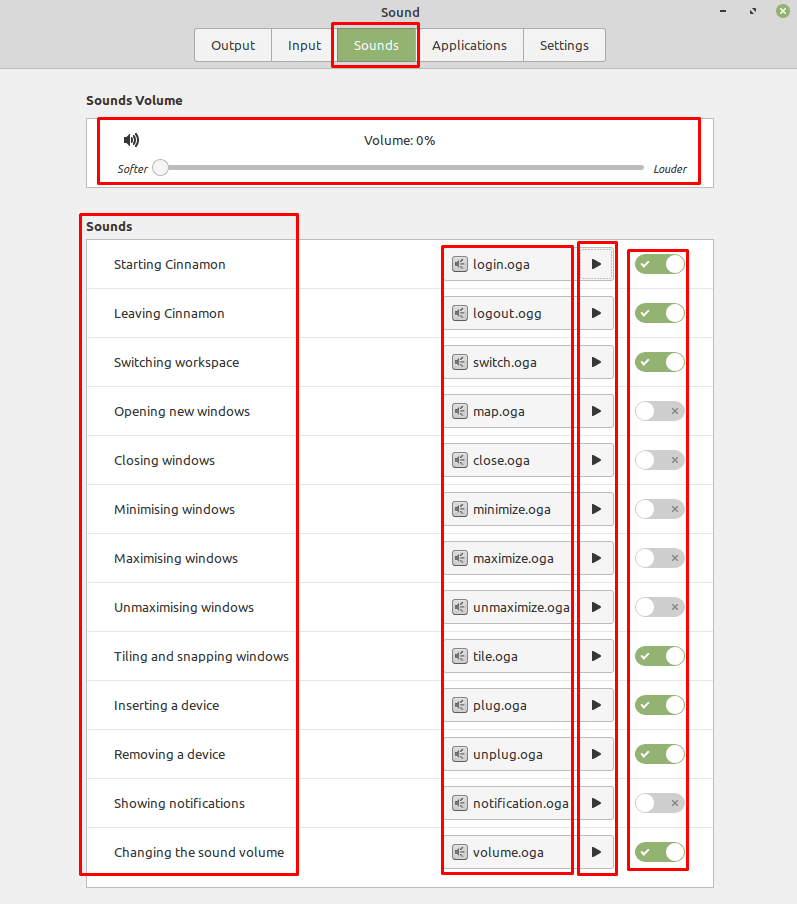
You can change the overall volume, enable or disable certain sounds, and change the actual sounds that are played.

Categories: Linux

Author Mel Hawthorne

You Might Also Like

  • Linux Mint: How to Add New Extensions

    Mel HawthorneLinux
  • Linux Mint: How to Change Your Keyboard Layout

    Mel HawthorneLinux
  • Linux Mint: How to Configure Which Applications Start When the Computer Boots Up

    Mel HawthorneLinux
  • Linux Mint: How to Configure the Login Window

    Mel HawthorneLinux

Leave a Reply

Your email address will not be published. Required fields are marked *

This site uses Akismet to reduce spam. Learn how your comment data is processed.

300x600
Turning on Triple Touch Zoom on Android

Turning on Triple Touch Zoom on Android

How to Connect Outlook 2023 to Gmail

How to Connect Outlook 2023 to Gmail

Netflix: Change Password

Netflix: Change Password

Everything You Need to Know About WhatsApp Delete for Me

Step-by-Step Guide: How to Use WhatsApp on Your Computer

Android: Enable or Disable Background Data

Android: Enable or Disable Background Data

300x250
profile pic

The Experts Behind Technipages

My name is Mitch Bartlett. I've been working in technology for over 20 years in a wide range of tech jobs from Tech Support to Software Testing. I started this site as a technical guide for myself and it has grown into what I hope is a useful reference for all.

Learn More

300x250 2
technipages logo white
linkedin icon

Technipages is part of Guiding Tech Media, a leading digital media publisher focused on helping people figure out technology. Visit guidingtechmedia.com to learn more about our mission and team.

© 2026 Guiding Tech Media All Rights Reserved

  • About Us
  • Contact
  • Legal & Privacy

© 2026 Guiding Tech Media All Rights Reserved

Information from your device can be used to personalize your ad experience.
Do not sell my personal information.