Skip to content
LogoTechnipages
technipages logo
  • Topics
        • Android
        • Browsers
        • Gaming
        • Hardware
        • Internet
        • iPhone
        • Linux
        • macOS
        • Office
        • Reviews
        • Software
        • Windows
        • Definitions
  • Product Reviews
  • Downloads
  • About

Linux Mint: How to Add and Remove Items from the Favorites Menu

Mel HawthorneMay 6, 2021 Comments (0)

As one of the more user-friendly Linux distributions, Linux Mint is a popular choice for Linux newcomers. For many users coming from Windows, one of the draws of Linux Mint is the start menu. The start menu makes it easy to find and open the applications on your system. It should be very familiar to Windows users. If you’re going to be using it regularly, you may want to customize the items that appear in the start menu.

You can customize the start menu is the favorites bar on the left when you open it up. This defaults to having some generally useful tools such as Firefox and the terminal that many users will want to regularly access. You may want to add or remove items from the list, though. For example, if you prefer to use a different browser, you might want to put it there in Firefox’s place.

How to Add or Remove Items from the Favorites Bar

To remove an item such as Firefox from the favorites bar, simply click and drag the icon into the rest of the start menu. Similarly, add a new item, click and drag it from the start menu into the favorites bar.
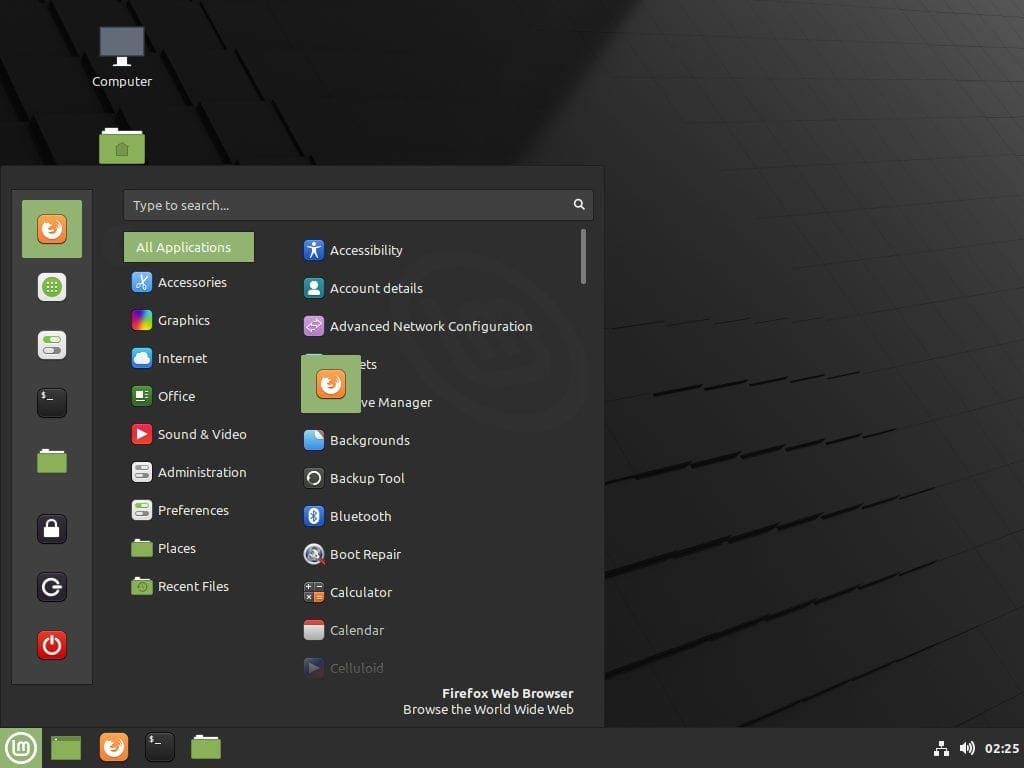
Click and drag items to and from the favorites bar.

There are, however, some items you can’t remove from the favorites bar. At the bottom of the bar are three session icons that allow you to perform actions such as locking your screen. These can’t be removed from the favorites bar. However, if you really don’t like them, it is possible to disable the entire favorites bar.

To disable the favorites bar, right-click on the Linux Mint icon that opens the start menu in the bottom-left corner of the screen, then click on “Configure.”
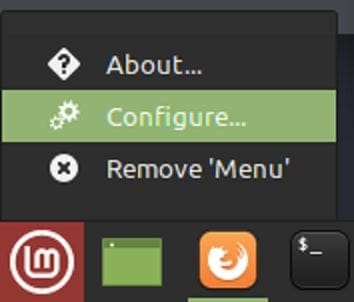
Right-click on the Linux Mint icon, then click “Configure.”

In the menu configuration window, switch to the “Menu” tab, then disable the “Show favorites and session buttons” slider halfway down the list. Now when you open the start menu, the entire favorites bar will be hidden.

Switch to the “Menu” tab, then disable the “Show favorites and session buttons” slider.

The favorites bar in Linux Mint can provide easy shortcuts to commonly used programs. By following the guide’s steps, you can configure the items in the favorites bar or disable them entirely if you prefer.

Categories: Linux | Software

Author Mel Hawthorne

You Might Also Like

  • Turn on Downloading for Spotify Songs

    MonaSoftware
  • How to Disable Word Wrap in Sublime Text 3

    Mel HawthorneSoftware
  • 15 Best ChatGPT Alternatives for 2023 for Relevant Answers

    15 Best ChatGPT Alternatives for 2023 for Relevant Answers

    Martin ClarkSoftware
  • iMovie Windows Header

    9 Best iMovie Equivalents for Windows 11

    Martin ClarkSoftware

Leave a Reply

Your email address will not be published. Required fields are marked *

This site uses Akismet to reduce spam. Learn how your comment data is processed.

300x600
Turning on Triple Touch Zoom on Android

Turning on Triple Touch Zoom on Android

How to Connect Outlook 2023 to Gmail

How to Connect Outlook 2023 to Gmail

Netflix: Change Password

Netflix: Change Password

Everything You Need to Know About WhatsApp Delete for Me

Step-by-Step Guide: How to Use WhatsApp on Your Computer

Android: Enable or Disable Background Data

Android: Enable or Disable Background Data

300x250
profile pic

The Experts Behind Technipages

My name is Mitch Bartlett. I've been working in technology for over 20 years in a wide range of tech jobs from Tech Support to Software Testing. I started this site as a technical guide for myself and it has grown into what I hope is a useful reference for all.

Learn More

300x250 2
technipages logo white
linkedin icon

Technipages is part of Guiding Tech Media, a leading digital media publisher focused on helping people figure out technology. Visit guidingtechmedia.com to learn more about our mission and team.

© 2026 Guiding Tech Media All Rights Reserved

  • About Us
  • Contact
  • Legal & Privacy

© 2026 Guiding Tech Media All Rights Reserved

Information from your device can be used to personalize your ad experience.
Do not sell my personal information.