

To be able to use your computer properly, generally, you want it to be configured in your language. If you know the layout of the operating system well enough you may be able to browse through the settings menus to change your system interface language even from languages that you don’t speak. If you’re less confident with the settings of your computer, however, you may have difficulties correcting a system language issue.
Linux Mint has a broad range of language options allowing you to use your computer in both different languages and in localised variants of many languages. These language variants allow you to select the specific version of the language you speak, allowing for nuances in spelling or for different words.
To be able to change your language settings, press the Super Key to open the start menu.
Tip: The “Super” key is the name that many Linux distributions use to refer to the Windows key or the Apple “Command” key, while avoiding any risk of trademark issues.
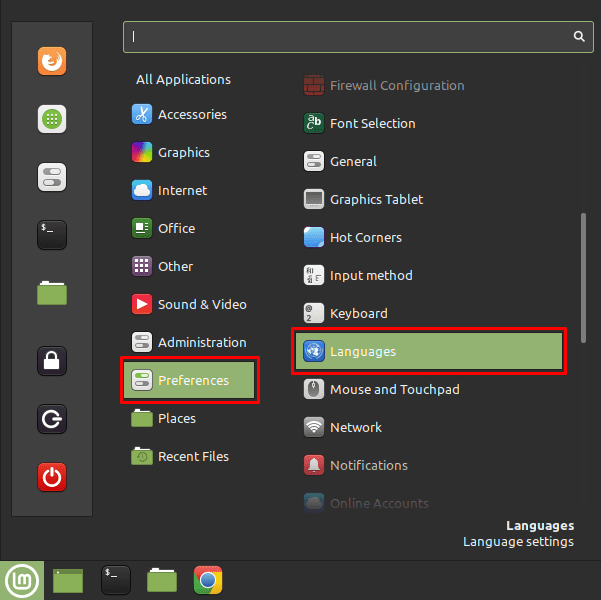
Once you’re in the start menu, click on the “Preferences” section that is the third option from the bottom of the central column, then scroll roughly halfway down the right-hand column and click on “Languages” with the blue world icon.
Note: If your computer is in a language that you can’t read then the labels for these options will obviously be different, however, the location and icons for the options will remain the same, so it shouldn’t be too difficult to follow along.
In the language configuration window, the top box is used to configure the interface language. To change it, click on the current flag icon, then select the new language that you want to use from the popup box.
Tip: The language names are all in the current interface language, the flags will be accurate in any language though.

If your preferred language isn’t in the current list of options, you can add more easily. If there is a similar variant for your language, you may find it easier to enable this now before continuing. To add a new language, click the bottom box “Install / Remove Languages”. You’ll need to provide your account password, as adding a language requires sudo permissions.
In the new window, click the bottom-left button, labelled “Add”, to open the language pack installation screen. In that window, select the language you want to use. Again, language names are in the current interface language, so you may have to use the flags to find the right language. Once you’ve found the language you want to use, select it, and click the bottom-right button, “Install”.

Once you’ve installed a new language you can back out to the main language settings window again, and immediately select your new language. For the language change to take effect, you’ll need to log out and back in again.
