

If you’ve got a limited amount of monthly mobile data and keep running close to, or into your limit, you may want to keep track of your data usage. Monitoring data usage on an app-by-app basis can let you work out which apps are using too much data.
With this information, you can decide if there are any apps that you should restrict from using mobile data. This guide will walk you through the process of viewing the mobile data usage statistics on your iPhone.
These mobile data usage statistics are available in the Settings app in the Mobile Data settings. The Mobile data settings have a green antenna icon and can be found near the top of the Settings app, between the Bluetooth and Personal Hotspot settings.

In the Mobile Data settings page, the usage statistics can be found by scrolling down to the “Mobile Data” section. Here you can see a list of all the apps installed on your device ordered by the amount of data usage.
The data used is shown underneath the name of each app, the measurement is in bytes with a prefix of K, M, G, or T (Kilo, Mega, Giga, or Tera respectively) depending on your usage – realistically, you’ll probably never see Tera anywhere – through normal usage, you shouldn’t even get close to data amounts that huge. Also, some apps might not have a data usage measurement underneath them; this means that they haven’t used any mobile data.
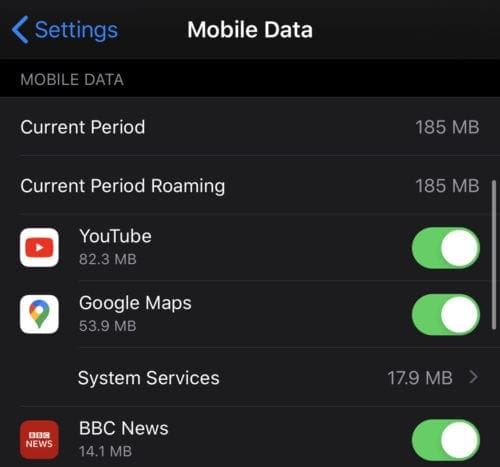
If an app’s usage is higher than you want it to be, you can block it from being able to use mobile data with the slider on the right of the list entry. This will only stop the app from using mobile data, Wi-Fi usage will remain unaffected.
Of course, this can also affect whether or not the app works as expected – if you don’t have a Wi-Fi connection and you forbid Facebook from accessing your data, for example, it won’t load your feed!
There will be four records in the list that are not individual apps. At the top of the list will be “Current Period”, this is the total amount of mobile data used since the last reset of the statistics. The last reset will likely be the last time your phone was restarted and is visible at the bottom of the page under the “Reset Statistics” button.
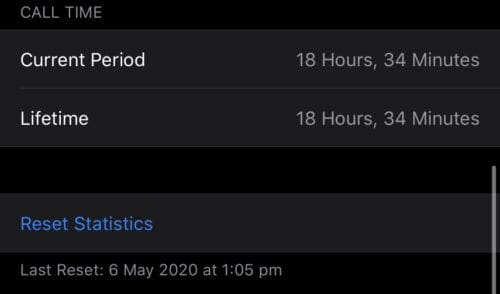
Other records in the list that aren’t apps are “System Services”, “Current Roaming Period” and “Personal Hotspot”. Another record that may show up is “Uninstalled Apps”.
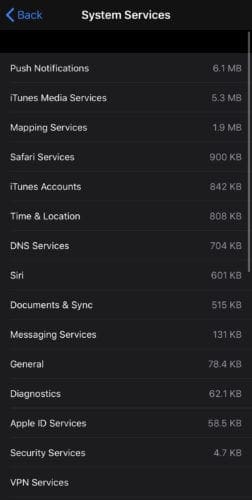
“System Services” can be tapped to show a breakdown of the data usage of the operating system itself. One example service included in the breakdown is “Push Notifications”, this covers the amount of data used to deliver notifications to the phone.
“Current Period Roaming” is used to show how much of the data was downloaded while your phone was roaming in another country. “Personal Hotspot” breaks down the data usage of each device that has connected to your hotspot.

“Uninstalled Apps” covers the data usage of any apps that have been uninstalled since the last reset. In other words – you can still find a record of apps no longer on your phone, as long as you uninstalled them after your last reset/restart.



Amazingly helpful. The person at the AT&T store had no idea that he could find this right on the I phone in his hand–the one they had sold me. I guess I’ll go back and teach it to him!