

You’re in a Zoom meeting, and you have to leave, but someone is talking. You don’t want to interrupt just to say you have to leave. What to do? There’s always Zoom’s chat. You can type a message letting everyone know you have to go without saying a word.
How to Message Someone in Zoom
To send someone or everyone a message is easy and useful. Open the Zoom desktop client if you don’t have it already and start a meeting. If you have the Zoom window completely open, the Chat option will be at the bottom. But, if you’ve minimized the window, the chat option should be there after you click on the dots.

When you click on the chat option, a side panel will open where you can read your messages and everyone else’s. You can change who the messages you send are delivered to. For example, where it says to the left, click on the dropdown menu and choose who you want to send the message to.

You can also control who the participants send messages to. By clicking on the dots to the right, you’ll see different options such as:
- No one – All messages are disabled
- Host and co-host only – Only the host and co-host can send messages to others, and the participants can only send messages to the host and co-hosts.
- Everyone – The message they type will be public.
- Everyone and anyone privately – No restrictions applied. Participants can send a public and private message to anyone in the meeting.
Android
Using the chat option on your Android device is also easy. Tap on the dots, and the chat option will be in the middle.

To change who the message is for, tap on the Everyone dropdown menu and choose the participant.
How to Turn on Autosaving Chats on Zoom
Sign in to your Zoom account using the web portal. Once you’re signed in, go to:
- Account Management in the navigation panel
- Account Settings
- Meeting Tab
- Toggle on Autosaving chats located in the Chat section

You can also save the chat manually by clicking on the icon that looks like a sticker. A small window will appear with options as to where you can save your chat.
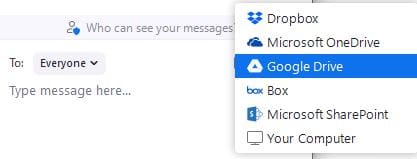
You can choose from options such as:
- Dropbox
- Microsoft OneDrive
- Google Drive
- Box
- Microsoft SharePoint
- Your computer
How to Access Your Zoom Meeting Recordings
If you need to review something in a Zoom meeting you had, you can access your recordings in two ways. You can use the link Zoom sends you to your email when the recording is available. Or, you can log in to your Zoom account, click on the Recordings tab on the left.

Your recordings will be divided into two sections: Cloud recordings and Local recordings. The Cloud recordings are exactly that, Zoom meetings you’ve recorded that are only accessible from the cloud. Local recordings are Zoom recordings that you can only access from your computer.
Conclusion
Zoom is full of a lot of great features to make your meetings better. For example, you can save your chats and even record the meeting to review it later. Thanks to the chat, you can talk to someone else without interrupting others. How useful do you find the chat option in Zoom? Let me know in the comments below, and don’t forget to share the article with others on social media.



How do you revert to everyone in the chat after sending a message to an individual?