Skip to content
LogoTechnipages
technipages logo
  • Topics
        • Android
        • Browsers
        • Gaming
        • Hardware
        • Internet
        • iPhone
        • Linux
        • macOS
        • Office
        • Reviews
        • Software
        • Windows
        • Definitions
  • Product Reviews
  • Downloads
  • About

How to Use “Soft Edges” on Images in Word

Mel HawthorneSeptember 25, 2020 Comments (0)

Microsoft Word is obviously primarily known as a word processor. Adding images to a Word document is relatively common and can be useful for a wide range of documents. One of the feature sets that Word includes is an image manipulation suite. It’s not going to compare to professional image editing software such as photoshop, but the options it includes are surprisingly powerful.

One of the features offered is called “Soft Edges”. This feature applies a transparency pattern to the outside of an image. At low levels, the effect results in a subtle blurring around the edge of an image. The effect can also be made a lot more noticeable, turning a fair amount of the image completely transparent while giving the centre area a misty appearance.

How to use Soft Edges on images

To configure Soft Edges for an image, you first need to copy an image into Word.

Tip: An image that has a coloured background is ideal as a white background will not show up well on the white background of the page, making the effect hard to see.

You can find the Soft Edges settings, in the format picture options. To access those, simply right-click on the image, you want to configure, then click on the bottom option “Format Picture”.
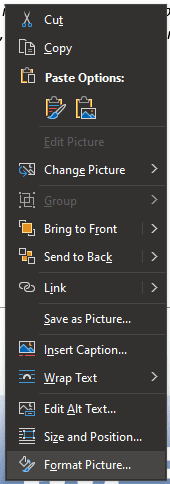
Right-click on an image, then click “Format Picture”.

Once you’ve done this, the “Format Picture” toolbar will appear on the right-hand side of the page. Next, click on the pentagon symbol labelled, “Effects” at the top of the toolbar, then click “Soft Edges”, the fourth option from the top.

Click on “Effects” then “Soft Edges” in the “Format Picture” toolbar.

In Soft Edges there are seven presets that you can choose from. Each one simply sets a value on the “Size” slider, for more fine-grained control you can adjust the slider yourself. Lower values have a more subtle effect while higher values are much more obvious.

Tip: Depending on the word wrap option chosen for the image, words may be able to wrap into the main outline of the image if large portions are turned transparent. If you don’t like this effect try using a different word-wrap setting.

Use the presets or the slider to configure how noticeable the transparency effect is.

Categories: Office

Author Mel Hawthorne

You Might Also Like

  • Outlook Logo Header

    Fix Message Stuck in Outlook 365 Outbox

    Mitch BartlettOffice
  • Outlook Logo Header

    How to Add Outlook Calendar to Your Android

    Mitch BartlettAndroid
  • Outlook Logo Header

    How to Change Profile Picture in Outlook 365

    Mitch BartlettOffice
  • Word Logo Header

    Important Shortcut Keys in Microsoft Word

    MonaOffice

Leave a Reply

Your email address will not be published. Required fields are marked *

This site uses Akismet to reduce spam. Learn how your comment data is processed.

300x600
Turning on Triple Touch Zoom on Android

Turning on Triple Touch Zoom on Android

How to Connect Outlook 2023 to Gmail

How to Connect Outlook 2023 to Gmail

Netflix: Change Password

Netflix: Change Password

Everything You Need to Know About WhatsApp Delete for Me

Step-by-Step Guide: How to Use WhatsApp on Your Computer

Android: Enable or Disable Background Data

Android: Enable or Disable Background Data

300x250
profile pic

The Experts Behind Technipages

My name is Mitch Bartlett. I've been working in technology for over 20 years in a wide range of tech jobs from Tech Support to Software Testing. I started this site as a technical guide for myself and it has grown into what I hope is a useful reference for all.

Learn More

300x250 2
technipages logo white
linkedin icon

Technipages is part of Guiding Tech Media, a leading digital media publisher focused on helping people figure out technology. Visit guidingtechmedia.com to learn more about our mission and team.

© 2026 Guiding Tech Media All Rights Reserved

  • About Us
  • Contact
  • Legal & Privacy

© 2026 Guiding Tech Media All Rights Reserved

Information from your device can be used to personalize your ad experience.
Do not sell my personal information.