God Mode on Windows 11 is like having a master key to a secret control room filled with knobs, dials, and switches. It’s not about authority, but it gives you a centralized hub to access Windows’ most powerful features and settings. Let’s explore this hidden gem and learn how to activate and use God Mode on Windows 11.
What Is God Mode in Windows 11?
God Mode, a concealed attribute in Windows, offers a singular interface to access a multitude of system settings, control panel items, and administrative tools. Essentially, it functions as a comprehensive hub, serving as a one-stop shop for all the tweaks and adjustments you might want to implement on your system.
Why Use God Mode?
Using God Mode in Windows 11 can be a powerful tool for advanced users, IT professionals, or tech enthusiasts seeking more granular control over their systems. God Mode provides a centralized location that consolidates various system settings, control panels, and configuration options all in one place. This can save time and make it easier to navigate the myriad of settings available in Windows.
It’s like having a master key to your computer’s most intricate settings, allowing you to tweak and fine-tune aspects that might otherwise be hidden or harder to access. However, it’s worth noting that God Mode is not for the faint-hearted, as improper adjustments can lead to system instability. Therefore, it’s best utilized by those with a solid understanding of Windows’ inner workings.
- Centralized Access: No more hunting through menus to find specific settings.
- Power User Friendly: If you love tinkering with your system, God Mode puts everything at your fingertips.
- Customization: Tailor your Windows experience to your liking with ease.
How to Use God Mode in Windows 11
Disclaimer: This guide is provided for informational and educational purposes only. The author and this blog are not responsible for any adverse effects resulting from applying the information provided herein. Always consult a qualified professional or seek expert advice if you are unsure about making changes to your system.
: This will create a new folder on your desktop.


- Rename the Folder: Right-click the folder and select ‘Rename.’ Paste the following name:
- GodMode.{ED7BA470-8E54-465E-825C-99712043E01C}
- Confirm the Rename: Press ‘Enter.’ The folder icon should change, and it’s now your gateway to God Mode.


Step 3: Explore God Mode
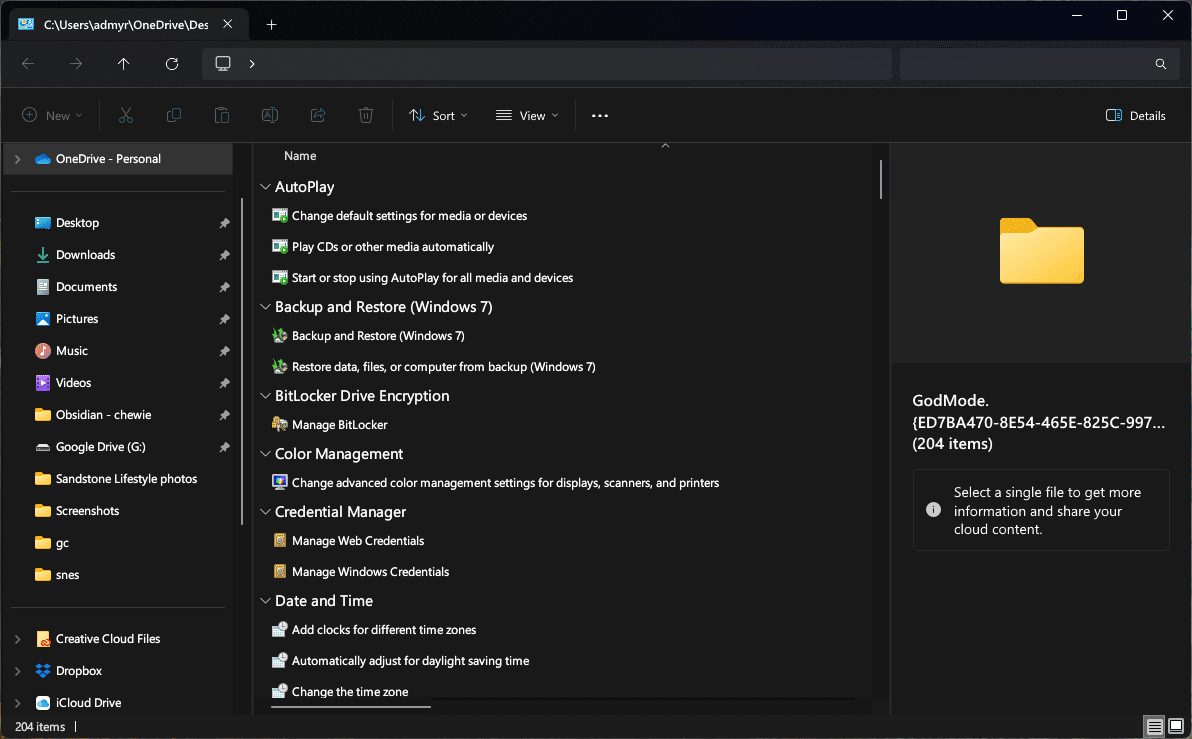
- Double-Click the God Mode Icon: This will open the God Mode window.

- Browse Through Categories: You’ll see various categories like Administrative Tools, AutoPlay, Backup and Restore, and more.

- Access Specific Settings: Click on any category to access the specific settings and tools within.

Tips and Warnings
- Compatibility: God Mode works on various Windows versions, including Windows 11, but it’s always good to ensure your system is up to date.
- Use with Caution: While God Mode is powerful, making changes that could affect system stability is easy. Always proceed cautiously and ensure you know what a setting does before changing it.
- Customization: You can create shortcuts to specific settings by right-clicking them in God Mode and selecting ‘Create shortcut.’
Advanced Usage of God Mode
Customizing God Mode
- Rename the God Mode Folder: You can rename the God Mode folder to anything you like, as long as the extension remains the same. For example, “MyControlPanel.{ED7BA470-8E54-465E-825C-99712043E01C}” will still open God Mode.
- Move the God Mode Folder: If you prefer not to have the God Mode folder on your desktop, you can move it to another location; for example, you could place it within your Documents folder.
Exploring Specific Categories

Here’s a closer look at some of the categories you’ll find in God Mode:
- Administrative Tools: Access tools like Computer Management, Disk Cleanup, and Task Scheduler.
- Date and Time Settings: Adjust your system’s date, time, and time zone.
- Device Manager: Manage all connected devices, update drivers, and troubleshoot issues.
- Network and Sharing Center: Control your network connections, sharing settings, and troubleshoot network problems.
- Power Options: Customize your power plans, adjust sleep settings, and manage battery usage.
Troubleshooting With God Mode
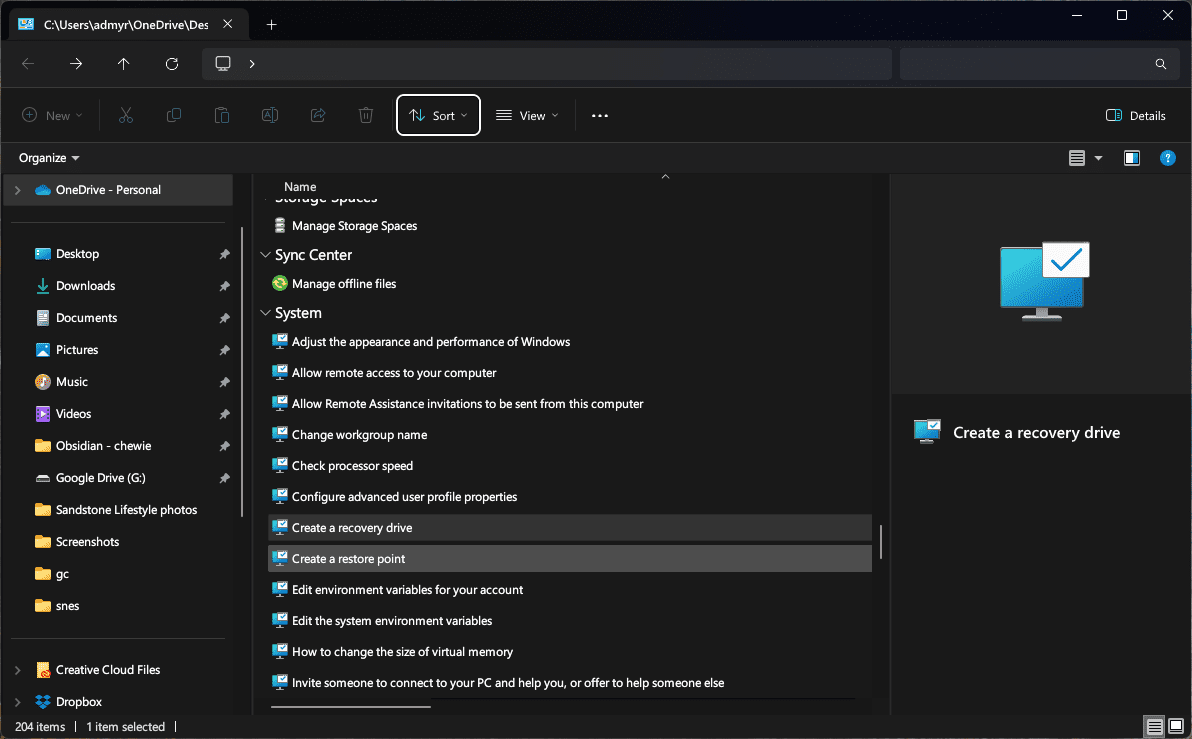
God Mode can be a handy tool for troubleshooting various system issues:
- System Restore: Access System Restore to roll back your system to a previous state if you encounter problems.
- Recovery Options: Find various recovery tools to repair startup issues or reset your PC.
- Windows Update Troubleshooter: Run this tool to fix problems that prevent Windows Update from working correctly.
Deactivating God Mode
You can delete the folder if you no longer want to use God Mode. This will not affect any settings you’ve changed within God Mode.
Conclusion
God Mode on Windows 11 is like a hidden treasure chest for tech enthusiasts, power users, and anyone who loves to have control over their system. God Mode puts everything at your fingertips, from simple tweaks to advanced configurations.
Remember, with great power comes great responsibility. Additionally, always be mindful of the changes you make, and don’t hesitate to consult online resources or expert advice if you’re unsure about a particular setting.