Keeping your iPad apps up to date is essential. You will always have the latest features. And bug fixes by using the newest version of the app. If you don’t feel like manually updating your apps, you can enable the feature that does it for you on your iPad. But even if you have that feature enabled, some apps could still need to be updated. If you’re new to iPad or forgot the steps, you’ll be happy to know that it’s quick. So you can still do it even if you don’t have much time. You’ll see what your options are with or without Siri.
How to Manually Update App on iPad (iPadOS 16)
When you’re waiting for a new feature to arrive, time can seem to go by so slowly. You may have the app update automatically, but what if you want to know now if the feature has arrived? Updating the app manually will get you the latest features since when the apps are updated automatically, they are not installed as soon as they are available. You can check to see if there are any pending updates by going to the App Store. When the app is open, tap on your profile picture (if you have one), and when the Account window appears, swipe down until you see the Upcoming Automatic Updates section. If there are any pending updates, this is where you’ll find them. You can update the apps individually by tapping the update button for that app, or you can update them all by choosing the Update All option.

Additional Options
Another route you can take to check if an app needs to be updated is by searching like you would any other app. Tap on the Search option at the bottom right and look for the app. You should see an update button to the right when it appears in the search results. If you don’t, that means that there is no update. Don’t forget about checking for updates in the Purchased section of the App Store. The Purchased area can be found by tapping on your profile picture, and when the Account window appears, it’ll be the first one on the list. You can also say, ” Hey Siri, Update TikTok.” And then Siri will look for the app, but it’ll only take to the search results where the app will be. You’ll need to tap on the Update button on the app (if there is one).
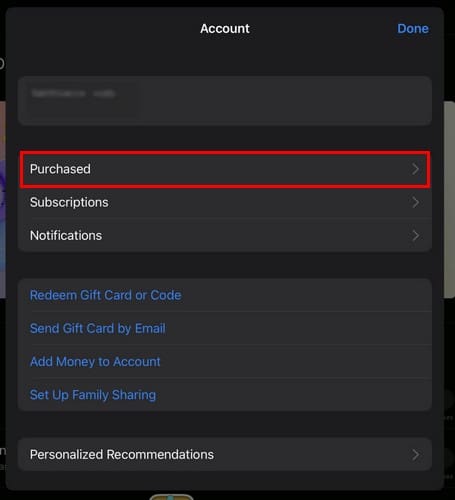
There you’ll see a list of all the apps. If no update is pending, it’ll only say Open, but if there is, you’ll see the update button instead.
How to Automatically Update App on iPad (iPadOS 16)
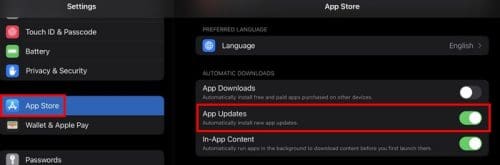
If you would rather have your iPad take care of the updates, then the Automatic Update option is the way for you. To set this up, open the Settings app on your iPad and tap on the Apple Store, followed by the App Updates option. You only need to toggle it on, and you’re good to go.
Further Reading
If you don’t mind having more apps to update, you might want to check out the ten best iPad apps for kids for learning and entertainment. Or, if you’ve been feeling stressed (and who hasn’t, right?), you can also try these 18 well-being apps to unwind. Maybe you can get rid of that stress by having a planner app where you can write down important things you need to look at to stay organized. Feel free to use the search bar to explore other articles to read to unwind at the end of your day.
Conclusion
The easiest way to update your apps on your iPad is to ask for Siri’s help. When you say, ” Hey Siri, Update Slack.” Siri may not update the app for you automatically, but you’ll save some valuable time since you’ll only need to tap on one button. This is great if you only want to update one app, but to ensure all the apps are updated, you’ll need to follow the previously mentioned steps. If you tell Siri to update all your apps, it’ll only take you to the app store and do nothing. How do you update your apps, manually or automatically? Share your thoughts in the comments below, and don’t forget to share the article with others on social media.