
Skip to content
LogoTechnipages
technipages logo
  • Topics
        • Android
        • Browsers
        • Gaming
        • Hardware
        • Internet
        • iPhone
        • Linux
        • macOS
        • Office
        • Reviews
        • Software
        • Windows
        • Definitions
  • Product Reviews
  • Downloads
  • About

How to Turn Text Upside Down in Microsoft PowerPoint

Judy SanhzNovember 12, 2021 Comments (0)
powerpoint reverts to first slide fix

The reason why you might want to rotate text in Microsoft PowerPoint can vary. Maybe you’re making party invitations and want to add some fun to your invitations. Whatever the reason might be, you’ll be happy to know that rotating text in PowerPoint in Any direction is more straightforward than it may sound.

When turning text upside down in PowerPoint, you have two choices. You can rotate it by using your mouse or by adjusting the degree. Keep reading to see how you can do either and turn your text in any direction.

How to Rotate Text in Microsoft PowerPoint

One way you can rotate text is by changing the degree. If you haven’t inserted the text yet, you can do that by clicking on the Insert tab, followed by the Text Box on your PowerPoint document.

Insert text box PowerPoint

The cursor will change shape, and when it does, it’s time to draw the text box. Once it’s there, type your text and then click on the Shape Format option at the top. Make sure to locate the Rotate option.

Rotate option PowerPoint

Once you click on the Rotate option, you’ll see various options. You can rotate right or left 90 degrees, flip vertical or horizontal. At the bottom, you’ll see the More Rotation Options.

Rotation Options PowerPoint

When the Format Shape window appears, locate the Rotation option to the right. Click on the arrow that points up and down until the text rotates to a position you’re happy with.
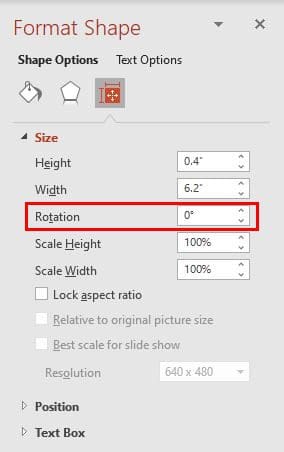
Rotate option PowerPoint

How to Rotate Text Using the Mouse in PowerPoint

If the text you’re rotating doesn’t have to be at an exact degree, you can also move it using your computer’s mouse. Once you’ve added the text box and the text, you’ll need to do the following.

Note: Just in case you forgot how to add the box, you’ll need to click on the Insert tab, followed by the Text Box. Type your text.

Right above the text box, you’ll see a circular arrow. Click on it and move it (without letting go) in a circular motion, and you’ll see how the text moves as well. When the text is at the angle, you want it to be, simply let go. That’s all there is to it when it comes to rotating text on your PowerPoint document.

Rotate Text PowerPoint

Conclusion

As you can see, turning your text upside down in PowerPoint is easier than you thought. Little by little, you’ll start learning how to do other things and become a PowerPoint master with time. Why did you need to rotate text? Share your thoughts in the comments below, and don’t forget to share the article with others on social media.


Categories: Software

Author Judy Sanhz

You Might Also Like

  • Slack: How To Configure the Default “One-Click Reactions” in Your Workspace

    Mel HawthorneInternet
  • Fix skype answers calls automatically

    Fix: Skype Answers Calls Automatically

    Madalina DinitaSoftware
  • microsoft teams breakout rooms won't work

    Fix Microsoft Teams Breakout Rooms Not Working

    Madalina DinitaSoftware
  • teams there was a problem saving the photo

    Microsoft Teams: There Was a Problem Saving the Photo

    Madalina DinitaSoftware

Leave a Reply

Your email address will not be published. Required fields are marked *

This site uses Akismet to reduce spam. Learn how your comment data is processed.

300x600
Turning on Triple Touch Zoom on Android

Turning on Triple Touch Zoom on Android

How to Connect Outlook 2023 to Gmail

How to Connect Outlook 2023 to Gmail

Netflix: Change Password

Netflix: Change Password

Everything You Need to Know About WhatsApp Delete for Me

Step-by-Step Guide: How to Use WhatsApp on Your Computer

Android: Enable or Disable Background Data

Android: Enable or Disable Background Data

300x250
profile pic

The Experts Behind Technipages

My name is Mitch Bartlett. I've been working in technology for over 20 years in a wide range of tech jobs from Tech Support to Software Testing. I started this site as a technical guide for myself and it has grown into what I hope is a useful reference for all.

Learn More

300x250 2
technipages logo white
linkedin icon

Technipages is part of Guiding Tech Media, a leading digital media publisher focused on helping people figure out technology. Visit guidingtechmedia.com to learn more about our mission and team.

© 2026 Guiding Tech Media All Rights Reserved

  • About Us
  • Contact
  • Legal & Privacy

© 2026 Guiding Tech Media All Rights Reserved

Information from your device can be used to personalize your ad experience.
Do not sell my personal information.