

When you’re not sure if your browser does something, you may wonder if you’re going to need to install a new extension. But, when it comes to taking screenshots on Firefox, you won’t need them. On the other hand, with Chrome, you will need it, but it’s straightforward to use, and it also gives you the options you need on what to do with the screenshot once you have it.
You won’t have to deal with those resource-hungry Chrome extensions and only use the integrated features Firefox offers. With a few clicks here and there, you can find the screenshot feature for Firefox and take your screenshots without installing anything.
How to Take Scrolling Screenshots on Firefox for Free
Once you have the Firefox browser up and running, click on the three-lined menu at the top right. Go to More tools, followed by the Customize Toolbar option.
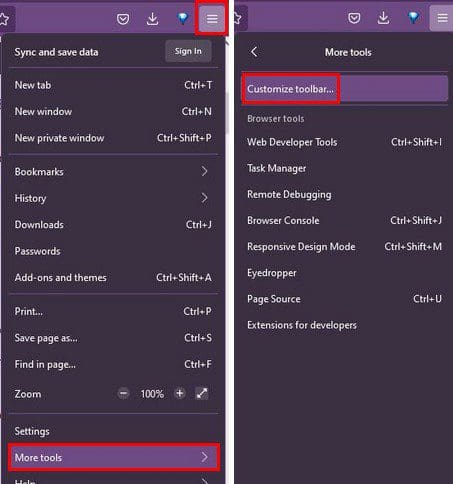
Find the Screenshot icon and move it to the toolbar.

Once the icon is where you want it to be, go to the page where you want to take the scrolling screenshot. Click on the screenshot icon, and you’ll see two options: Save full page or Save visible. Click on Save full page. After a few seconds, you’ll see a preview of the screenshot. You can either decide to dismiss it or download it.
How to Take a Scrolling Screenshot on Chrome for Free
Unlike Firefox, with Chrome, you will need the help of an extension. The extension you’re going to need is called GoFullPage – Full-Screen Capture. Once you’ve installed the extension, don’t forget to pin it, so it’s easier to find in the future. You can do this by clicking on the icon that looks like a jigsaw puzzle. Click on the pin to the side of the extension, so it turns blue. That means that you’ve pinned it.
Go to the page where you want to take the scrolling screenshot and click on the camera icon at the top right. You’ll see that the extension is scrolling because you’ll see a Pac-Man in action. When it reaches the end, your screenshot is done.

When the extension is done scanning, you’ll button with different options. You can either erase or download (among other options) the screenshot. That’s all there is to it.
Conclusion
With Firefox, there’s no need to install any extension to take a scrolling screenshot. But, you will need to add on when taking those kinds of screenshots on Chrome. The good thing is that you don’t have to go through the refund process if (you’re using Chrome) the app is not what you expected it to be. All you have to do is uninstall it. How often do you take screenshots? Let me know in the comments below and don’t forget to share the article with others on social media.


There is a screenshot icon. I did as told and it worked well. Only problem: there is no editing tool. You have to either copy or download the screenshot to edit with another app like Paint.
I’m a firefox user and this information is really helpful. Thanks for sharing this tip with us!
No. As your screenshot shows there is no such thing as a screenshot icon
Did this help? Let us know!
Absolutely NOT!!!
As of 5-May-2022, using FF 100.0 (64-bit)…
Once again mozilla have managed to break something that has worked perfectly well for years.
I’ve always simply rt-clicked a page, selected my top-left corner, then moved the cursor (still holding the button down) to my desired bottom-right corner (with the page scrolling automatically as required), then release the button. Select save /download, or whatever you want, and Bob’s-your-uncle.
Now the page / region doesn’t scroll
Maybe YOU can get them to fix/restore it.
Thanks