You love Chrome and have no intention of replacing it for another browser, but you sure which it didn’t have to be such a resource hogger. You can reduce the number of resources it uses by finding the extensions that are just not playing nice and get rid of them.
The good news is that you won’t have to install another app to find those resource-hungry Chrome extensions. The browser has its own task manager that lets you find those naughty extensions so you can decide if you want to uninstall them to not.
How to Quickly Open Chrome Task Manager
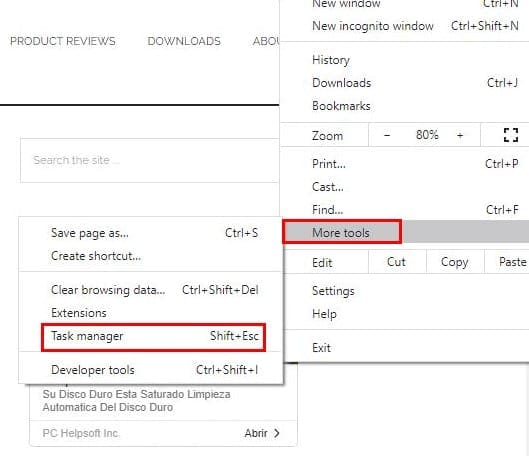
The last thing you probably want to do is have to install yet another extension to control other extensions. With the built-in task manager, you can see those misbehaving Chrome extensions and see if they are indeed using too much resource or not. To open Chrome’s Task Manager go to More Tools > Task Manager. If you prefer using keyboard shortcuts, you can also use the Shift + Esc keys.
Small Chrome extensions should not take more than 50 to 100 MB RAM. By clicking on the Memory Footprint tab, you can organize the extension processes according to how much RAM they use.
If you do see a Chrome extension that is using too many resources, the only thing you can do from the Task Manager is to select the extension and click on the End Process button.

You won’t find any options that will let you uninstall the Chrome extension from there. If you clicked on the wrong extension and want to start it back up again, you can click on the three dots and go to More Tools, followed by Extensions. Click on the Reload button.
How to Remove a Resouce-Hungry Chrome Extension
You’ve gone through all your extensions and found some that you can do without. To do some extension cleaning, you’ll need to go to More Tools, followed by Extensions. You’ll see all the extensions you have installed. If you only want to disable your Chrome extensions, just toggle them off. But, if you’re going to remove them, then you’ll need to click on the Remove button.
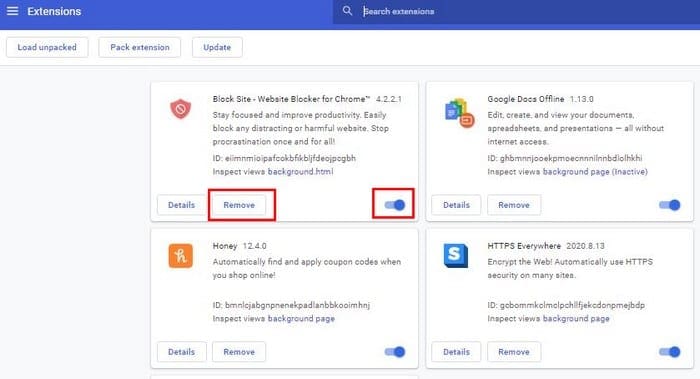
After clicking on the Remove button, you’ll get a pop-up message asking you to confirms, just click on the Remove button again and goodbye extension.
How to save Resources When Using Chrome
It’s best not to have too many tabs open. You may have quite a few open thinking that you might need them, so you have them open just in case. Before you know it, you have so many tabs open you have trouble finding the ones you do need.
If those tabs are for sites you’ll only be using temporarily, one thing you can try is creating a temporary folder where you can keep these tabs. So you won’t have too many tabs open; you can save the tabs you don’t need at that precise moment in that temp folder for when you do need then without having to worry about losing them.
It’s also a good idea to check if you have any tabs open with too many media. If it’s essential, you can save them in your temp folder; if not, it’s best to close them.
Conclusion
It’s happened to all of us at some point; you open one tab thinking that you have everything under control, and before you know it, you have so many tabs open you have no idea where the ones you do need are. Do you have the tendency of opening too many tabs?