WhatsApp is one of the most popular instant messaging apps out there. You can use it for business or personal use. You can use it to stay in touch with family or friends, but you sometimes spend too much time on the app. If you don’t want to spend most of the day staring at your messages, it’s time to take a break.
You can do various things to take a break from WhatsApp without uninstalling the app. How many of the tips you decide to take on is up to you, but the important thing is to get that away time that you need.
How to Make WhatsApp Temporarily Disappear
Ignoring the notifications can be almost impossible if you can’t help check your messages every time you get a notification. You can try disabling the notifications for WhatsApp so that way you’re not tempted to check them.
How to Disable WhatsApp Notifications
If you can go without thinking about WhatsApp, you might try turning off the notifications. If you don’t see the notifications in the first place, you won’t be tempted to check them. You can disable all WhatsApp notifications by going to:

- Settings
- Apps and notifications
- Notifications
- All WhatsApp notifications
If what distracts you is the notification sound, there’s a way you can disable it from within WhatsApp. You can do this by tapping on the dots at the top right and going to Settings, followed by Notifications. In Notifications, you will see the Conversation tones option at the top. Toggle that off and you’re good to go.

You can also disable the notification sounds if you’re on WhatsApp Web; once you have it open, click on the dots and go to Settings, followed by the Notification option. There you’ll see all the notifications you can disable. To disable the notification, simply uncheck the box for that notification.

Use a Stay Focused App
Another way you can take a break from WhatsApp is by using one of those apps that block WhatsApp (or any other app) for a specific amount of time. For example, an app you can try is called Stay Focused: Block Site and App. The app is free to use, but you can unlock even more features and remove the ads if you go Pro.
Swipe down a little and tap on the Block Apps option. Search for WhatsApp and select it. You’ll need to set how you want to block the app on the next page. You can block the apps by:
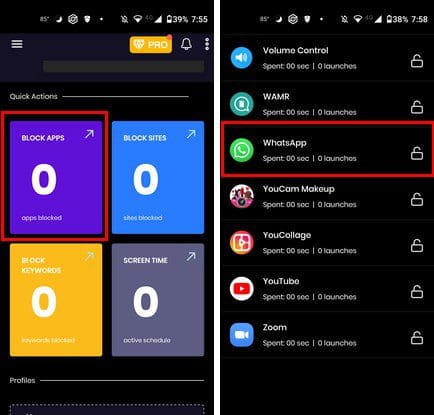
- Usage Limit – You can set the limit by day or hour. You can also choose to block the notifications as well.
- Specific time intervals
- Quick block
- number of launches
- Wait timer
- Goals-based

With this app, you have the freedom of choosing how you want to block the app. Maybe you can block it during work hours so you can concentrate and not have to stay extra to make up for the time you spent on WhatsApp.
Conclusion
WhatsApp can be very distracting and can take up a lot of your time. You sometimes find yourself looking at the app even when you don’t get any notifications. To take some time off WhatsApp, you can try things such as leaving your phone where it’s not within hand reach. Turning off the notification sound will also help you not get distracted with messages that can wait. What method do you think you’re going to try first? Share your thoughts in the comments below, and don’t forget to share the article with others on social media.