WhatsApp, the globally popular messaging application, has become an integral part of our daily communication. Whether you’re chatting with friends, sharing photos with family, or conducting business meetings, WhatsApp has you covered. However, you might wonder if you can use your WhatsApp account across multiple devices.
How to Sign Into WhatsApp on Multiple Devices
In the past, it was only possible to use WhatsApp on one device at a time. However, WhatsApp recently added a new feature that allows users to link their account to up to four devices. This means that you can now use WhatsApp on your phone, computer, and tablet all at the same time.
Here are the steps on how to sign into WhatsApp on multiple devices:
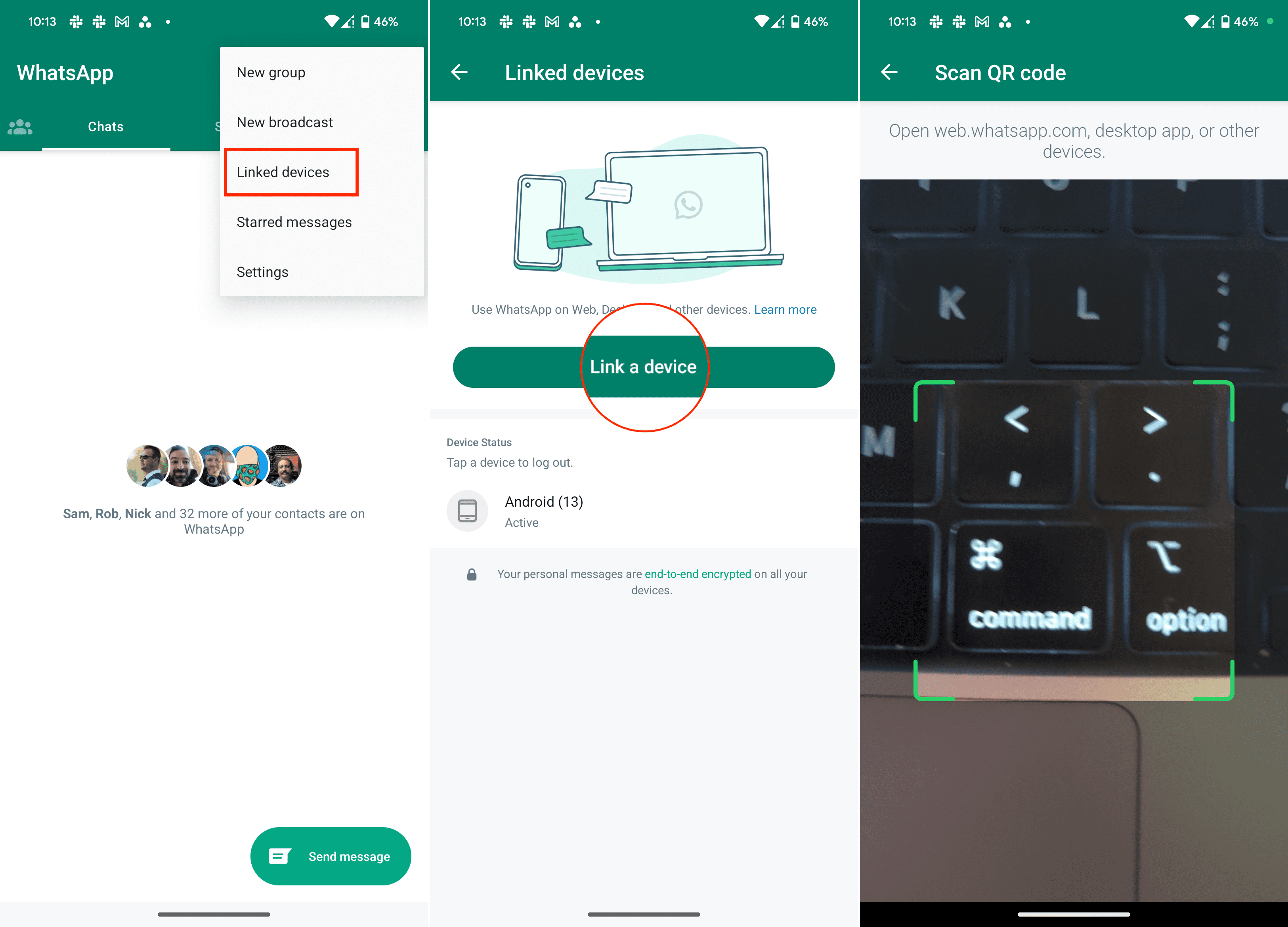
- Open WhatsApp on your primary device.
- Tap the three dots icon in the top right corner.
- Select Linked devices.
- Tap Link a device.

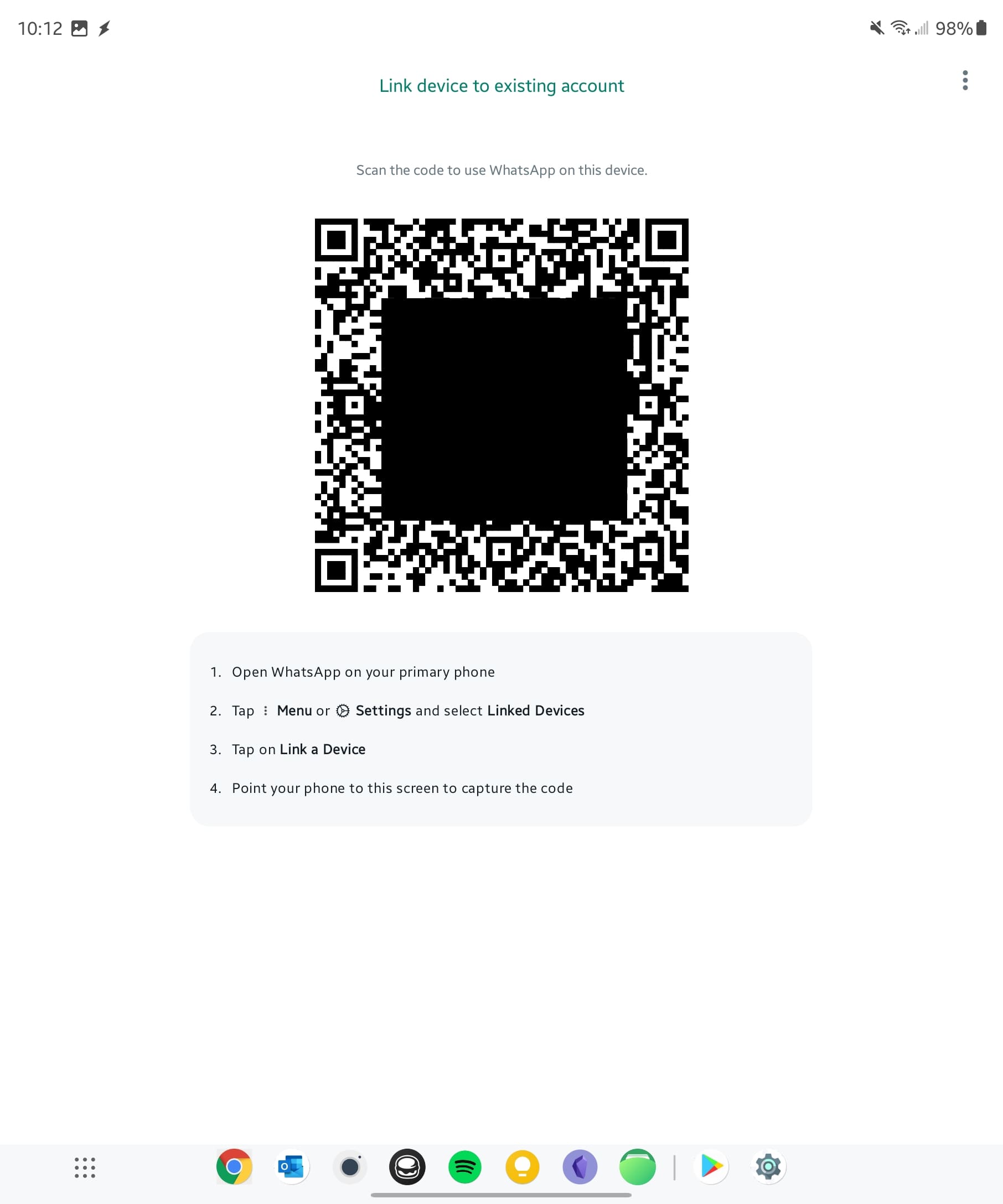
- From the secondary device, download and open WhatsApp.
- When you reach the Enter your phone number screen, tap the three vertical dots in the top right corner.

- From the drop-down menu that appears, tap Link to existing account.
- Scan the QR code on the secondary device.
- Enter the verification code on the secondary device.
- Enter your phone number and password if prompted.


Once you have completed these steps, your WhatsApp account will be linked to all of the devices that you scanned the QR code on. You will be able to send and receive messages, make calls, and use all of the other features of WhatsApp on all of your linked devices.
There are a few things to be aware of when trying to sign into WhatsApp on multiple devices. For one, you can only link devices that are using the same operating system as your primary device. For example, if your primary device is an Android phone, you can only link Android tablets and Android computers. Another limitation is that you are only able to link up to four devices to your WhatsApp account. Lastly, if you log out of WhatsApp on one device, you will be logged out of all linked devices.
Benefits of Being Able To Sign Into WhatsApp on Multiple Devices
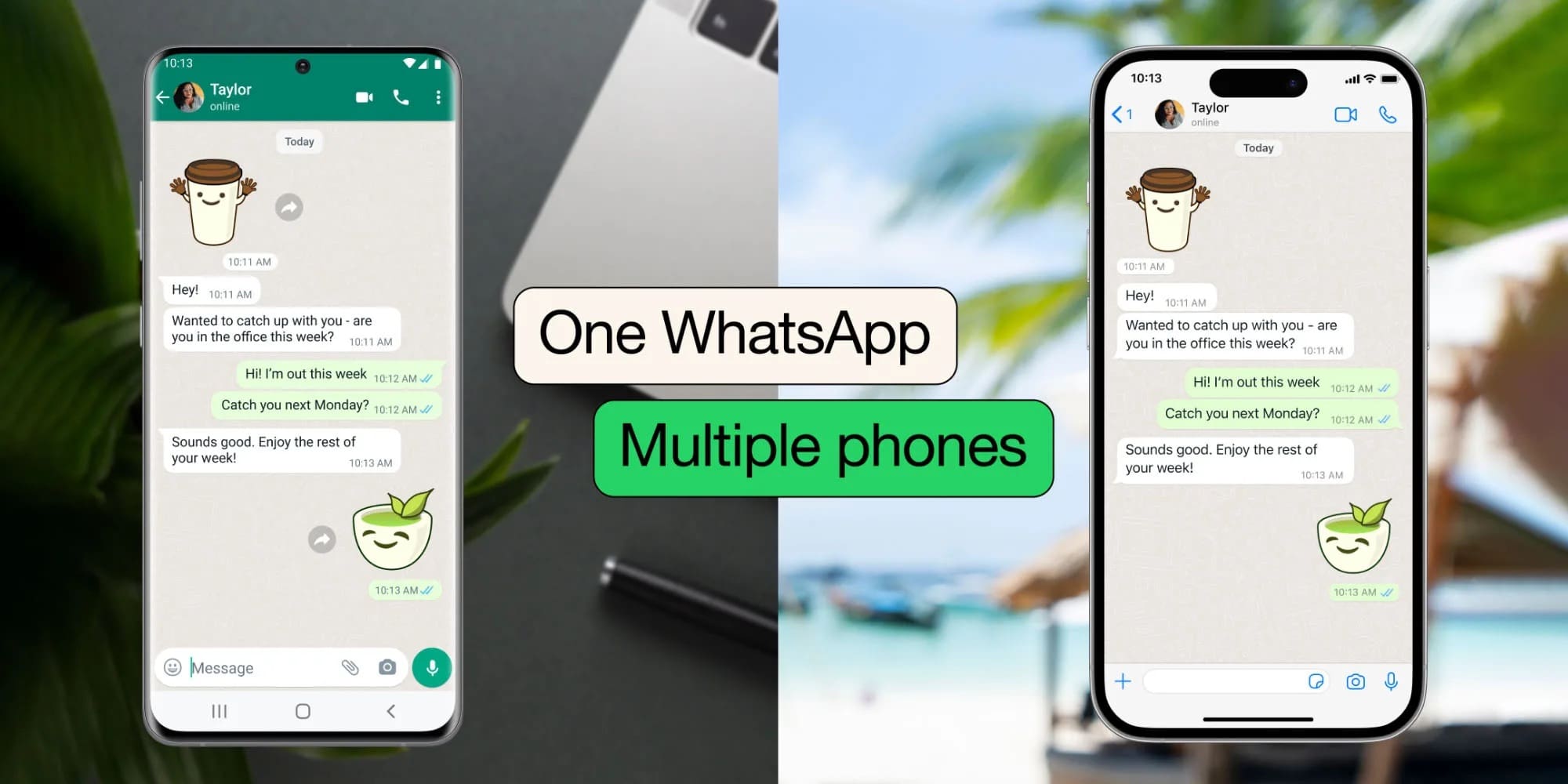
Linking your WhatsApp account to multiple devices is a great way to stay connected with your friends and family. It is also a great way to use WhatsApp on devices that do not have a SIM card, such as tablets and computers.
Some other reasons why you might want to be able to sign into WhatsApp on multiple devices is to be able to access WhatsApp messages from anywhere. So you can finally leave your phone at home and still participate in conversations on your computer or another device. Or maybe you are working on a project with someone, you can use WhatsApp on your computer to chat with them in real-time.
It might come as a surprise that this feature was not previously available when using WhatsApp. However, the primary reason for this is due to security and privacy concerns, which might prompt you to wonder whether you will still be able to see your message history when using WhatsApp on a secondary device.
Thankfully, you can put those worries to rest as WhatsApp provides the following:
“Right after you link a device, your primary phone sends an end-to-end encrypted copy of your most recent message history to your newly linked device, where it’s stored locally. Not all messages are synced to WhatsApp Web or Desktop. To see or search your full message history, check your phone.”
Nevertheless, considering how popular WhatsApp is across the globe, we are sure that there are going to be many users who are happy to finally be able to use their messaging service of choice across multiple devices.