It’s a masterstroke from Apple to hide sensitive card information from its physical Apple Card. Hence, for manual use of your Apple Card number, read this article to learn how to see your card number on your Apple wallet.
A physical credit card contains every information you need to make payments on the card itself. It’s a real security lapse from the card issuers.
If you haven’t activated two-factor authentication (2FA) on your credit card, anyone getting a hold of your card can make unapproved purchases. Also, it takes time to report and block a lost credit card.
Since Apple is a security-obsessed company, it constantly innovates unique products that are highly secure. One such product from Apple is its Apple Card program.
The titanium Apple Card has a sleek look. It only contains your name, issuing bank’s name, the Apple logo, and (Europay, Mastercard, and Visa) EMV chip. Then, how do you enter the card number, security code, and expiration on merchant payment platforms that don’t accept Apple Pay?
It’s simple! You can view the card information from a compatible Apple device. But you don’t know or forgot how to see the card numbers on your Apple wallet? No worries! Find all the effective methods here.
How to See Card Numbers on Apple Wallet
Your Apple devices give you a highly secure environment to view and use the secret information about your Apple Card, like card number, expiration, network, and security code.
You can try the following methods to see the card number on Apple Wallet. These instructions are also valid for Apple Pay virtual cards.
1. See Card Number on Apple Wallet: iPhone
- Open the Apple Wallet app from Home Screen or App Library.
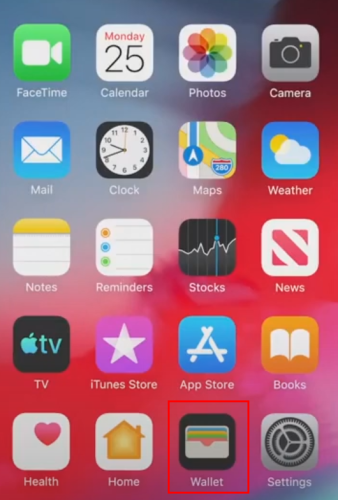
- You’ll see all added credit cards, debit cards, state IDs, transit cards, etc.
- Find the Apple Card in this list and tap on it.
- Tap the three dots menu on top of the card.

- On the Apple Card screen, you’ll either see the Card Information menu or an icon of a small card with the number 123. Tap any of these.

- Now, you must authenticate the display virtual card number action by iPhone via Face ID or Passcode.

- Once authenticated, you can see all the info you need to pay using Apple Card manually.
If you don’t see the option, likely, you haven’t updated your iPhone for a long time. Go to Settings > General > Software Update to update the device to its latest iOS version.
2. See Card Number on Apple Wallet: Apple Watch
You’ve also got access to your Apple Card’s secure information from your Apple Watch. Follow these steps to find out Apple Card information:
- Find the Wallet App on your Apple Watch and open it.
- Scroll until you find your Apple Card or Apple Pay card. Tap on it.
- You should see a Card Information menu here. Select it.
- Type in your Apple Watch Passcode.
- You should now see the card number for Apple Card or Apple Pay card.
3. See Card Number on Apple Wallet: iPad
On an iPad, you can try the following instructions:
- On your Apple iPad, open the Settings app.
- On the left side, scroll down until you find Wallet & Apple Pay.
- Under the Payment Cards menu, you should see all the active cards.
- Tap Apple Pay card or Apple Card.
- On the next screen, you’ll see the Info tab. Tap it.
- Select Card Information and authenticate the action via Passcode, Face ID, or Touch ID.
- The card number, security code, and expiration should be in front of you now.
How to Get Card Number from Apple Pay?
You can only see the secure information of your Apple Card and Apple Pay card on the Apple Wallet app. It won’t let you see the secure data for other debit or credit cards you get from conventional banking channels.
It’s to protect your security and as per the PCI and DSS standards. If you need to see the card details for these third-party credit or debit cards, you must check the physical cards instead.
How to See Card Numbers on Apple Wallet: Final Words
Now you know how to find card details on the Apple Wallet app for your Apple Pay virtual card and physical titanium Apple Card from Mastercard.
If you know any other tips on getting a card number from Apple Pay or Apple Wallet, mention that in the comment box below.
Next up, a simple guide for learning how to use Apple Pay.