
Your device’s keyboard is something that always needs to be working properly. You use the keyboard for just about everything, so it’s only natural that the keyboard will start to suggest words you may use next after a while. While some users find this feature useful, others find it annoying and wish it would disappear.
When Gboard starts noticing a pattern in your conversations, it’ll start to suggest words, it thinks you’ll use next. Don’t worry if you would rather live without this feature since it may feel that their conversations are being monitored. There’s a way you can turn it off and then back on if you ever change your mind.
How to Make Gboard Stop Suggesting Words
To remove the Gboard suggestion strip, open an app where you can use the keyboard. Once the keyboard is visible, tap on the three dots and go to Settings.

Once you’re in Settings, go to Text Correction. The first option on the list will be the Show suggestion stip. It’s as simple as toggling it off. The next time you open an app where you need to use your keyboard, you won’t have to deal with the suggestion strip anymore.
If you’re already in settings for some reason and remember you haven’t disabled the suggestion strip, here how to access Gboard’s settings from there. In Settings, go to System, followed by Language and input. Tap on Virtual keyboard and then on Gboard. You should now be in the keyboard’s settings. From this point on, the steps are the same as before.

The downside to removing the suggestion strip is that other useful options will also disappear. For example, when you’re not typing anything, you’ll see options such as stickers, Google Translate, GIF, and the voice to text feature in the suggestion strip. With the suggestion strip, you also save time tying out words you were going to use anyway.
How to Add the Suggestion Strip to Gboard
You removed the suggestion strip but realized things were a lot better when you had access to it. Not to worry. To add the suggestion strip again, open an app where you need to use the keyboard—long-press on the button with the comma and the emoji icon.
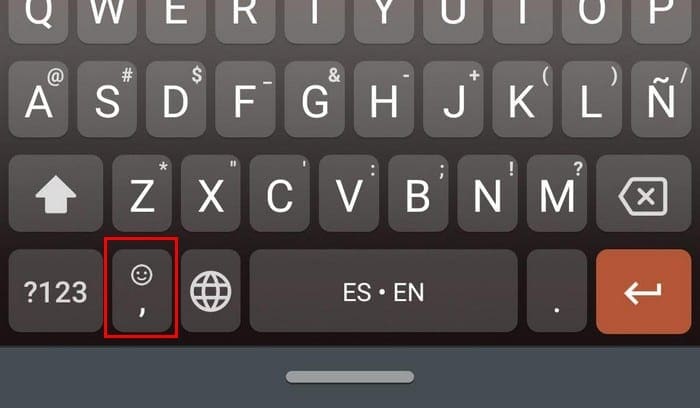
When you long-press on this button, three options will appear on top. Slide your finger towards the cog-wheel and go to Text correction. Here, simply toggle on the Show suggestion strip option. The next time you use your keyboard, everything will be the way it once was.
If the problem with the suggestion strip is that it keeps suggesting the wrong words, there’s something you can do about that. If you see a word in the suggestion strip you know you’re never going to use, you can erase it—long-press on the word you want to be removed and drag it towards the top.
You should see an option that says remove suggestion with a small trash can. Google doesn’t warn you that removing the word is something permanent. That could be that if you ever start using that word, Google will place it once again in the suggestion strip.

Gboard may not be suggesting the right words because the Next-word suggestion option is not enabled. You’ll find this option right below the Show suggestion strip. By having this option on, Google has a better idea of the word you are most likely to use next. You’ll also see an option called Personalized suggestions. By enabling this option, Google can pick up on the unique words you use and better predict the ones you’ll use next.
Final Thoughts
Gboard is a top-rated keyboard, but that doesn’t mean that it’s going to be perfect. It may not work the way you want to always, but there’s always something you can do to try and fix the issue. What are your thoughts on the suggestion strip on board? Share your thoughts in the comments below.



Great article. I have a related question. I use the Samsung keyboard and Google Voice typing. Until, recently, the words Google Voice typing was unsure of would be underlined, and I could tap on them to get a list of options. This was very helpful in correcting the common decoding errors. How do I get this back?