Is Apple Wallet showing expired boarding passes or event tickets when you try to check in? It’s time to delete these expired passes and tidy up your Wallet app. Follow along as I explain below how to remove items from Apple Wallet.
If you’re a regular Apple Wallet user, you’ll add hundreds of tickets, passes, payment cards, reward cards, etc., in the app.
As you add them and become busy with your personal and professional life, you forget that these cards don’t just delete themselves.
There comes a day when you open the Wallet app to make a contactless payment or check in to an event only to find that the Wallet app is displaying the wrong card or pass.
Sometimes, you’ll keep scrolling through the list of items on the Wallet app to find the right card or ticket and find yourself in an unpleasant situation when the queue behind you is long.
Apple empowers you to avoid such awful moments by allowing you to remove cards, tickets, passes, etc., as they expire. Here’s how to delete items you no longer need from Apple Wallet.
How to Remove Items from Apple Wallet
You can only remove stuff from Apple Wallet when you open the app on your iPhone and Apple Watch or access the Wallet section from the iPad Settings app.
If you’re accessing Wallet items from the Control Center, Lock Screen, or double-clicking the side or home button won’t allow you to remove cards or passes.
1. For iPhone
- Open the Apple Wallet app from Home Screen.
- From the list of cards and passes, tap the pass you want to delete.
- Now, tap the three dots icon on the top right corner of the pass.
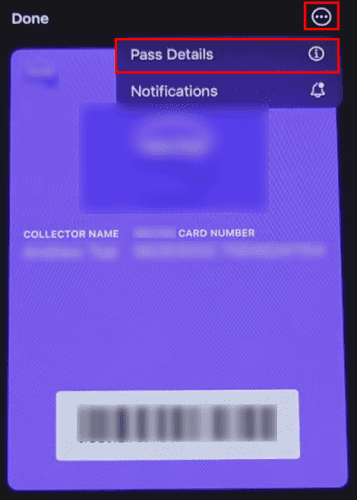
- Select the Pass Details (i) button.
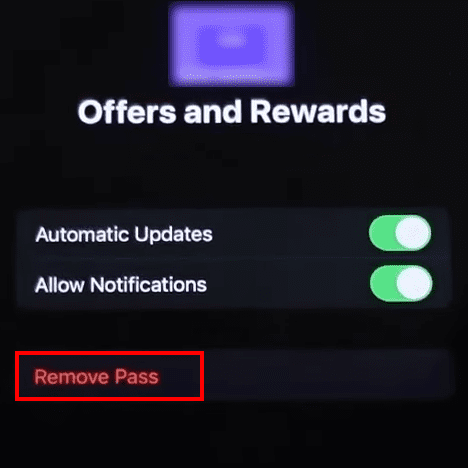
- You should see Remove Pass.
- Tap it to erase the pass from your iPhone.
- For credit or debit cards, you need to scroll to the bottom of the screen to find Remove This Card after tapping the three dots button.
2. For Apple Watch
- Open the Wallet app from the Apple Watch Home Screen.
- Select the pass or card you want to remove.
- Long press on the item until you see a pop-up with an option for Remove Pass or Remove This Card.
- Tap this to erase the item.
3. For iPad
- Open the iPad Settings app and select the Wallet app from the left-side panel.
- You’ll see a list of cards and passes.
- Tap the bank card you want to delete and scroll down to find the Remove This Card option. Tap to remove the item.
- For tickets and boarding passes, you should find the Remove Pass option instantly when you select one.
4. For Mac
If you’re using the Apple Wallet app on a compatible Mac computer, try these steps:
- Open the System Preferences app on Mac.
- Find Wallet & Apple Pay and click on it.
- Look for the card or pass you want to erase. Click on it.
- Now select the minus (–) sign on the item to remove it from Wallet & Apple Pay.
For all credit and debit cards, if the card issuer closes the account and deletes the card from their servers, Apple Wallet will automatically remove the item from your device. Hence, if you cannot find a bank card on your Wallet app, it’s likely that the bank will close it.
Now you know how to remove stuff from Apple Wallet one by one. You can also delete items from Apple Wallet in bulk. Find the steps below:
How to Remove Things from Apple Wallet: Multiple Passes
- After opening the Apple Wallet app from iPhone’s Home Screen, scroll down to the bottom of the app.
- There, you should see the Edit Passes option. Tap on that.
- Tap the solid red circle on the left of the pass and then select Delete on the right side.
- Repeat the steps until you’ve deleted all the old and expired passes you wanted to erase.
How to Remove Items from Apple Wallet: Hidden Stuff
If you’ve activated Hide Expired Passes from Wallet app settings, you won’t see the old passes and tickets on the main list of Wallet items.
Tap View Expired Passes. The View Expired Passes button usually shows the total number of old tickets and passes. In this situation, scroll down to the bottom of the Wallet screen.
Now, tap the pass you want to delete and select three dots. You should see the Remove Pass option now. Tap this to erase the hidden pass from your Apple Wallet.
How to Remove Items from Apple Wallet: Final Words
Deleting expired cards, venue tickets, boarding passes, etc., from your Apple Wallet keeps it clutter-free. Though you can add an unlimited number of passes and tickets, allowing these items to pile up will only create problems when you need to check in in a busy situation.
You’ve discovered how to delete items from Apple Wallet differently on various Apple devices. Don’t forget to comment below if you want to share different and easier methods than the above.
Next up, learn to see card number on Apple Wallet and set default card in Apple Wallet.