Skip to content
LogoTechnipages
technipages logo
  • Topics
        • Android
        • Browsers
        • Gaming
        • Hardware
        • Internet
        • iPhone
        • Linux
        • macOS
        • Office
        • Reviews
        • Software
        • Windows
        • Definitions
  • Product Reviews
  • Downloads
  • About

How to Remove Bing from Start in Windows 10 and 11

Andrew MyrickSeptember 5, 2023 Comments (0)
How to Remove Bing From Start in Windows 10 and 11 hero

Bing integration in the Start menu of Windows 11 and 10 can be a handy feature for quick searches, but not everyone finds it useful. If you’re among those who prefer a different search engine or simply want to declutter the Start menu, this guide is for you. Here is how you can remove Bing from Start in Windows 10 and 11.

Why Remove Bing From Start?

Removing Bing from the Start menu in Windows 10 and 11 might be a preference for users who want a more streamlined and personalized computing experience. Bing integration in the Start menu allows for web search results to appear alongside local file searches, which some users might find unnecessary or distracting.
Additionally, if you primarily use a different search engine, you might prefer to disable Bing to reduce clutter and ensure that only the most relevant local results are displayed. Disabling Bing from the Start menu doesn’t remove it entirely from the system, but it does tailor the search experience to better align with individual preferences and needs.

Pros:

  • Preference for Another Search Engine: If you prefer using Google or another search engine, you might want to remove Bing.
  • Cleaner Start Menu: Removing Bing can declutter the Start menu, making it look cleaner.
  • Privacy Concerns: Some users prefer to limit the integration of search engines within their operating system for privacy reasons.

Cons:

  • Loss of Quick Search Functionality: Bing integration allows for quick web searches directly from the Start menu, and removing it might slow down this process.
  • Potential Complexity: The process might seem complex for non-tech-savvy users.

How to Remove Bing From Start in Windows 11 and 10

Disclaimer: This guide involves changes to system settings and should be followed with caution. Always ensure you have proper backups and consult professional support or refer to official Microsoft documentation if needed. The author and this blog are not responsible for any issues that may arise from following this guide.

For Windows 11:

Step 1: Open Registry Editor

  1. Press ‘Win + R’: This opens the Run dialog box.
  2. Type ‘regedit’: Enter this command and press ‘Enter.’
    How to check LSA Protection in Windows 11
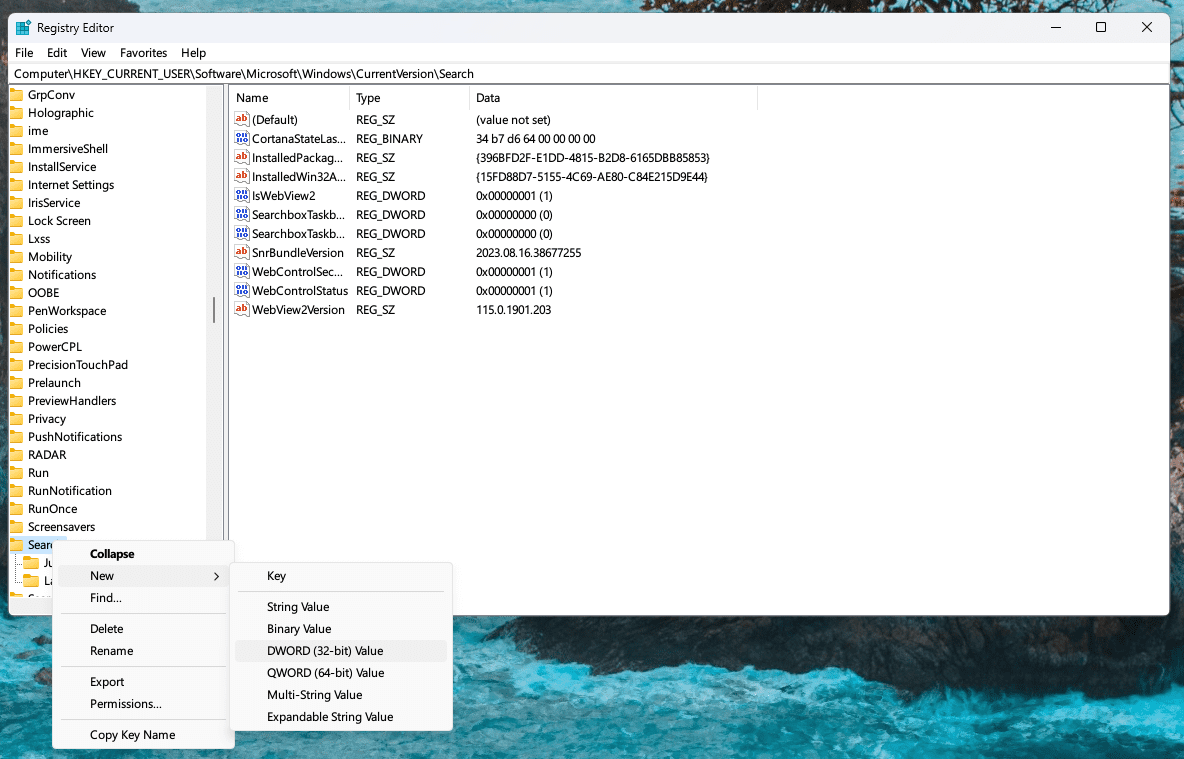
  3. Navigate to the Right Path: Go to HKEY_CURRENT_USER\Software\Microsoft\Windows\CurrentVersion\Search.
    Remove Bing from Start in Windows 10 and 11 - 1

Step 2: Modify the Registry

  1. Right-Click on ‘Search’: Select ‘New’ > ‘DWORD (32-bit) Value.’
    Remove Bing from Start in Windows 10 and 11 - 2
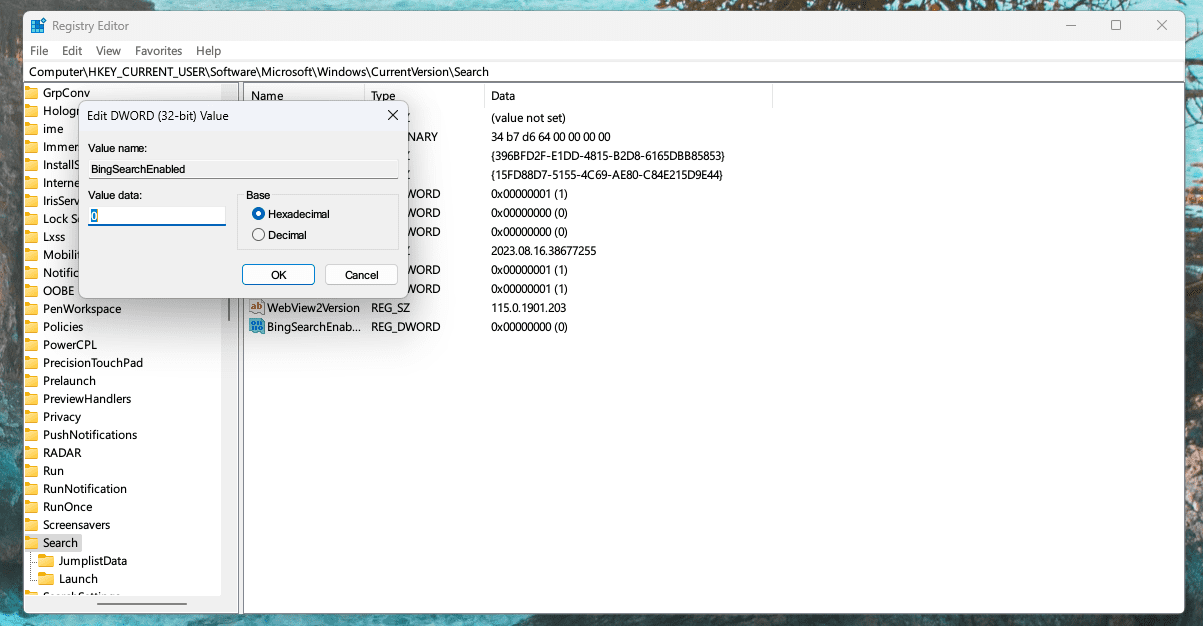
  2. Name the New Value: Name it ‘BingSearchEnabled‘ and press ‘Enter.’
  3. Double-Click the New Value: Set the ‘Value data’ to 0.
    Remove Bing from Start in Windows 10 and 11 - 3
  4. Restart Your Computer: The changes will take effect after a restart.
How to Remove Bing From Start in Windows 10:

Step 1: Open Group Policy Editor

  1. Press ‘Win + R’: This opens the Run dialog box.
  2. Type ‘gpedit.msc’: Enter this command and press ‘Enter.’
  3. Navigate to the Right Path: Go to User Configuration > Administrative Templates > Start Menu and Taskbar.

Step 2: Modify Group Policy

  1. Find ‘Do not use the search-based method when resolving shell shortcuts’: Double-click it.
  2. Select ‘Enabled’: Click ‘OK.’
  3. Find ‘Do not use the Web service to find applicable icon pictures’: Double-click it.
  4. Select ‘Enabled’: Click ‘OK.’
  5. Restart Your Computer: The changes will take effect after a restart.
Conclusion

Removing Bing from the Start menu in Windows 11 and 10 is like customizing your digital workspace. It’s about aligning the functionality of your system with your preferences and needs.

Remember, while this process offers a personalized experience, it involves changes to system settings that should be handled with care. Always ensure you understand the steps you’re taking and don’t hesitate to seek professional assistance if needed.

Categories: Browsers | Windows

Author Andrew Myrick

You Might Also Like

  • Google Chrome Stock Image

    Chrome: How to Open a PDF Using Adobe Reader

    Judy SanhzBrowsers
  • Remote Desktop Won’t Save Username and Password

    MonaWindows
  • Windows Settings Header

    Windows 11: Fix “This publisher has been blocked from running software…”

    Mitch BartlettWindows
  • TP Gear Header

    Fix: Unpinned Apps Keep Reappearing on Windows 11

    Madalina DinitaWindows

Leave a Reply

Your email address will not be published. Required fields are marked *

This site uses Akismet to reduce spam. Learn how your comment data is processed.

300x600
Turning on Triple Touch Zoom on Android

Turning on Triple Touch Zoom on Android

How to Connect Outlook 2023 to Gmail

How to Connect Outlook 2023 to Gmail

Netflix: Change Password

Netflix: Change Password

Everything You Need to Know About WhatsApp Delete for Me

Step-by-Step Guide: How to Use WhatsApp on Your Computer

Android: Enable or Disable Background Data

Android: Enable or Disable Background Data

300x250
profile pic

The Experts Behind Technipages

My name is Mitch Bartlett. I've been working in technology for over 20 years in a wide range of tech jobs from Tech Support to Software Testing. I started this site as a technical guide for myself and it has grown into what I hope is a useful reference for all.

Learn More

300x250 2
technipages logo white
linkedin icon

Technipages is part of Guiding Tech Media, a leading digital media publisher focused on helping people figure out technology. Visit guidingtechmedia.com to learn more about our mission and team.

© 2026 Guiding Tech Media All Rights Reserved

  • About Us
  • Contact
  • Legal & Privacy

© 2026 Guiding Tech Media All Rights Reserved

Information from your device can be used to personalize your ad experience.
Do not sell my personal information.