

If someone you know somehow manages to read your Telegram conversations, then adding a password to the chat is necessary. The good news is that you won’t have to install another app to do this. This security feature is integrated into Telegram and will prevent your conversations from being read by the wrong person.
How to Pin Protect Your Telegram Chats
To keep your Telegram conversations safe, open the app, and tap on the three-lined menu at the top left. Go to Settings, followed by the Passcode Lock option. Look for the Passcode Lock option and toggle it on.
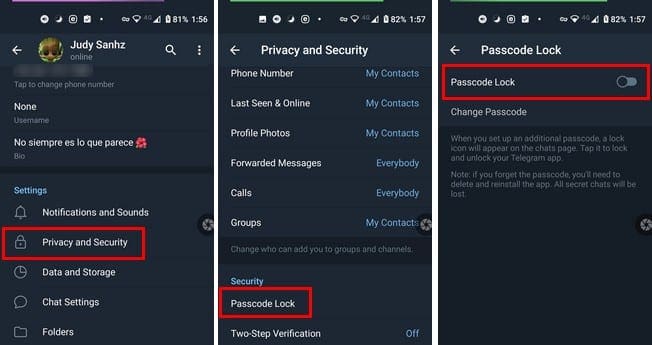
You’ll be asked to enter a four-digital passcode and then re-enter it to confirm. Once you get passed that, you’ll have access to more security options such as:
- Turn off passcode
- Change password – You can use this option to change your pin or switch to a traditional password.
- Unlock with fingerprint – You’ll need to have the fingerprint option enabled on your device already. If not, go to your device’s settings and turn it on.
- Auto-lock – You can choose from as little as five minutes to as much as five hours. There’s also an option to disable it.
- Show App Content in Task Switcher
Don’t forget that you can also manually lock Telegram by tapping on the top right lock option. When you do this, the next time you open the app, you’ll need to use the pin or use your fingerprint.

How to Give Your Telegram Chats End-to-Encryption
If you want to give your Telegram chats even more security, you can create a Secret Chat on Telegram. To create a secret chat, tap on the three-lined menu and choose Secret Chat. You’ll need to choose who you want to have that secret chat with.
When the secret chat opens, you’ll see what advantages secret chats have, such as not allowing forwarding, No trace is left on their servers, End-to-end encryption. You can also use the self-destruct feature with the messages you send. By having more security on Telegram, you won’t be inclined to delete your Telegram account.
Conclusion
When it comes to any personal information you have mentioned in a Telegram chat, you can never be too careful. It’s best to take a second longer to get to your chats than risk someone reading something they shouldn’t. How do you keep your Telegram chats safe? Share your thoughts in the comments below.




I can’t remember my password
Then how can I unhide a conversation that locked with passcode
how can i protect my file to be copied or how i can i make the file to read only without any other action
How can I put passcode in each folder in telegram?
I no can to open telegram I forget to password