Skip to content
LogoTechnipages
technipages logo
  • Topics
        • Android
        • Browsers
        • Gaming
        • Hardware
        • Internet
        • iPhone
        • Linux
        • macOS
        • Office
        • Reviews
        • Software
        • Windows
        • Definitions
  • Product Reviews
  • Downloads
  • About

How to Move the Install Folder for a Steam Game

Mel HawthorneSeptember 15, 2020 Comments (1)

If you’ve got multiple hard drives in your gaming computer, it’s entirely possible that you’ve configured more than one of them to be usable as a Steam library folder. In this sort of scenario, you may occasionally want to shuffle around the games you have installed. Maybe you need to move games to one drive to free up space on another; Alternatively, one of your hard drives could be faster than the other and you want to take advantage of that for faster loading times in a specific game.

How to move a game install folder

Thankfully, Steam makes it really easy to move game folders if you want to, so you don’t have to re-download any games. First, in the Library view of the main Steam window, right-click on the installed game you want to move, then click “Properties” in the right-click menu.

In the Library view, right-click an installed game, then click “Properties”.

Switch to the “Local Files” tab in the game’s properties window, then click the bottom option, labelled “Move Install Folder”.

Click “Move Install Folder” in the “Local Files” tab of the game properties window.

In the Move Install Folder window, select which location you want to move it to, then click “Move Folder” in the bottom left corner.

Tip: You can only move or install games in folders already configured to be Steam library folders.
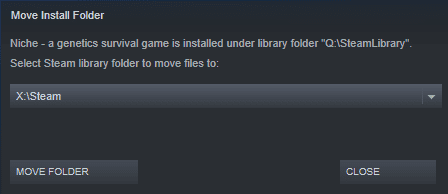
Select your new install location, then click “Move Folder”.

A progress bar will show you how far through the transfer process Steam is. It could take a very long time, especially if the game is extremely large and on or moving to a slow HDD. Once the process is complete, you’ll see a notification in the window saying “Success, moved [number of] files to new library folder”. Steam will also verify the game files, to ensure that nothing was corrupted during the transfer.
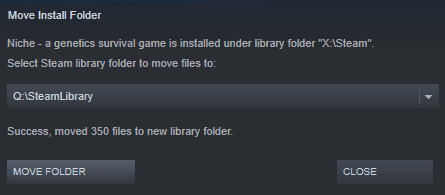
When the transfer is complete you’ll see the message: “Success moved [number of] files to new library folder”, and Steam will verify the game files.

Categories: Software

Author Mel Hawthorne

You Might Also Like

  • Slack: How To Change Your Password

    Mel HawthorneSoftware
  • Slack: How To Configure Automatic Slackbot Responses for Your Workspace

    Mel HawthorneInternet
  • Slack: How To Disable Public File Sharing

    Mel HawthorneInternet
  • What to Do if Microsoft Teams Insights Won’t Work

    Madalina DinitaSoftware

Comments

  1. Menai says:
    February 14, 2021 at 5:19 pm

    outdatet, intervace get updatet and u dont have this option anymore

Leave a Reply

Your email address will not be published. Required fields are marked *

This site uses Akismet to reduce spam. Learn how your comment data is processed.

300x600
Turning on Triple Touch Zoom on Android

Turning on Triple Touch Zoom on Android

How to Connect Outlook 2023 to Gmail

How to Connect Outlook 2023 to Gmail

Netflix: Change Password

Netflix: Change Password

Everything You Need to Know About WhatsApp Delete for Me

Step-by-Step Guide: How to Use WhatsApp on Your Computer

Android: Enable or Disable Background Data

Android: Enable or Disable Background Data

300x250
profile pic

The Experts Behind Technipages

My name is Mitch Bartlett. I've been working in technology for over 20 years in a wide range of tech jobs from Tech Support to Software Testing. I started this site as a technical guide for myself and it has grown into what I hope is a useful reference for all.

Learn More

300x250 2
technipages logo white
linkedin icon

Technipages is part of Guiding Tech Media, a leading digital media publisher focused on helping people figure out technology. Visit guidingtechmedia.com to learn more about our mission and team.

© 2026 Guiding Tech Media All Rights Reserved

  • About Us
  • Contact
  • Legal & Privacy

© 2026 Guiding Tech Media All Rights Reserved

Information from your device can be used to personalize your ad experience.
Do not sell my personal information.