Skip to content
LogoTechnipages
technipages logo
  • Topics
        • Android
        • Browsers
        • Gaming
        • Hardware
        • Internet
        • iPhone
        • Linux
        • macOS
        • Office
        • Reviews
        • Software
        • Windows
        • Definitions
  • Product Reviews
  • Downloads
  • About

How to Hide Who You’re Following on Facebook

Madalina DinitaMay 6, 2021 Comments (1)
facebook how to hide who you follow

If you don’t want other people to see who you’re following on Facebook, you need to tweak your privacy settings. You can also change who can see the Pages and lists you’re following. Follow the instructions below to make your Following list private.

Facebook: How to Hide Who You Follow

  1. Click on your profile picture and go to Friends.
  2. Click on More options and select Edit Privacy. The option is located on the right-hand side of the screen, next to Find Friends.edit-friends-privacy-settings-facebook
  3. Under Following, select Only Me. In this manner, you’re the only person who can see who you’re following.

facebook-change-who-can-see-who-youre-following

Keep in mind that this setting applies only to your list of friends. However, when you follow someone on Facebook, your friends may still see a notification about it in their News Feed.

The people you’re following may also get a notification when you start following them. If they disabled their notifications, they could still see your name on their Followers list. Moreover, they can also decide to make their list of followers visible to the public. This means that if your friends visit the profile of someone you’re following, they’ll see your name on their Followers list.

By the way, if you no longer wish to follow someone, you can use the Unfollow option.

  1. Click on your profile picture, select Friends, and then click on the Following option.
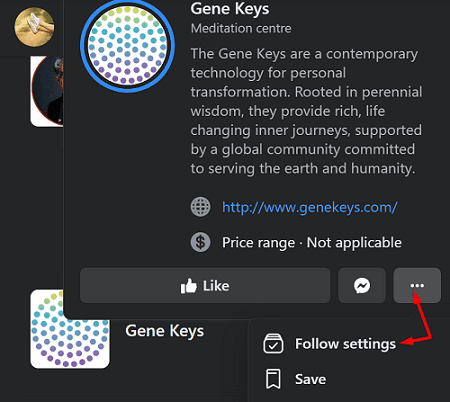
  2. Locate the person or page you want to unfollow. Hover over that page until the mouse pointer changes to a hand and click on More options. Then select Follow settings.facebook-follow-settings
  3. Hit the Unfollow button.

The good news is that they won’t get a notification that you stopped unfollowing them.

Conclusion

If you don’t want other people to see who you’re following on Facebook, you can change your privacy settings and hide that information from prying eyes. The same is valid if you don’t want other users to see what pages you’re following.

For more useful privacy tips, check out the guides below:
  • Stop Facebook from Tracking Your Internet Activity
  • How to Stop Facebook from Suggesting Me to Others
  • Facebook: How to Change Privacy Settings for Certain Posts
Categories: Internet

Author Madalina Dinita

You Might Also Like

  • What is a Loopback Address?

    Mel HawthorneInternet
  • How to Recover Facebook Account Without a Phone Number

    How to Recover Facebook Account Without a Phone Number

    Susan SheffieldInternet
  • What Is Fog Computing

    What Is Fog Computing?

    Martin ClarkInternet
  • How to Find Watched Videos on Facebook in 2023

    Susan SheffieldInternet

Comments

  1. Zizo says:
    September 25, 2021 at 4:45 am

    I can’t find options under friends in latest Facebook version as described above ????‍♂️

Leave a Reply

Your email address will not be published. Required fields are marked *

This site uses Akismet to reduce spam. Learn how your comment data is processed.

300x600
Turning on Triple Touch Zoom on Android

Turning on Triple Touch Zoom on Android

How to Connect Outlook 2023 to Gmail

How to Connect Outlook 2023 to Gmail

Netflix: Change Password

Netflix: Change Password

Everything You Need to Know About WhatsApp Delete for Me

Step-by-Step Guide: How to Use WhatsApp on Your Computer

Android: Enable or Disable Background Data

Android: Enable or Disable Background Data

300x250
profile pic

The Experts Behind Technipages

My name is Mitch Bartlett. I've been working in technology for over 20 years in a wide range of tech jobs from Tech Support to Software Testing. I started this site as a technical guide for myself and it has grown into what I hope is a useful reference for all.

Learn More

300x250 2
technipages logo white
linkedin icon

Technipages is part of Guiding Tech Media, a leading digital media publisher focused on helping people figure out technology. Visit guidingtechmedia.com to learn more about our mission and team.

© 2026 Guiding Tech Media All Rights Reserved

  • About Us
  • Contact
  • Legal & Privacy

© 2026 Guiding Tech Media All Rights Reserved

Information from your device can be used to personalize your ad experience.
Do not sell my personal information.