

As you start to type into the To, Cc, or Bcc fields in Outlook, the AutoComplete feature automatically displays email addresses from the address book. Unfortunately, AutoComplete may sometimes stop working. If Outlook doesn’t bring contacts up from the address book when you compose a new email, follow the steps below to solve the problem.
What to Do if Outlook AutoComplete Won’t Work
Enable AutoComplete
Check if AutoComplete is turned on. Reset the option and check if you notice any improvements.
- Launch Outlook.
- Click on the File menu.
- Go to Options.
- Then, select the Mail tab.
- Scroll down to Send messages.
- Locate the option that says Use Auto-Complete List to suggest names when typing in the To, Cc, and Bcc lines.

- If the checkbox is not ticked, tick it to enable the option.
- If the feature is already on, disable it and exit Outlook.
- Wait for 30 seconds, restart Outlook, and re-enable AutoComplete.

Rename the RoamCache Folder
If one of the files in your RoamCache folder got corrupted, AutoComplete won’t work properly. Rename the RoamCache folder to completely reset AutoComplete. Here’s how to do that on home email accounts and MS Exchange.
How to Rename the RoamCache Folder on Home Email Accounts
- Click on the File menu.
- Click on Info.
- Navigate to Account Settings.
- Make sure you’re not using a Microsoft Exchange account.
- Then, click on the Search icon, and enter %LOCALAPPDATA%\Microsoft\Outlook.
- Right-click on the RoamCache folder.

- Select Rename.
- Change the folder name to RoamCache_OLD.
- Restart Outlook.

How to Rename the RoamCache Folder on Exchange Accounts
- Click on the File.
- Then, select Info.
- Go to Account Settings.
- Select your Exchange Server account.

- Click on Change.
- Untick the Use Cached Exchange Mode checkbox.

- Hit Next, and then Finish.
- Exit Outlook.
- Click on the Windows Search icon, and paste %LOCALAPPDATA%\Microsoft\Outlook.
- Then, right-click on the RoamCache folder.
- Select Rename, and rename it to RoamCache_OLD.
- Restart Outlook to create a new RoamCache folder.
- Go back to Outlook Account Settings.
- Select your Exchange account, and hit Change.
- Tick the Use Cached Exchange Mode checkbox.
- Save the changes and restart Outlook.


Run Outlook in Safe Mode
Launch Outlook in Safe Mode to see if one of your add-ins is interfering with AutoComplete and your list of contacts.
- Press the Windows and R keys.
- In the new Run window, enter outlook.exe /safe and hit Enter.
- Compose a new email and check if Autocomplete is working.
If the issue is gone, this indicates your add-ins are breaking AutoComplete. Restart Outlook normally, go to File, select Options, and click on Add-Ins.
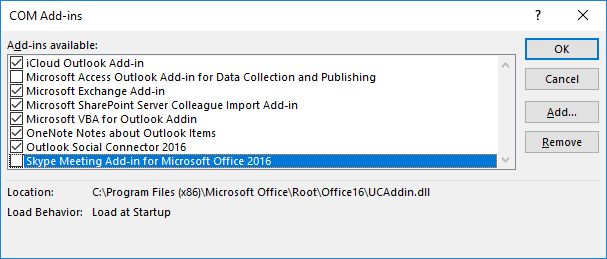
Disable all of your add-ins, compose a new email and check if AutoComplete works properly. Then, enable your add-ins one by one to identify the culprit. Once the problematic add-in has been identified, you can either update it or uninstall it.
Update and Repair Office
Outlook is part of the Office Suite. Update Office to the latest version and repair the installation files to fix your Outlook issues.
- Launch Outlook.
- Go to File and select Account.
- Navigate to Update Options, and hit Update Now.

- Restart Outlook, and check the results.
- If the issue persists, go to Control Panel.
- Click on Programs, and then select Programs and features.
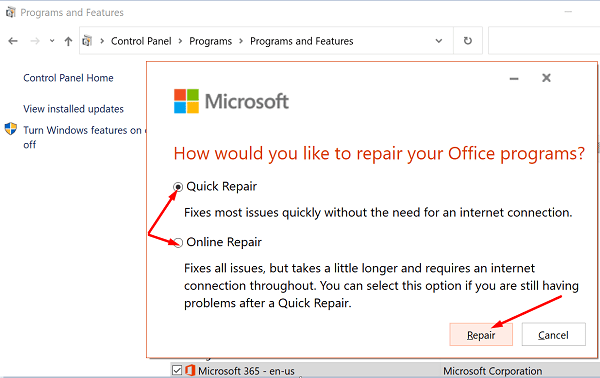
- Select Office 365 and hit the Change button.
- Run the Quick Repair tool.

- If the issue persists, run the Online Repair tool as well.
- Restart your computer, launch Outlook, and check the results.

Conclusion
If Outlook AutoComplete won’t bring contacts up from the address book when composing a new message, make sure the feature is enabled. Then, rename the RoamCache folder and run Outlook in Safe Mode. Check if your add-ins are causing the problem. If the issue persists, update and repair your Office installation files.
Did you manage to solve your Outlook problem? Hit the comments below and let us know which solution worked for you.


Try using the tool provided here to complete uninstall all remnants of Office > https://support.microsoft.com/en-us/office/uninstall-office-from-a-pc-9dd49b83-264a-477a-8fcc-2fdf5dbf61d8?ui=en-us&rs=en-us&ad=us
Then try reinstalling Office.
While following MS advise to fix autocomplete email issue, I was directed to click on my Office Home and Business 2016, then click Change. Now the entire program, all attributes, and my email were Uninstalled! not just changed, or repaired. And my parent files from the initial purchase will not download: “We can’t install. The following products can’t be installed at the same time 0365HomePremRetail”
This is disastrous! Is there any person that I can contact to resolve this? I can’t find a single human being at MS to answer a phone or open a Chat. And, I no longer have email to correspond!
Error Message:
Sorry, installation cannot continue because no compatible Microsoft 365 and Office products are detected.
Go Online….
Error Code 30053-44
The scroll bar has disappeared from my contact list in hotmail. I can only see the first 10 or 12 names beginning with the letter A. If I click on a letter, for instance, an “L”, only the first name of all the L’s shows up. Very frustrating.
This did not solve my problem. The People list in MAIL is complete but Contacts/People list in Outlook is empty for the past week. Is there any way to solve this without having to retype my entire contacts again? Is there a way to copy the People list from MAIL into Outlook?