

Bitwarden may sometimes throw an annoying “Failed to Fetch” error when you try to log in to the desktop app. The same error may sometimes affect your browser extension as well. If the “Failed to Fetch” error prevents you from using the password manager on your device, use the troubleshooting solutions listed below.
Fix Bitwarden “Failed to Fetch” Error on Desktop
Update the App
Running outdated app versions on the latest OS releases may trigger all sorts of issues, including login problems. If you’re using a self-hosted instance on Mac, launch Terminal and run these two commands:
./bitwarden.sh updateself./bitwarden.sh update.
If you’re on Windows, launch Command Prompt with administrative rights and run the following commands:
.\bitwarden.ps1 -updateself.\bitwarden.ps1 -update.
Disable Your Firewall
Temporarily disable your firewall and check if you can log in to your Bitwarden account. You can re-enable your firewall protection after logging in. If this method worked, make sure to whitelist Bitwarden in your firewall settings.
Reinstall Bitwarden
If the problem persists, uninstall Bitwarden and restart your machine. Then download the app again, reinstall it and check if it works as intended. Download the app from the official website instead of downloading it from the App Store or Microsoft Store.
Fix Bitwarden “Failed to Fetch” Error in Browser
Clear the Cache
Your browser cache and cookies might be interfering with Bitwarden. This could cause a long list of glitches, including login issues and the “Failed to fetch” error. Go to your browser’s History section, select the Clear browsing data option and clear the cache. If you use Chrome, use this step-by-step guide to clear the cache.
Disable Your Extensions
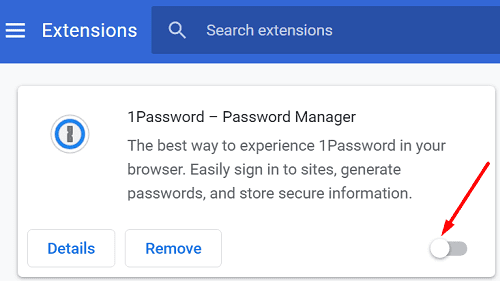
The other extensions installed on your browser might be breaking Bitwarden’s login script. Disable all your extensions, restart your browser and check the results. Of course, make sure Bitwarden is the only password manager running on your device.
Reinstall Bitwarden
If nothing worked, uninstall Bitwarden. If your login problem is caused by invalid certificate issues, installing a fresh copy of Bitwarden should fix it.
Conclusion
To sum up, if the “Failed to Fetch” error prevents you from logging in to Bitwarden, temporarily disable your firewall and check if the issue is gone. If the problem persists, reinstall the app. If this error affects the Bitwarden extension, clear your cache, disable the other extensions and reinstall your Bitwarden extension.
Are you still experiencing the “Failed to Fetch” error? Let us know in the comments below.



Hi, when you started talking about clearing the cache I thought incognito mode. I logged in in incognito mode and was able to save the new item