
Skip to content
LogoTechnipages
technipages logo
  • Topics
        • Android
        • Browsers
        • Gaming
        • Hardware
        • Internet
        • iPhone
        • Linux
        • macOS
        • Office
        • Reviews
        • Software
        • Windows
        • Definitions
  • Product Reviews
  • Downloads
  • About

How to Enable Word Wrap in Notepad++

Mel HawthorneSeptember 21, 2020 Comments (0)

When using text editors such as Notepad++ to develop code, you may run into certain lines of code that are too long to fit in your text editor window. Having to scroll sideways to see all of the code on the line can make it harder to debug it and follow exactly what the code is doing.

Word wrap is a feature in many text editors such as Notepad++ that formats long lines of text by wrapping extra text onto multiple lines. Word wrapped lines are purely a visual effect and don’t actually change the number of lines in the code. To add a new line to code, a specific “newline” character has to be used, therefore, as Word wrap doesn’t add newline characters, a compiler doesn’t count the text as a new line. The wrapping effect is entirely dynamic and adjusts based on the width of the window.

Tip: The “newline” character is a whitespace character, similar to spaces and tabs. It can often also be referred to as a “carriage return”.

There are scenarios where Word wrap can potentially be more annoying than not having it. For example, if you’ve got an extremely large line of text, such as a base64 encoded image, a single line could stretch over more lines than fit on a full-screen window. In general, however, Word wrap can be a significant help as being able to see a whole line of code makes it a lot easier to follow exactly what that code does.

How to enable Word wrap

To enable Word wrap in Notepad++ you need to click on “View” in the top bar, then click on “Word wrap”.
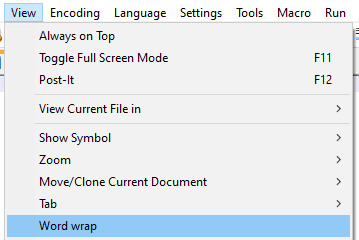
Click on “View” in the top bar, then click on “Word wrap”.

Alternatively, you can click the thirteenth button from the right under the top bar. When you hover your mouse over the button it will say “Word wrap”.

Alternatively, click on the thirteenth icon from the right in the icon bar under the top bar.

Categories: Software

Author Mel Hawthorne

You Might Also Like

  • How to Move the Install Folder for a Steam Game

    Mel HawthorneSoftware
  • How to Add a Bot to a Discord Server

    Mel HawthorneInternet
  • trello how to add checklist

    Trello: How to Add Checklists

    Madalina DinitaSoftware
  • Why Google Maps is Not Showing The Quickest Route

    Madalina DinitaSoftware

Leave a Reply

Your email address will not be published. Required fields are marked *

This site uses Akismet to reduce spam. Learn how your comment data is processed.

300x600
Turning on Triple Touch Zoom on Android

Turning on Triple Touch Zoom on Android

How to Connect Outlook 2023 to Gmail

How to Connect Outlook 2023 to Gmail

Netflix: Change Password

Netflix: Change Password

Everything You Need to Know About WhatsApp Delete for Me

Step-by-Step Guide: How to Use WhatsApp on Your Computer

Android: Enable or Disable Background Data

Android: Enable or Disable Background Data

300x250
profile pic

The Experts Behind Technipages

My name is Mitch Bartlett. I've been working in technology for over 20 years in a wide range of tech jobs from Tech Support to Software Testing. I started this site as a technical guide for myself and it has grown into what I hope is a useful reference for all.

Learn More

300x250 2
technipages logo white
linkedin icon

Technipages is part of Guiding Tech Media, a leading digital media publisher focused on helping people figure out technology. Visit guidingtechmedia.com to learn more about our mission and team.

© 2026 Guiding Tech Media All Rights Reserved

  • About Us
  • Contact
  • Legal & Privacy

© 2026 Guiding Tech Media All Rights Reserved

Information from your device can be used to personalize your ad experience.
Do not sell my personal information.