You have several other apps on dark mode and want to enable dark mode on Microsoft Teams. You’re used to seeing your apps in this mode, and Teams will not be any different. You can switch to dark mode and back to light as often as possible since the switch is not permanent. So if you ever get tired of dark mode, you follow the same steps to return. Keep reading to see how to enable this mode on Microsoft Teams for Windows and Android.
How to Enable Dark Mode on Microsoft Teams – Windows App
Turning on dark mode is quick and easy for users using Microsoft Teams on the Windows app. Once the app is open, click on the three dots at the top right and choose Settings. Once in Settings, click on General on the left.

On the right, you’ll see the Dark Mode and Hight contrast options. They both fall into the dark mode category, but the Dark Mode is easier on the eyes. As long as you’re there, you can also choose a Chat density. You can choose from options such as Comfy or Compact.
How to Switch to Dark Mode on Microsoft Teams for Android
Since you won’t always be on your computer, it makes sense that you want to enable Dark Mode on your Android device. To turn on Dark Mode on your Teams Android app, open the app and tap on your profile picture on the top left and go to Settings. Once in Settings, tap on Appearance and choose from the available options: Light, Dark, and System Default. When you select an option, you’ll see a message to restart the app with the new colors.
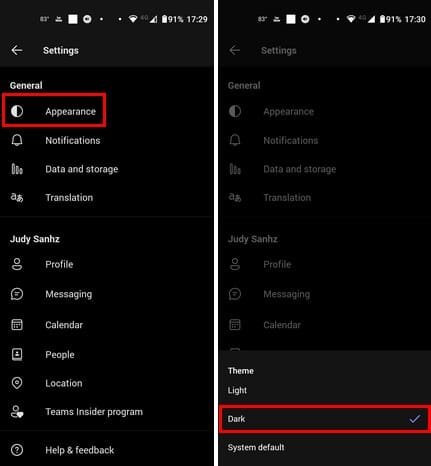
The System Default option saves you time since the app will switch themes when you do it on your phone’s settings. The same steps apply if you want to enable dark mode on Teams for iPad.
Further Reading
Speaking of Dark Mode, there are other apps you can enable the feature on. For example, here are the steps if you still need to enable dark mode on Facebook. For Snapchat users, here are the steps to turn on dark mode. I remembered WhatsApp users and the steps for them to follow to turn on dark mode.
Android users, if you want to know how to turn on dark mode at a scheduled time, we’ve also got you covered. Mastodon users also have steps to follow if they want to turn on dark mode on the social media app.
Conclusion
Dark Mode is easier on the eyes and helps save battery power. If you ever miss light mode and want to return, you can follow the same steps and choose the light theme. The steps are quick and easy, so even if you’re in a hurry, it’s something you can do. The Android app does require a restart, but it restarts in no time. How long do you think you’ll use darl mode? Share your thoughts in the comments below, and remember to share the article with others on social media.