Skip to content
LogoTechnipages
technipages logo
  • Topics
        • Android
        • Browsers
        • Gaming
        • Hardware
        • Internet
        • iPhone
        • Linux
        • macOS
        • Office
        • Reviews
        • Software
        • Windows
        • Definitions
  • Product Reviews
  • Downloads
  • About

How to Enable Dark Mode in Firefox

Judy SanhzJune 21, 2022 Comments (0)
Firefox

There is just something about the dark mode that makes us want to enable it if an app or browser has it. It’s easier on your eyes which makes it easier to work with. If you’ve never used dark mode before, don’t worry if you want to give it a try. If you don’t like what you see, you can always change it. You can also choose from the many theme options Firefox has to offer.

How to Turn on Dark Mode in Firefox

Firefox has many useful features you can use. Dark Mode is one of the many themes you can add to your browser. If you have the browser up to date, you’ll always have access to the latest features and themes. To start using Dark Mode, open Firefox and click on the three-lined menu at the top right. Go to Add-ons and themes.
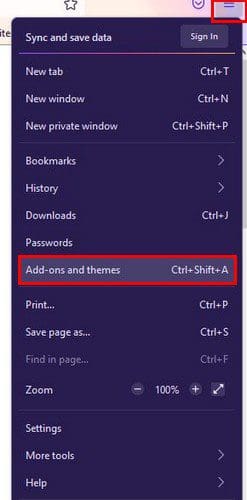
Firefox Add-ons Themes

Click on the Themes option to your left. The Dark mode option should be the first one on the list. If you’ve never used it, you’ll need to enable it. Click on the Enable button.
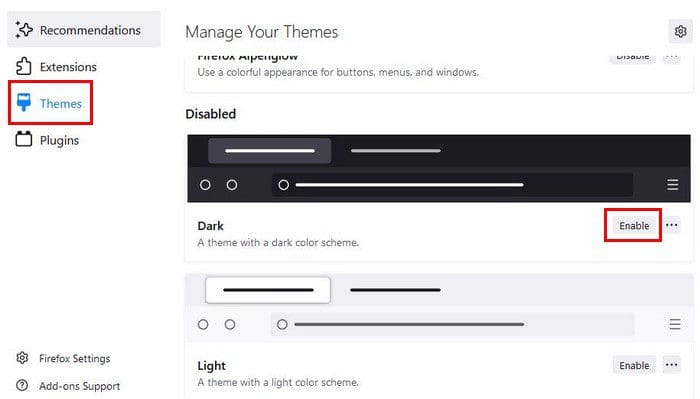
Dark mode Firefox

As soon as you enable it, the browser will go dark. There is no need to restart it. There is also a system theme to choose from. If you click on the dots, you can see who the theme’s author is and when it was updated. The Enable button will now say Disable. If you ever change your mind, you’ll only need to go to Settings > Add-ons, and themes > Dark Mode theme> Disable. That’s all there is to it.

Themes

If you see any other themes you want to try, simply click on the Install Theme button. You can switch themes as many times as you wish. To look for more theme options, click the Find More Themes button at the bottom.

Find More themes Firefox

A new tab will open when you click on the button, taking you to more theme options. The listed themes will be the recommended, trending, and top-rated themes. You’ll also see the topics at the top, just in case you’re looking for a specific theme. To see more of the popular theme, there will be a see more option for those themes. You’ll also see a search option to your left if you’re looking for themes from a specific person.

Conclusion

Since you’re going to be looking at Firefox for a while while you work or do other things, you might as well like what you see. There are various themes to choose from. So many that you might have a hard time choosing which one to install first. Did you find a theme you like? Let me know in the comments below, and don’t forget to share the article with others on social media.

Categories: Internet

Author Judy Sanhz

You Might Also Like

  • Fix Netflix DRM Error N8156-6013

    Mitch BartlettInternet
  • stop-facebook-from-tracking-my-internet-activity

    Stop Facebook from Tracking Your Internet Activity

    Madalina DinitaInternet
  • google-meet-couldnt-start-video-call-because-of-an-error

    Fix: Google Meet Call Couldn’t Start Because of an Error

    Madalina DinitaInternet
  • draw-radius-google-maps

    Can You Draw a Radius on Google Maps?

    Madalina DinitaInternet

Leave a Reply

Your email address will not be published. Required fields are marked *

This site uses Akismet to reduce spam. Learn how your comment data is processed.

300x600
Turning on Triple Touch Zoom on Android

Turning on Triple Touch Zoom on Android

How to Connect Outlook 2023 to Gmail

How to Connect Outlook 2023 to Gmail

Netflix: Change Password

Netflix: Change Password

Everything You Need to Know About WhatsApp Delete for Me

Step-by-Step Guide: How to Use WhatsApp on Your Computer

Android: Enable or Disable Background Data

Android: Enable or Disable Background Data

300x250
profile pic

The Experts Behind Technipages

My name is Mitch Bartlett. I've been working in technology for over 20 years in a wide range of tech jobs from Tech Support to Software Testing. I started this site as a technical guide for myself and it has grown into what I hope is a useful reference for all.

Learn More

300x250 2
technipages logo white
linkedin icon

Technipages is part of Guiding Tech Media, a leading digital media publisher focused on helping people figure out technology. Visit guidingtechmedia.com to learn more about our mission and team.

© 2026 Guiding Tech Media All Rights Reserved

  • About Us
  • Contact
  • Legal & Privacy

© 2026 Guiding Tech Media All Rights Reserved

Information from your device can be used to personalize your ad experience.
Do not sell my personal information.