

There are times that, without you noticing, you end up opening a large number of tabs. You open tabs you need at the moment and tabs you think you might need shortly. Before you know it, you have so many tabs open it’s not even funny.
Microsoft said that this new feature is aimed to make tab organization and management easier for everyone. If you want to give this new feature a try, keep reading to see how you can turn on this useful feature. If you see that it’s not for you after trying it, you’ll also see how you can turn them off.
Enable Vertical Tabs in Microsoft Edge
One way to turn on the vertical tabs in Edge is to go into the browser’s settings. But, before that, look at the top left of your browser. If you see the vertical tab icon, all you need to do is click on the to enable it.

If you don’t see the vertical tab icon as shown in the image above, then it looks like you’ll need to go into the browser’s settings. To enable the vertical tabs in the Microsoft Edge browser (once you have the browser open):
- Click on the three dots
- Go to Settings
- Appearance
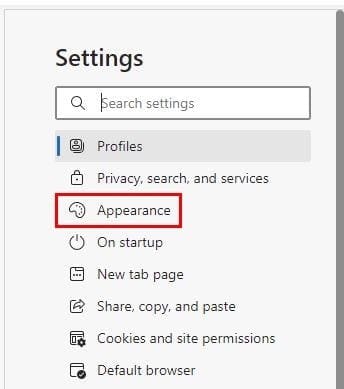
Once you’re in appearance, scroll down a bit and look for the option that says Show vertical tabs button.
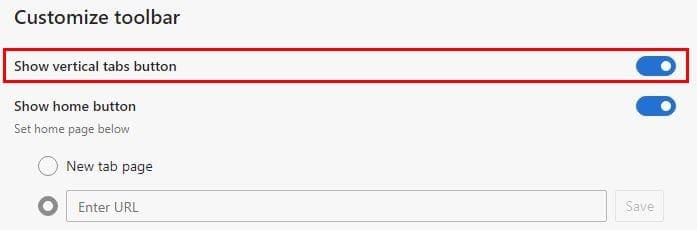
These are the steps to follow if you don’t see the option to enable the tab sidebar.
Once you’ve enabled the vertical tabs on Edge, the tabs you have open should now be visible on the browser’s left side. The tab that you’re currently looking at will stand out from the others. To close a specific tab, click on the X, and to open a new tab, click on the new tab option. You can also try the keyboard shortcut Ctrl + T as well.

To close vertical tabs, you can click on the icon with the arrow pointing up. You can also right-click on a space to the side of the side tab option and click on turn off.

If you don’t like the idea of the vertical tabs showing too much, you can always collapse it. You can do that by clicking on the arrow pointing left.
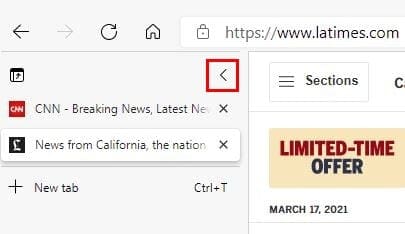
When you want the side menu to show completely, hover over the tabs and click on the pin icon at the top right.

Conclusion
Especially when you have the tabs open for work reasons, they tend to get out of control. Thanks to this tool, you can find it in Microsoft Edge; it’s easier to keep your open tabs organized. What are your thoughts on the feature? Do you think it helps to keep your tabs organized? Share your thoughts in the comments below.




Vertical tabs keep reappearing (I think: after waking up the PC) despite the fact that I disable them. Is there a way to disable them once and for good?
This helped the dreaded RTFM time and effort. Kudos! Cheers!