

You always try to put the best possible picture in any profile. Since you probably use Gmail for just about everything, you took your time to add a great profile picture.
But, after a while, that profile picture may start to look a little outdated. Maybe you started wearing glasses or got a haircut. Either way, it’s time to update that profile picture regardless of whether you’re using your device or computer.
How to Change Your Gmail Profile Picture – Gmail App
To update your Gmail profile picture, open the app, and tap on the profile picture at the top right. If you have more than one account by tapping on the profile picture, not only can you change the profile picture, but you can also see your other accounts.

If you want to change the profile picture for another account, tap on the account. You’ll now be on a different account, and you can now proceed with the following instructions.
Once again, tap on the profile picture at the top right, followed by the Manage Your Google Account option. Tap on your profile picture and then the Set Profile Photo option.
Choose if your new profile picture will be added through your device’s gallery or if you’ll be taking a new picture. Adjust the square that represents how big your profile picture can be and tap on Accept to save your changes.
Don’t panic if the profile picture doesn’t change instantly. Go ahead and check your email, and you’ll see how shortly after you’ll see your new profile picture.
How to Change Your Gmail Profile Picture – Desktop
The steps to change your Gmail profile picture are very easy. Go to Gmail on your computer and click on the profile picture at the top right.
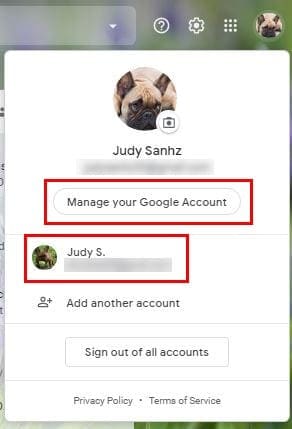
If you need to switch accounts, just click on the one you want to switch to at the bottom. If you’re already on the right account, click on the Manage your Google Account.
When you get to your Google Account home page, place the mouse cursor on your profile picture. You’ll see how the camera icon appears in the bottom part of your current profile picture.

Click on the image and choose whether you want your new profile picture to be taken from your Google Photos or if you want to upload one from your computer.
Once you’ve chosen your profile picture, don’t forget to click on the blue Set as profile picture button.
Conclusion
After a while, even the picture you thought was fantastic can get old. Good thing that changing your Gmail profile picture is fast and easy. That’ll motivate you to update your profile picture more often.


