When you first got your phone, you had no choice but to use the browser it was set up with. When you were done customizing your Android device, you probably ended up using browsers such as Chrome, Opera, or Firefox. But, you may feel it’s time for a change and want to make another browser your default search engine. Let’s see how you can make one of the popular search browsers your default one on your Android device with Android 9, 10, and 11.
How to Switch Web Browsers on Android 10
If you feel it’s time for a change and wants to use another web browser, you’ll need to go into your device settings. Once you’re in Settings, go to Apps and notifications.

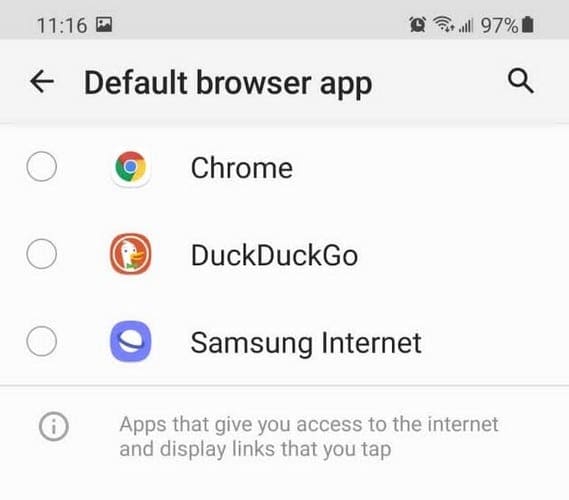
The next option you’ll need to tap on is Default apps and when it opens, choose the Browser app option.

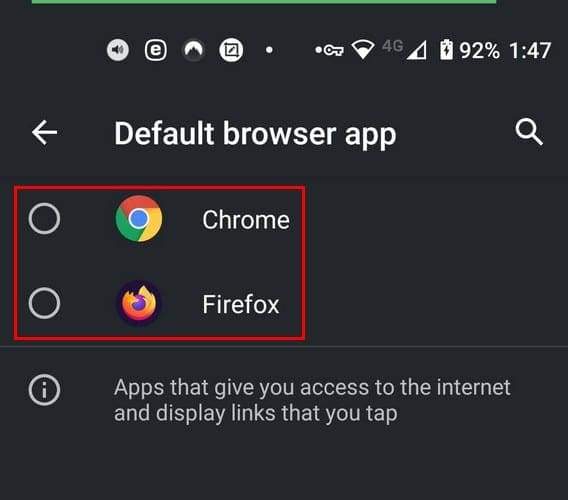
The browser app option will list all the browsers you have installed on your device. If you forgot to add, simply go to the Google Play Store and install your preferred browser. Follow these steps again, and the browser you just installed will be listed. There is no need to restart your Android device.
How to Change Default Browser App on Samsung Galaxy S21 Plus – Android 11
If you’re enjoying one of the latest Samsung phones and didn’t like the browser you started using, here’s how you can change it. Go to:

- Settings
- Apps
- Default Apps
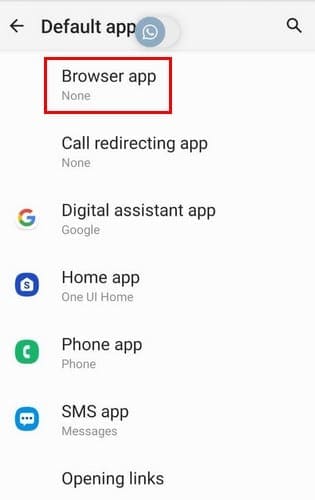
- Browser app
Once you’re in the Browser app option, you’ll see a list of the browsers you have on your S 21. Select the browser you want to use, and you’re done. There is no need to restart your Galaxy S21.
How to Change Default Browser App on Samsung Galaxy Tab S5e Android 9
When you feel like using your tablet, these are the steps to follow to change the default browser app. Go to Settings, and in the search option at the top, type default apps. As soon as you start typing the word default, the choice should appear. When it does, tap on it.

In Browser apps, you’ll see a list of all the browsers you have installed on your Android device. Choose the one you want to have as your default browser, and you’re good to go.
Conclusion
You use browsers a lot, and you should be happy with the browser’s option. After a while, the browser you’re using can get changes you’re not happy with. When that happens, it’s time to go shopping for a new browser and make that new browser your default option. Which browser have you made your default browser on your Android device? Share your thoughts in the comments below.