Skip to content
LogoTechnipages
technipages logo
  • Topics
        • Android
        • Browsers
        • Gaming
        • Hardware
        • Internet
        • iPhone
        • Linux
        • macOS
        • Office
        • Reviews
        • Software
        • Windows
        • Definitions
  • Product Reviews
  • Downloads
  • About

How to Add a PDF to Microsoft Word

Judy SanhzAugust 16, 2023 Comments (1)
Word Logo Header

As a Microsoft Word user, you use the app for all kinds of things. Word can help you with work documents and even for school assignments.

Related Reading:

  • What Is Microsoft Word? Definition and Meaning
  • Word 365: How to Find the Word Count
  • Microsoft Word: Tips and Tricks That Every User Should Know
  • How to Flip an Image in Microsoft Word
  • How to Enable Track Changes Mode in Microsoft Word

Adding a PDF to a Word document may sound complicated, but it’s easier than it looks. And today, we’ll show you how to do precisely that.

How to Insert a PDF Into a Microsoft Word Document

To insert a PDF into Microsoft Word, you can follow the instructions listed below.

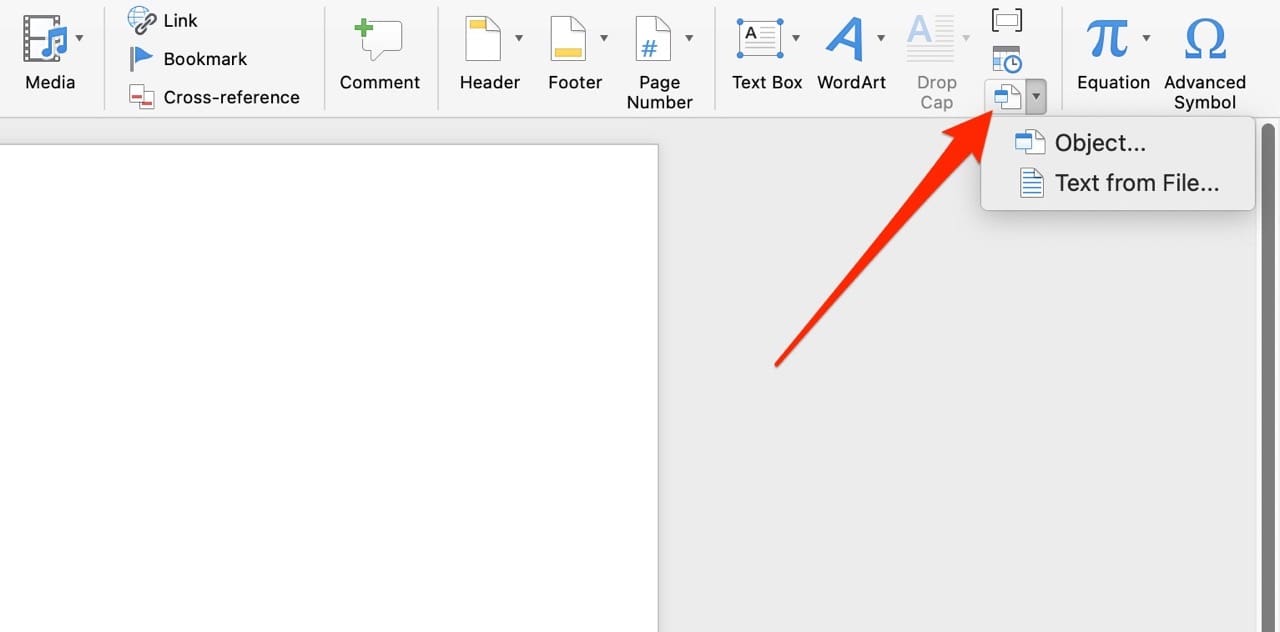
  1. Open Word and go to the Insert tab.
  2. Select the Object icon; it’s quite small and in the right-hand corner of the toolbar at the top. Then, click on Object from the dropdown menu when it appears. Choose the Object Option in Microsoft Word
  3. A new window will appear. Tap From File in the bottom left-hand corner. The From File Option in Microsoft Word
  4. Choose the PDF document that you would like to insert into Microsoft Word from your computer.
  5. After choosing the document you’d like to add, select Insert. You’ll then see the PDF appear in an image format within Microsoft Word.
How to Add a PDF to a Microsoft Word File Using Google Docs

Did you know that you can also add a PDF into Microsoft Word with Google Docs? Here’s how to do that.

  1. Open the PDF in your Google Drive and select Open With Google Docs at the top of your screen.
  2. When the file is open in a Google Doc, go to File > Download and select Microsoft Word. The option to save a Google Doc into Microsoft Word
  3. Your file will then download in a .docx format. Once that has completed, open it.
  4. In Microsoft Word, your file will then open. Sometimes, it might be read-only. If it is, click on Duplicate to begin editing it.

Note that because your PDF will be in .docx format, you’ll have to convert it again. Go to File > Save As > File Format and select PDF from the list of options to do this. The option to convert a Word document when saving it to your computer

Now You Know How to Insert a PDF Into Microsoft Word

You might think of .docx and PDF being two different formats, but they have a lot of similarities. And in some cases, you may want to insert your PDFs into Microsoft Word. Doing so is quite simple, and you can choose from numerous preset versions as well if you need to.

In addition to inserting PDFs from your computer, you can do the same from a Google Doc and save your content in Microsoft Word. Once you’ve finished editing, it’s easy to save and convert your document.

Categories: SoftwareTagged Updated0806

Author Judy Sanhz

You Might Also Like

  • iTunes Download Header

    iTunes: How to Download Previously Purchased Music, Movies, and Audiobooks

    Mitch BartlettiPhone
  • thunderbird connection to server was reset

    Thunderbird Error: The Connection to Server Was Reset

    Madalina DinitaSoftware
  • teams a file with the same name already exists

    Teams: A File with the Same Name Already Exists

    Madalina DinitaSoftware
  • excel protected view not opening file

    Excel: This File Couldn’t Open in Protected View

    Madalina DinitaSoftware

Comments

  1. LC says:
    January 18, 2022 at 7:22 pm

    How do you download something from a website and save it to a Word document. I do not want a pdf.

Leave a Reply

Your email address will not be published. Required fields are marked *

This site uses Akismet to reduce spam. Learn how your comment data is processed.

300x600
Turning on Triple Touch Zoom on Android

Turning on Triple Touch Zoom on Android

How to Connect Outlook 2023 to Gmail

How to Connect Outlook 2023 to Gmail

Netflix: Change Password

Netflix: Change Password

Everything You Need to Know About WhatsApp Delete for Me

Step-by-Step Guide: How to Use WhatsApp on Your Computer

Android: Enable or Disable Background Data

Android: Enable or Disable Background Data

300x250
profile pic

The Experts Behind Technipages

My name is Mitch Bartlett. I've been working in technology for over 20 years in a wide range of tech jobs from Tech Support to Software Testing. I started this site as a technical guide for myself and it has grown into what I hope is a useful reference for all.

Learn More

300x250 2
technipages logo white
linkedin icon

Technipages is part of Guiding Tech Media, a leading digital media publisher focused on helping people figure out technology. Visit guidingtechmedia.com to learn more about our mission and team.

© 2026 Guiding Tech Media All Rights Reserved

  • About Us
  • Contact
  • Legal & Privacy

© 2026 Guiding Tech Media All Rights Reserved

Information from your device can be used to personalize your ad experience.
Do not sell my personal information.